This morning we checked out of our hotel and then headed to the Holiday Inn next door to have breakfast with the happy new couple and the other wedding guests. We bade farewell to family and friends and then it was off to the airport for our flights back home.
We were slightly delayed leaving Cleveland due to some mechanical jetway issues, but we still had enough time once we got to Charlotte to hike from the E concourse to our connection in the B terminal. Other than that, both flights were uneventful, which is always good. Little did I know what I was in store for …
Looking out the window on our approach to the Tampa airport, my wife noticed a lot of traffic on the Howard Frankland Bridge southbound. It looked like two lanes were closed and the backup was pretty bad. We made a mental note to take the Courtney Campbell Causeway home instead. Unfortunately my mental notepad didn’t work properly (too much partying over the weekend?) because by the time we got off the plane, gathered our luggage, and got out to the cars in the parking garage, I had totally forgotten about the traffic. My wife left the garage before me but was going to swing by the airport post office to drop off some mail. Thus, I ended up passing her and getting onto the ramp from the airport to I-275 South first.
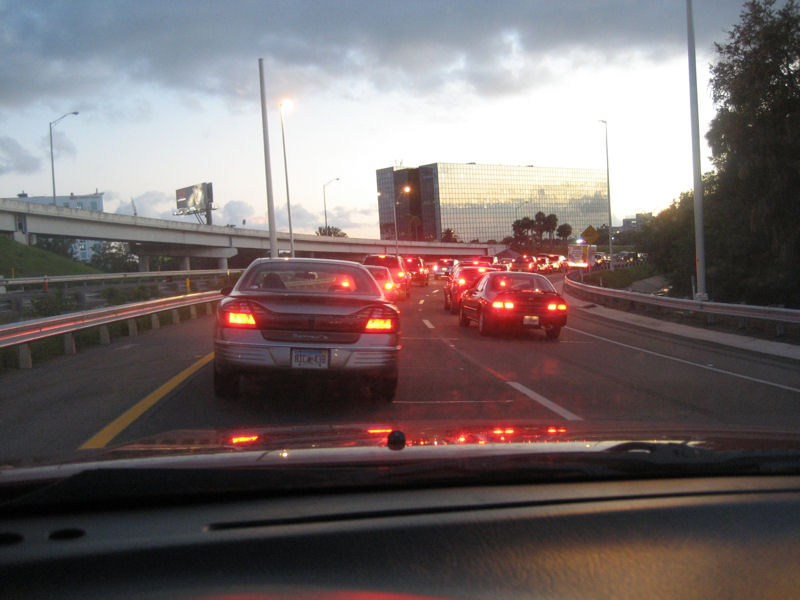 The first indication that I was making a huge mistake was some guy driving backwards on the ramp towards me. Coming out of the airport to the split into the various highways and roads can get confusing to visitors (and even those of us who live here) so this backwards driver didn’t register as an omen of a larger problem ahead (again, my mental notepad breakdown). I figured he had just taken the wrong side of the split and was trying to correct his mistake (I gave him an angry honk on the way past anyway). A few seconds later, though, I realized why he was going backwards … the ramp was backed up with stopped traffic. At this point, I knew I was going to be stuck so I quickly called my wife and reminded her to take the other bridge … just in time. She was able to get onto the Courtney Campbell and she and my daughter got home at a normal time.
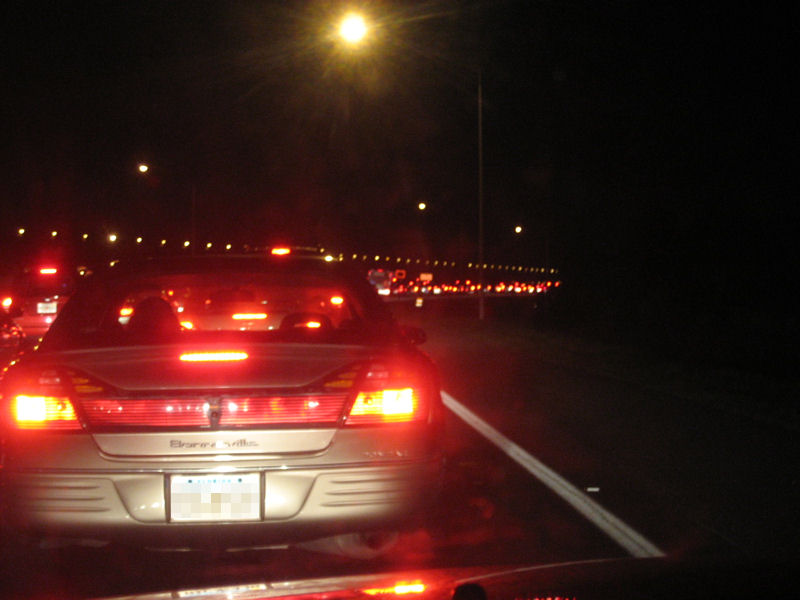
For me, though, the only progress forward I made in the next 90 minutes was from other cars leaving the ramp by either driving in reverse (or turning around and driving backwards) back into the airport. I am not one of those drivers who will risk a moving violation (or accident!) and go the wrong way on a road even if it means being stuck in traffic. I saw more near-crashes take place as people were being stupid and impatient (at one point I heard a really loud squealing of brakes and was sure we were all going to domino crash forward into each other). I just sat in my car (turned off) and read on my Treo, watching the occasional tow truck zip by on the (now closed) southbound lanes of I-275. Finally, traffic started crawling forward but it took another 30 minutes to creep off the ramp and through the single lane on the bridge, surrounded by tow trucks and police cars. By this time (8:30pm) it was dark so I couldn’t see much but there were a lot of cars off to the side of the road. I was just happy to finally be moving again.
Watching the news that evening, I discovered I had been stuck in the aftermath of 19 separate crashes involving 64 different cars on the bridge, apparently caused by heavy traffic leaving the Bucs game in combination with some heavy rain. The first crash occurred around 4:53pm, almost a full hour before we landed! If they were closing the highway, why didn’t they (the FHP) also close the ramp from the airport!? What a crazy way to end a really fun weekend.