I’ve been running a Pi-Hole ad blocker on my home network (and a remote family network) in one way or another (local install on a RasPi, Docker container on a NAS, etc.) for over 10 years! Of course it only worked when we were at home, so my family had started noticing how cluttered their browsing experience was getting when they were out and about (and would usually complain to me). Then a recent Cox equipment change on the remote family network broke Pi-Hole’s functionality completely by not allowing changes to the default DNS at the router level. Sure I could have hard-coded the Pi-Hole IP address into to every device on the network, but instead I started investigating cloud-based DNS services and decided to give NextDNS a try.
NextDNS bills itself as “the new firewall for the modern internet” and advertises “protection from all kinds of security threats, blocks ads and trackers on websites and in apps … on all devices and on all networks.” The free version of the service gives you 300k queries/month, after which DNS will still work but it won’t do any filtering. A Pro subscription gives you unlimited queries for unlimited devices for $2/mo or $20/year. I started with the free plan but was quickly impressed with the service and switched to Pro.
It basically operates like a Pi-Hole in the cloud: instead of pointing your router (or devices) to the Pi-Hole’s IP address for DNS services, you use the NextDNS servers. A differentiator from Pi-Hole here is that with NextDNS you can create multiple DNS profiles that can have different configurations, privacy settings, filtering options (blocklists, allow/deny lists), and even parental controls. So you could have one general profile for your own devices (phones, laptops, etc.) and another just for your kids’ devices (phones, tablets, Chromebooks, etc.) with additional restrictions on SafeSearch, YouTube, even apps and games.
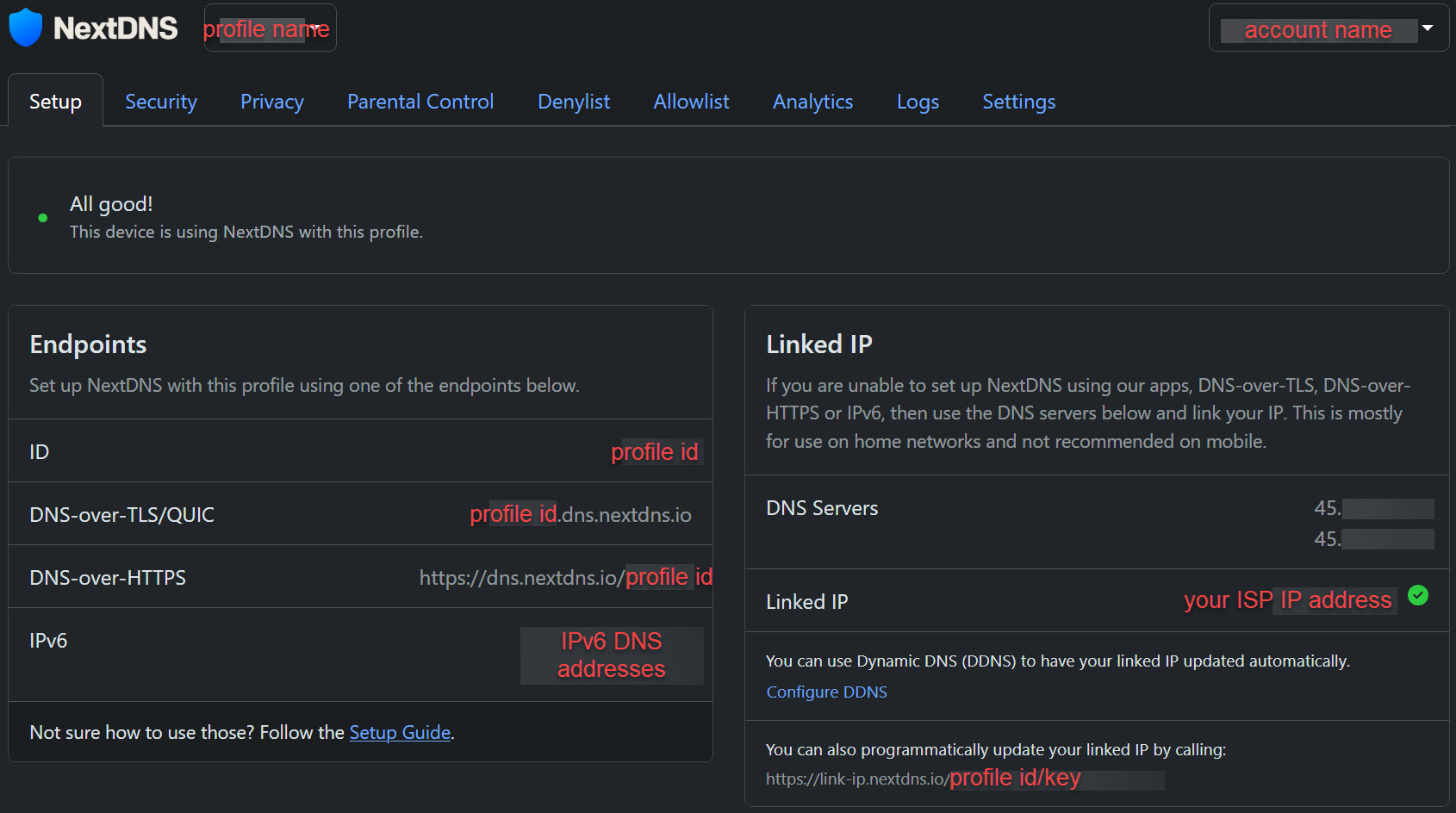
Each profile comes with its own unique ID that also maps to a set of DNS server IP addresses that you can use on the devices you want to associate with. You have several options for configuring devices to use a NextDNS profile: DoT, DoH, IPv6, and linked IP (which typically would be the IP address of your ISP connection). Also included on the setup page are detailed instructions on how to set up each option on a variety of devices (Android, iOS, Windows, macOS, Linux, ChromeOS, browsers, and routers).
I started with three basic profiles: one for the primary home network (PCs, phones, networking components, printers, etc.), one for the IoT VLAN (cameras, TVs, automation devices, Amazon Echos, etc.), and one for the remote family network. I didn’t do this because I planned to have differences in the settings for each profile, but keeping them separate did allow me to review the logs and analytics for each one individually making it easier to see what sites were being hit by devices on each network. On the local home network, I didn’t want to try and install the NextDNS client on my EdgeRouter ER-X so I just used the IPv4 DNS server addresses (via linked IP on the appropriate profile) in the two DHCP services (Home and IoT) I had set up. For the remote family network, since the new Cox router didn’t allow overriding the DNS servers being used, I had to instead make the NextDNS changes directly on a Windows laptop (and again, having the instructions right on the profile page was very helpful).
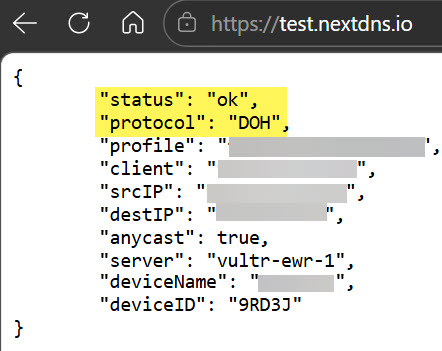
With the networking changes in place, I tested each device by browsing to test.nextdns.io and confirmed they were indeed using the NextDNS service. Then I just did some browsing and testing to see if ads were indeed being blocked (interestingly, canyoublockit.com was blocked by NextDNS so I had to temporarily add it to the allow list so I could use it).
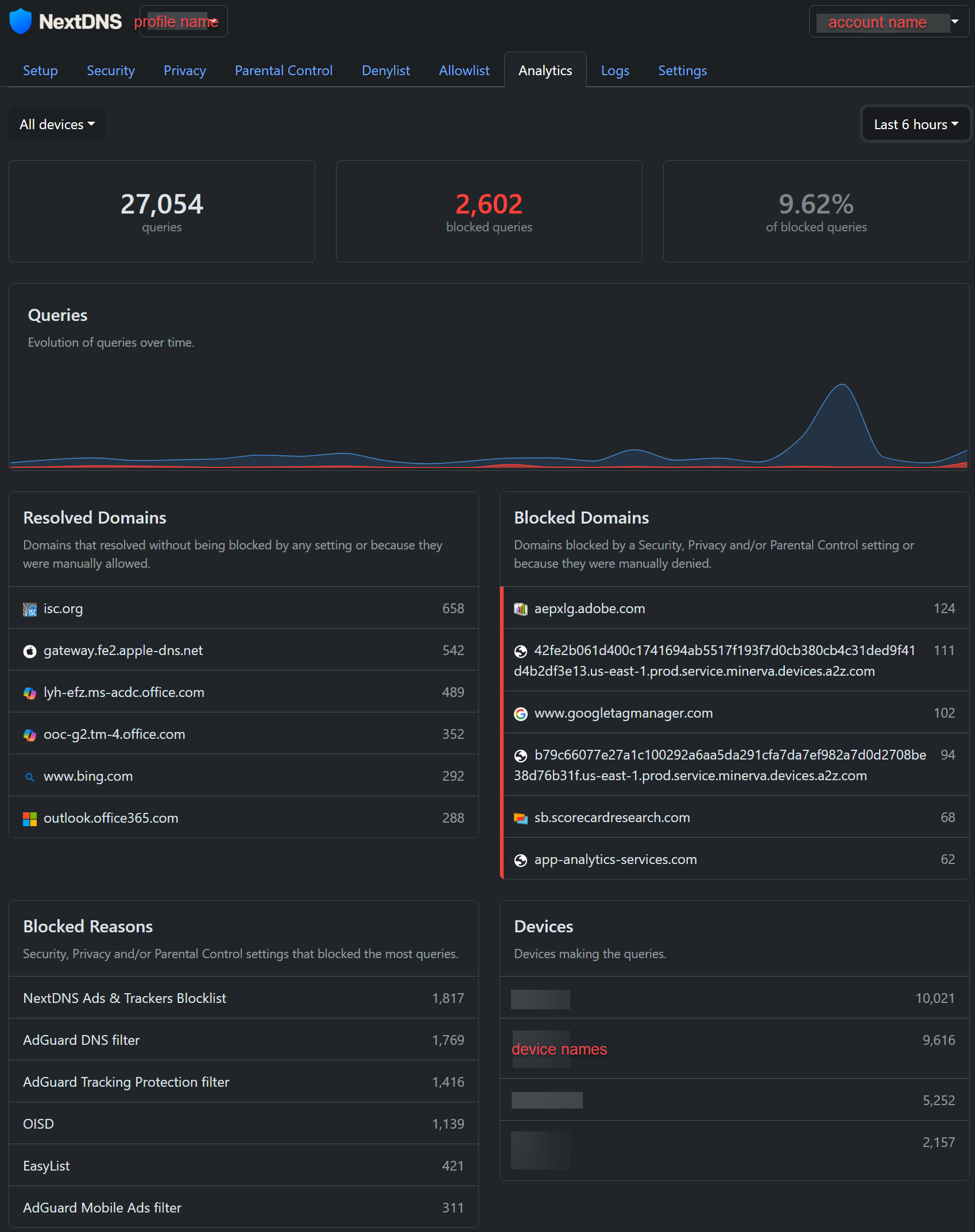
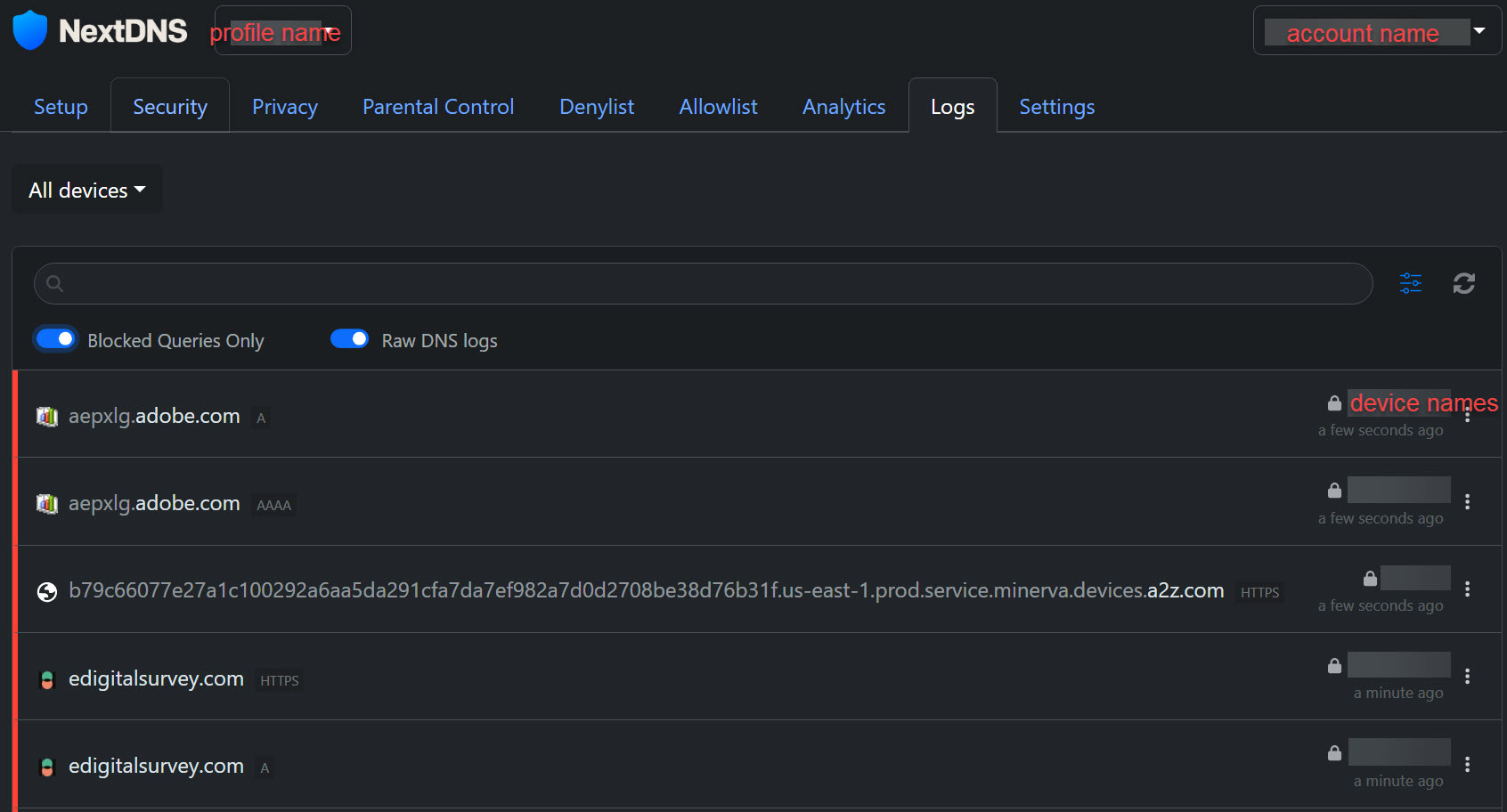
Like a Pi-Hole, you can review the logs and analytics to get an idea of what’s going on behind the scenes with DNS queries from your devices. You can turn off logging if you want, or change the retention period (from 1 hour to 2 years). Individual device names only work if you’re using DoT, DoH, or an app (more on that below), so unfortunately on my IoT VLAN, everthing is grouped under “unidentified devices” due to how I used the linked IP setup at the router level. This is one downside of using a cloud based service like NextDNS over a locally hosted ad blocker: since the Pi-Hole was on my LAN, it could record individual IP addresses/hostnames for each device but NextDNS is on the internet so all it sees is traffic originating from your single ISP-issued IP address.
-
- profile setup
-
- test.nextdns.io
-
- analytics
-
- logs
It’s a little odd that the DNS profiles are technically public. Anyone who can “guess” the profile ID (a 6-character random string) could theoretically use your paid-for NextDNS subscription on their own devices and their traffic would just get lumped under “unidentified devices.” I guess this is low risk, it just seems weird.
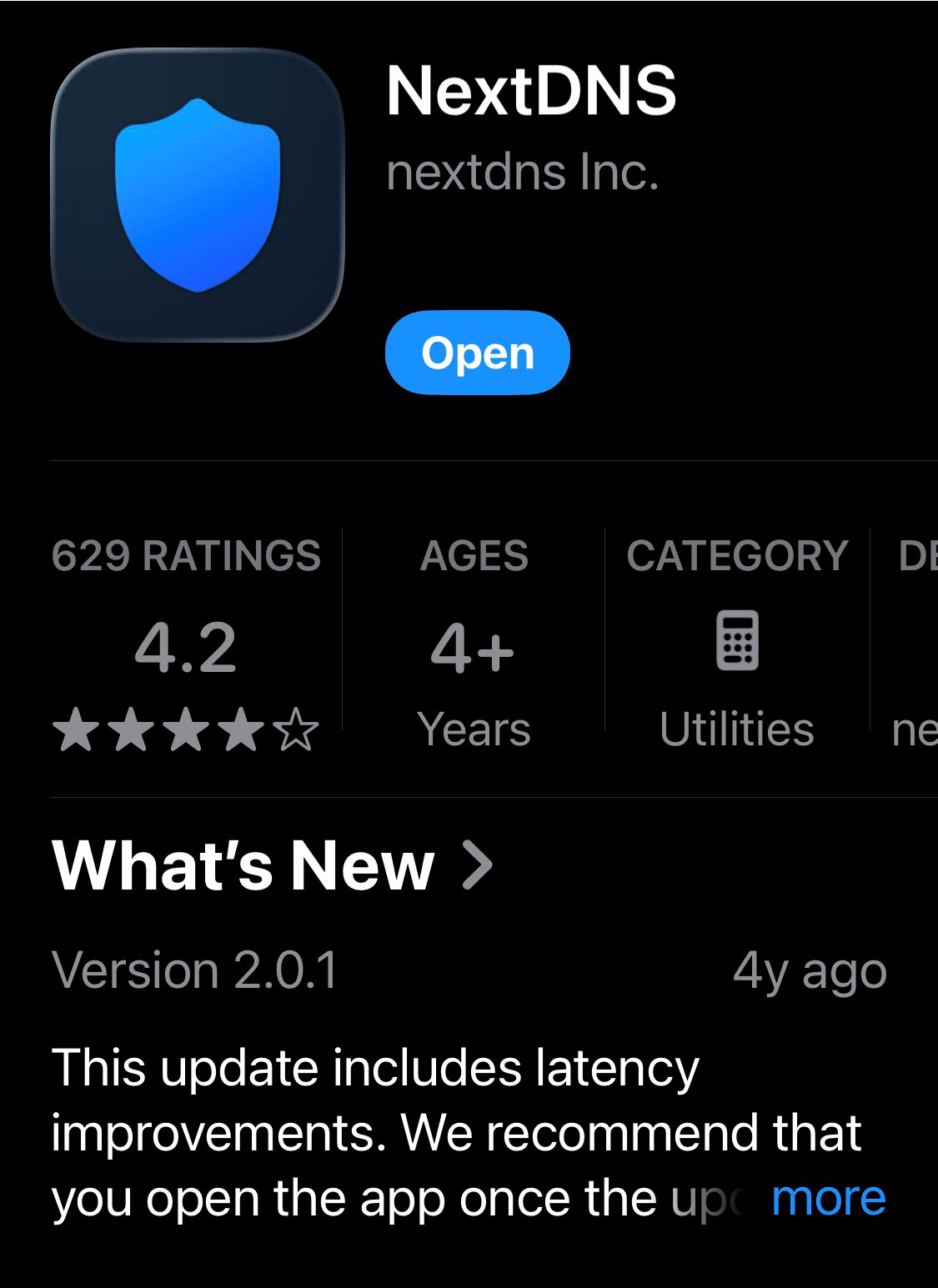
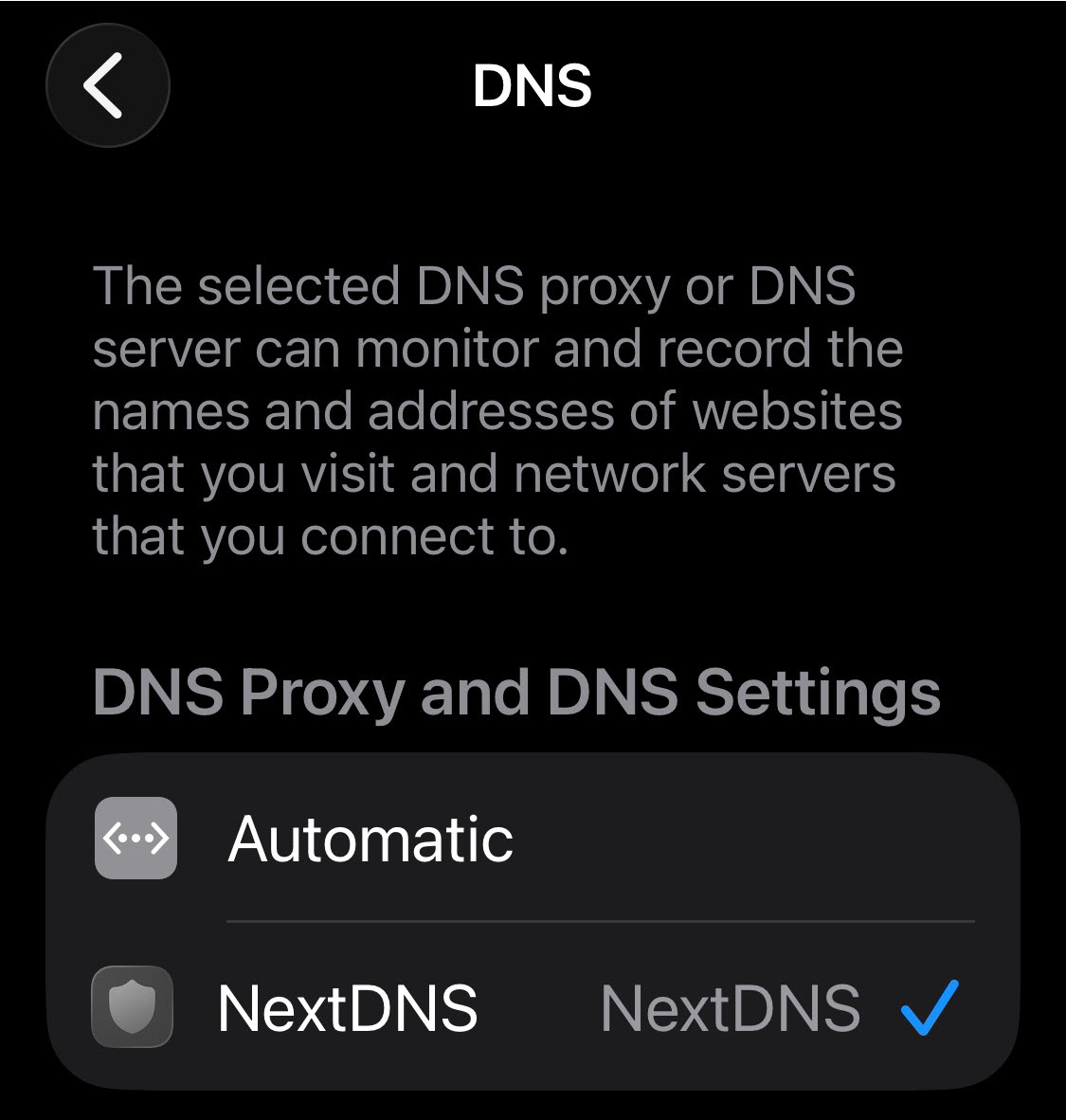
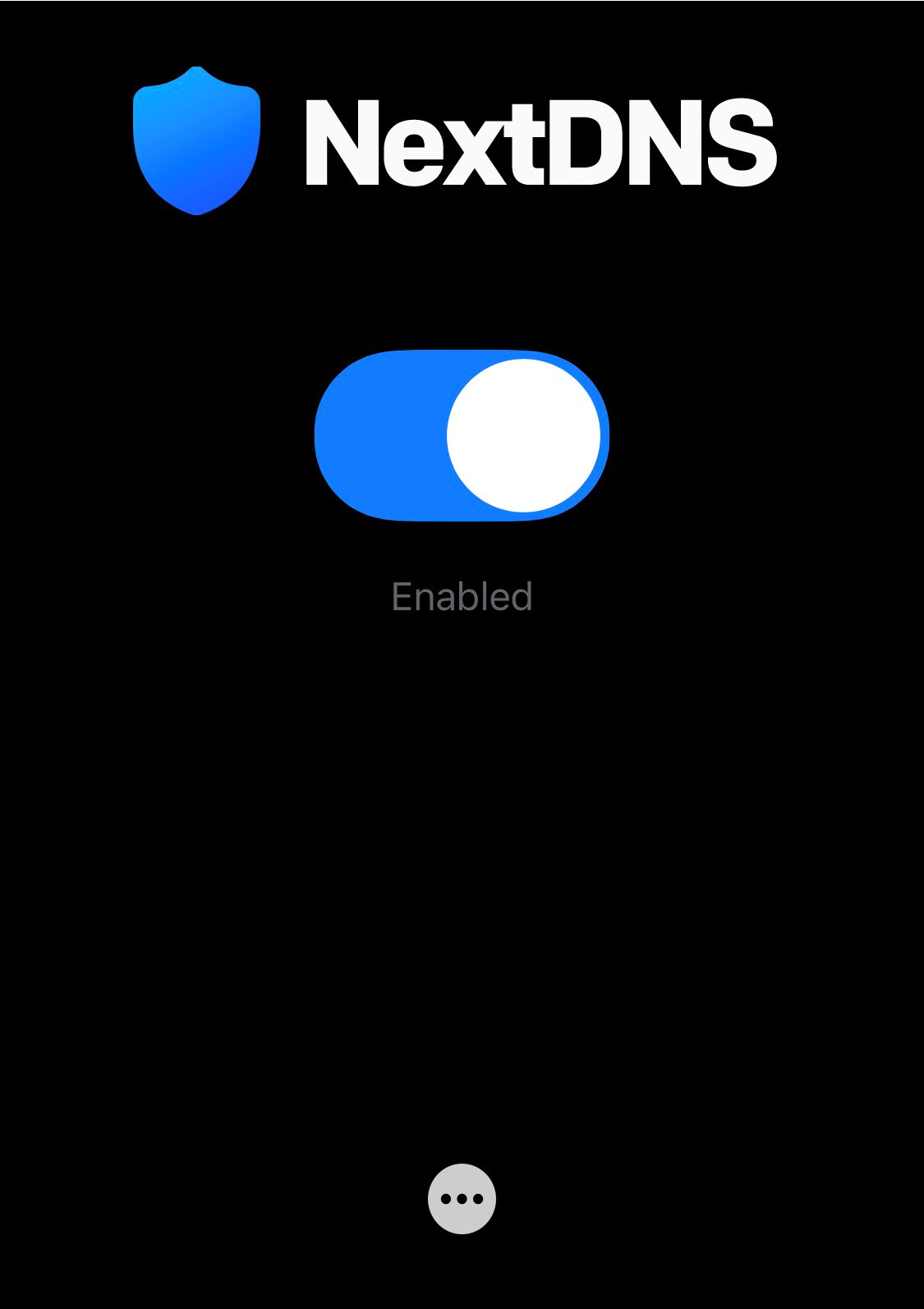
Now that I had ad blocking working on the home network, what about for mobile devices when not at home? This is where the various NextDNS apps come in. I installed the NextDNS app for iOS on our iPhones, enabled NextDNS as a proxy, and then used the profile ID in the app. Now, all traffic (cellular and WiFi) uses NextDNS so no more ads while out of the house, definitely a plus over a local Pi-Hole! And if there’s an issue, you can just toggle the app off to go back to your cellular provider’s DNS (you can also set parental controls on the app to prevent your kids from bypassing the service or exclude specific WiFi networks (like while at work)).
-
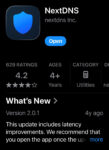
- install iOS app
-
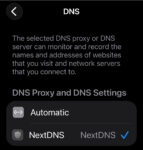
- enable proxy provider
-
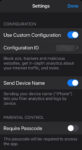
- configuration
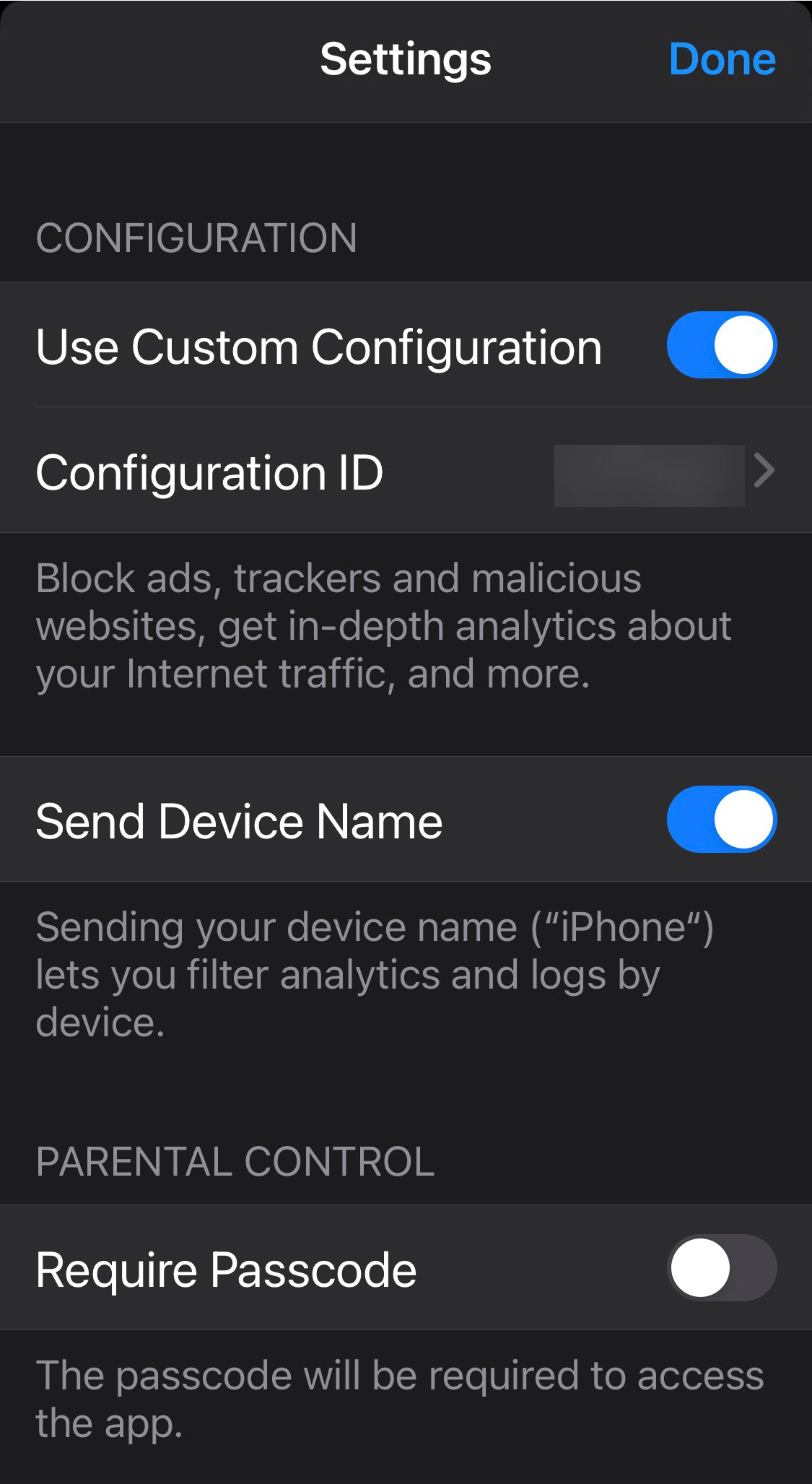
-
- toggle
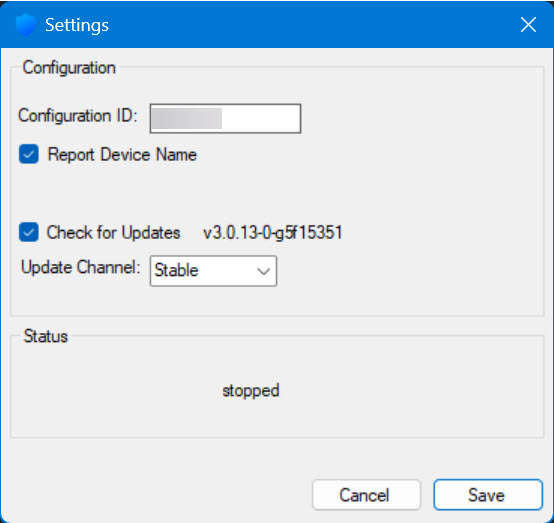
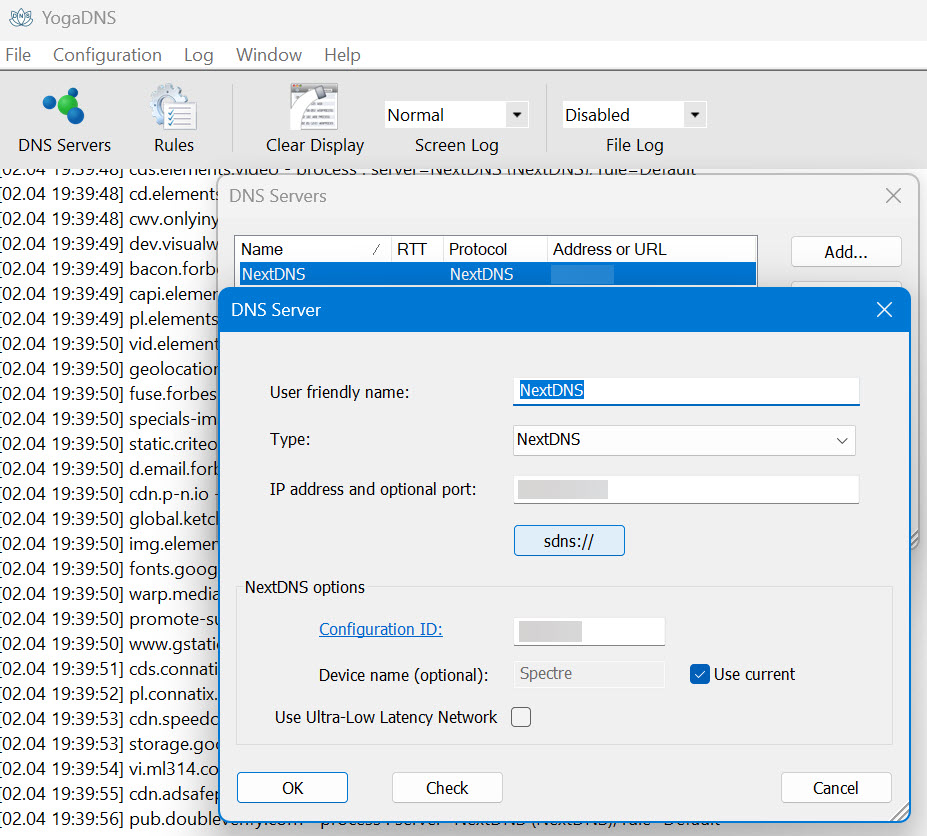
Similarly, there are apps for Windows and macOS you can install to cover your laptop when not on the home network. Like the mobile app it’s pretty simple to install and then just fill in the custom profile ID and you’re good to go. During my testing, however, I found that sometimes even though the app said it was running, test.nextdns.io would indicate my laptop was using the ‘default’ DNS settings from my router. The pattern seemed to be if the laptop went to sleep and then I started using it again. Since I have NextDNS set up at the router level, DNS traffic was still being filtered, but it wasn’t identifying my laptop as the client. To remedy this, I tried switching to the YogaDNS client instead. YogaDNS is another paid application, but the free version allows for a single DNS server and up to two rules which is fine for my needs (the Pro version for $40 lets you use unlimited DNS servers and rules and also run it in the background as a service which I guess is handy if you want to prevent people from closing it).
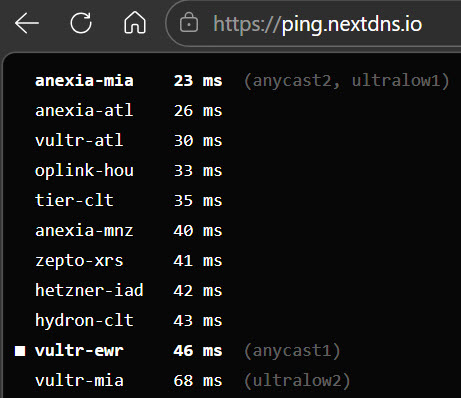
When my Pi-Hole was doing local filtering, I was actually using Quad9 (9.9.9.9) and Cloudflare (1.1.1.1) as my upstream DNS providers. Now that I’m using NextDNS, I tried to do some benchmarking (using Steve Gibson’s excellent DNSBench v2 utility) like I’d done in the past. However, it seems like NextDNS must be doing some rate-limiting (even with a Pro subscription) because I could not get the test to finish. It would get about 18% done and then all DNS queries through NextDNS would start timing out for a while. I never had this problem during my normal testing, only when I tried to run DNSBench, so it must be related to the sheer volume of requests all at once that the benchmark is generating. I was able to run the test using Quad9 as my primary DNS temporarily and while NextDNS might not be the fastest, I’m not really noticing a performance issue (you can also use ping.nextdns.io to check your roundtrip to their servers).
-
- NextDNS app for Windows
-
- YogaDNS client
-
- DNSBench
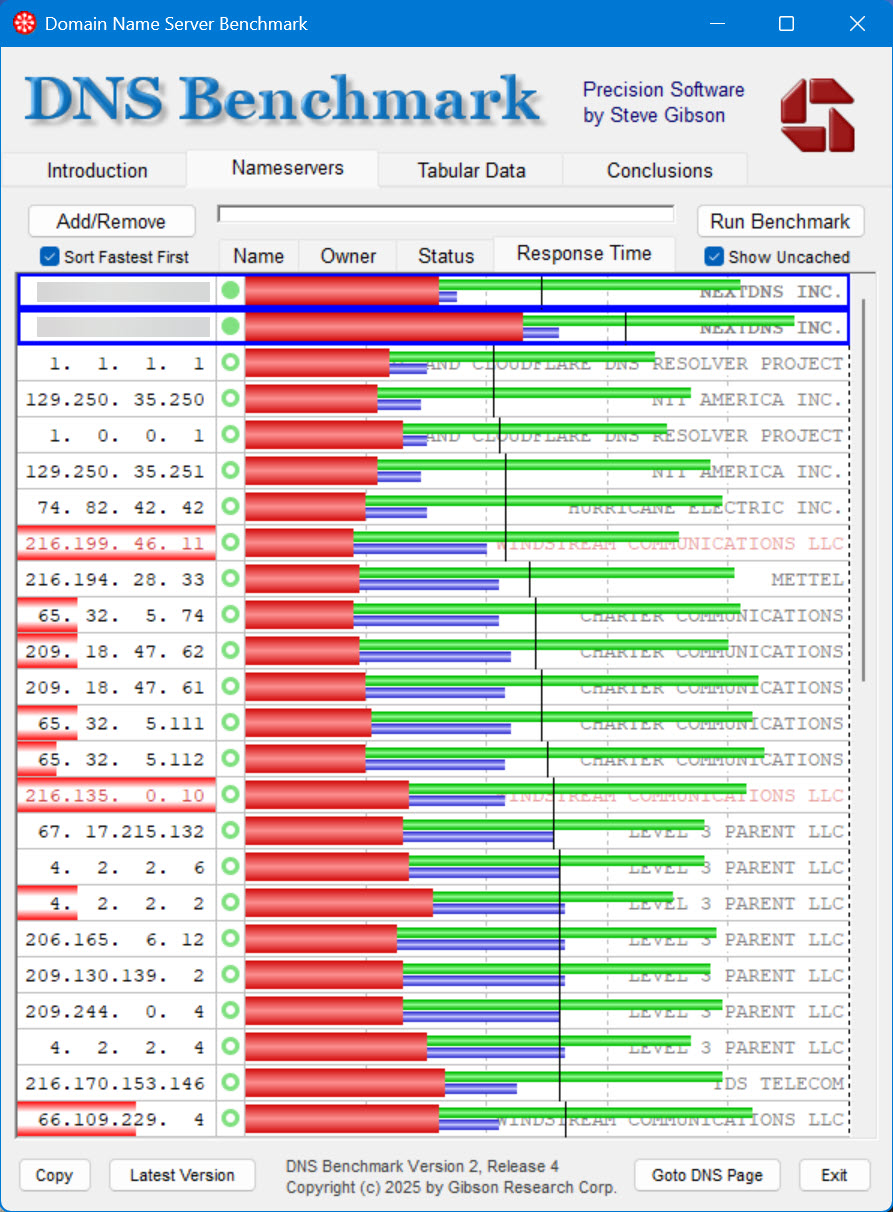
-
- ping.nextdns.io
With the switch from Pi-Hole to NextDNS complete, that’s one less Docker container running on the NAS and one less remote Raspberry Pi I have to manage. But the trade-off convenience of having an ad blocker in the cloud seems to be worth it so far.