I hate those fake AV trojans!

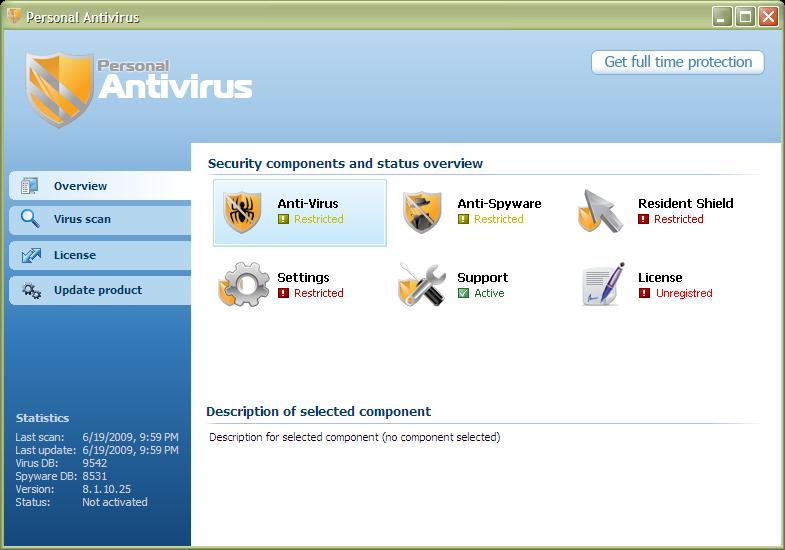
Today I had to clean another one of those fake anti-virus programs off of a machine at work. This one was called Personal Antivirus and bore a striking resemblance to AVG Free (which I use myself and usually recommend to others).

Here’s the AVG console:

AVG Free (real)

And here’s Personal Antivirus:

Personal Antivirus (fake)

Look familiar? In this particular case, neither our corporate Symantec anti-virus nor Malwarebytes (both with current definitions) detected the fake program. I eventually had to clean it off manually myself.

These things are really sneaky. How can we educate the average user to tell these two apart? I mean, other than the fact that they had to click on something in a web browser to get the fake one installed in the first place, once “installed” they look and act like the real thing (well, except for all the fake alerts they throw up). Arrrrgh!

Windows 7 Problem Steps Recorder

I stumbled across another neat feature in Windows 7: the Problem Steps Recorder (PSR).

Run psr.exe from the command-line and you’ll see a utility window you can use to record your session:

Problem Steps Recorder

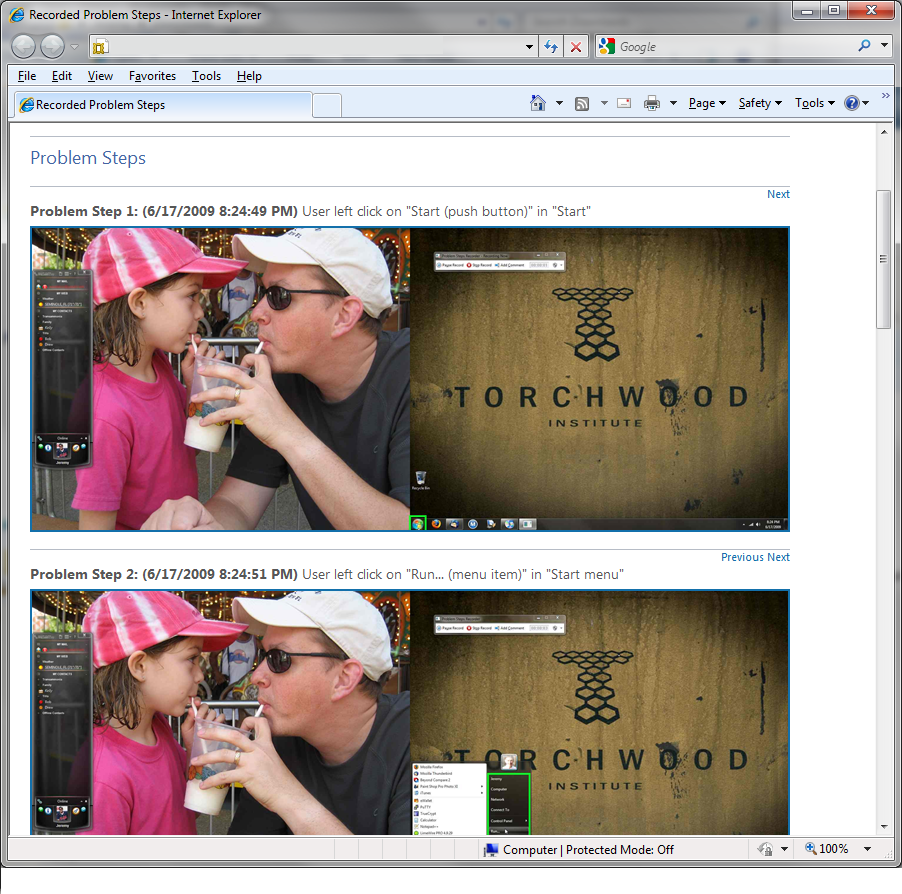
Click “Start Record” and then replicate the problem. Click “Stop Record” when you’re done and the tool will prompt you to save a zip file that has an HTML document in it containing screen shots and descriptions of the steps taken. Also cool is that the tool automatically highlights important areas of the screen:

PSR report

This is obviously targeted toward help desks and IT support professionals (without remote access to the machine) who need to solve problems like “I just clicked the thingy and shows it some error message and disappears!”, but I could see myself using this as a quick and easy way to generate user documentation (like how-tos) as well.

Tech Republic has a good, detailed article on the PSR. Check it out.

Mint-Eee fresh

How many more Eee puns can I come up with for my blog posts? πŸ˜€

The Windows 7 release candidate just wasn’t cutting it for me on my EeePC 900A. It looked nice, but Windows is just not meant to be crammed into 4gb of hard drive space. Even after vLite’ing the install I barely had 300mb free left on the SSD. Turning on drive compression (particularly for the WinSxS folder) just slowed everything down which really killed the whole netbook experience. So this weekend I decided to give Linux Mint a try.

Linux Mint 7 is based on Ubuntu 9.04 so it’s basically the same thing I am running on my other EeePC, just with a few differences. Like Ubuntu, Mint releases have version numbers and alphabetic code names. Whereas Ubuntu uses the adjective/noun alliterative combination (i.e., Jaunty Jackelope), Mint uses girls’ names that end in ‘a’ (hence the 7th version uses the 7th letter of the alphabet which gives us Gloria).

First, as always, I used the great eeebackup utility to make a backup image of the Windows 7 setup just in case I feel like going back at some point. I then used UNetbootin (the universal netboot installer) to “burn” the downloaded Mint ISO image onto a 2gb thumb drive and then booted my Eee from that to start the installation. The process was quick and painless and soon I was tweaking away (having gone through installs of Ubuntu Eee, Easy Peasy, Ubuntu NBR, and now Mint in the past six months, I am getting to be quite the expert at quickly configuring a Linux distro just the way I like it on my netbooks πŸ™‚ ).

Just for fun, here’s a video I took of the 900A (white on left) booting Mint next to the 4G Surf (black on right) booting Ubuntu NBR. As expected, the 900A boots slightly faster due to its better Atom processor. Both are ready to go in just about 30 seconds though, which isn’t too bad.

My new Eee PC 900A and Windows 7

Last week I stumbled on a deal over at Woot!: a refurbished Asus EeePC 900A (1gb RAM, 4gb SSD) for $160. My addiction to shiny things had me clicking on the “Buy” button before I could stop myself. Considering my original 4G Surf cost twice that (albeit over a year ago) it was too good a deal to pass up.

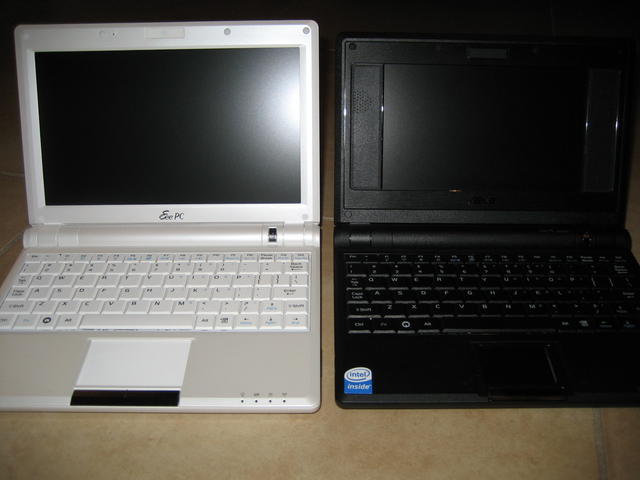
The 900A has a 9″ screen (running at 1024 x 600 resolution) and is overall slightly larger than my 4g Surf (it still fits nicely into the neoprene sleeve case, though). Like my 4G Surf, it also lacks Bluetooth and the webcam.

EeePCs: 900A and 4G Surf
Out of the box it had the Xandros Linux distro installed but I wasn’t about to go back to using that. From the moment I ordered the unit I had plans to put the Windows 7 release candidate on it.

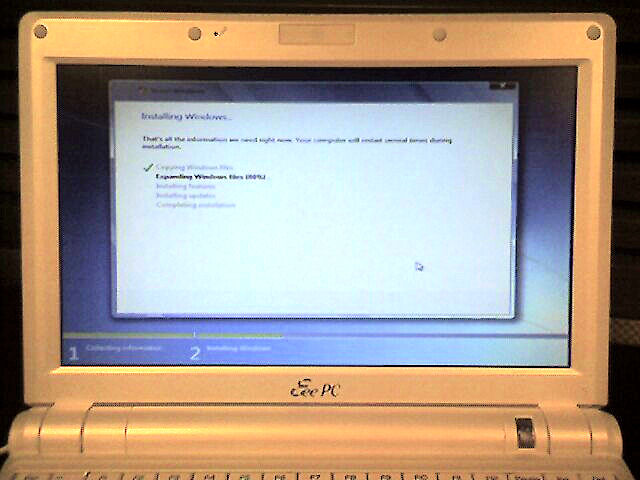
The first thing I did was a quick disk image using eeebackup just in case I should ever want to put the clean Xandros image back on it. Then it was time to research how to install Windows 7. Cramming a full Windows 7 install into 4gb of hard drive space requires some creativity. Luckily there are a lot of creative hackers out there. I ended up using a combination of various blog and forum postings (see the end of this post for the links) to create a bootable, vLite‘d version of the Win7 RC on a thumb drive and then used that to install it on the 900A:

Windows 7 installing on the Eee 900A
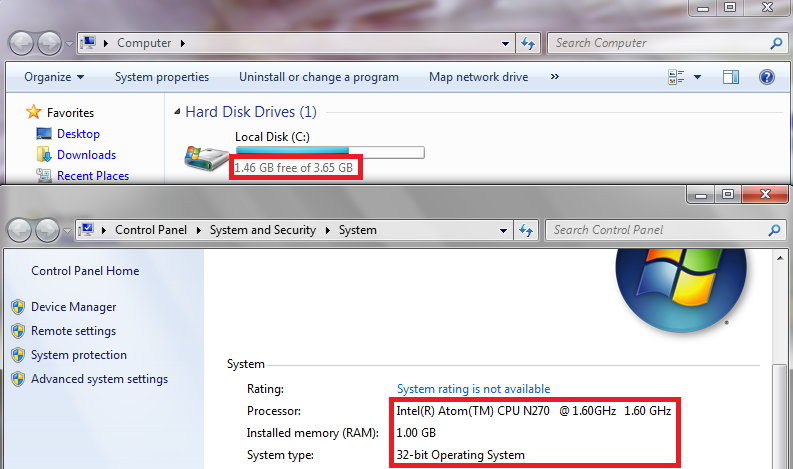
After some post-install configuration, cleanup, and compression, I had a trimmed down (but functional, even with Aero effects!) version of Windows 7 on my new Eee with about 1.4gb free on the SSD.

Windows 7 on the Eee 900A

I still need to put some more software on it (like AV software, Firefox, and maybe Office) so that final free space number will most likely be smaller. I’ll probably end up having to use an SD card for cheap, extra storage.

I think I’m taking a performance hit since I compressed the entire drive. Windows 7 isn’t super snappy, but it runs. I’ll give it a shot for a while and see how it goes before I consider switching to Ubuntu like I did on my 4G Surf.

Install Windows 7 on Asus Eee PC 900
Easy direct install from SD card to 4gb SSD
How to vLite Windows 7 Beta 1 and install it on a 901 using an SD card
The noobest noob guide to install Windows 7 directly on your Eee PC

Windows 7 RC upgrade

This past weekend I decided to jump in and start using the Windows 7 RC full-time on my home desktop. Rather than do a (recommended) clean install, I wanted to try the upgrade from Vista Home Premium. To prepare, I made a full image of my PC with DriveImage XML earlier in the week (which took over 27 hours to back up 164gb wirelessly to my NAS … in hindsight I probably should have used a wired connection or backed up directly to another hard drive).

My first mistake was that I tried to use the wrong release candidate, figuring I would try the 64-bit version of the software. Well, you can’t upgrade from 32-bit Vista to 64-bit Windows 7 since the upgrade starts from within your current version of Windows (and you can’t run a 64-bit app in a 32-bit environment). A clean install is the only way in that case. I didn’t want to start over so I downloaded the 32-bit RC and then started the upgrade process.

Everything was going smoothly (for about an hour) until the last stage: copying over user settings and applications. The process got up to about 62% complete when suddenly my PC blue-screened and rebooted! I was then stuck in a BSOD reboot loop! Watching closely during the BSOD, I was able to determine that the faulting driver was named inspect.sys. Some Google searching helped me narrow this down to my Comodo Firewall software. What kills me is that my PC passed all the pre-upgrade checks. It only warned me about a possible incompatibility with the ATI Catalyst driver. I couldn’t find anyone else having the same specific problem during a Win7 upgrade so my only recourse was to undo the upgrade.

Lucky for me, the rollback process was smooth, and fast! It only took about 20 minutes to restore my Vista configuration and my PC was back to normal. Well, except for this:
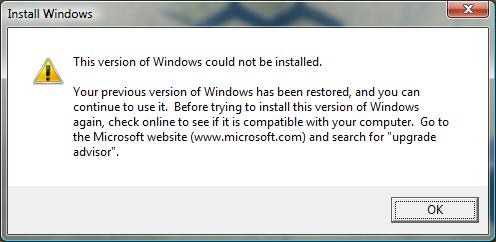
Windows 7 upgrade fail

Hoping the firewall was the only problem, I uninstalled Comodo and then ran the upgrade process again. This time it was successful and I was up and running on Windows 7 with my settings intact … whew!
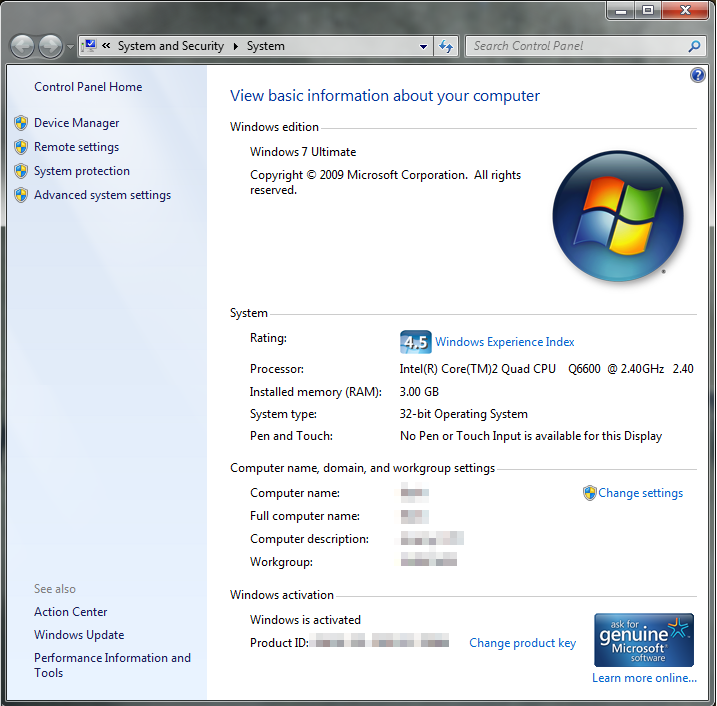
Windows 7 RC

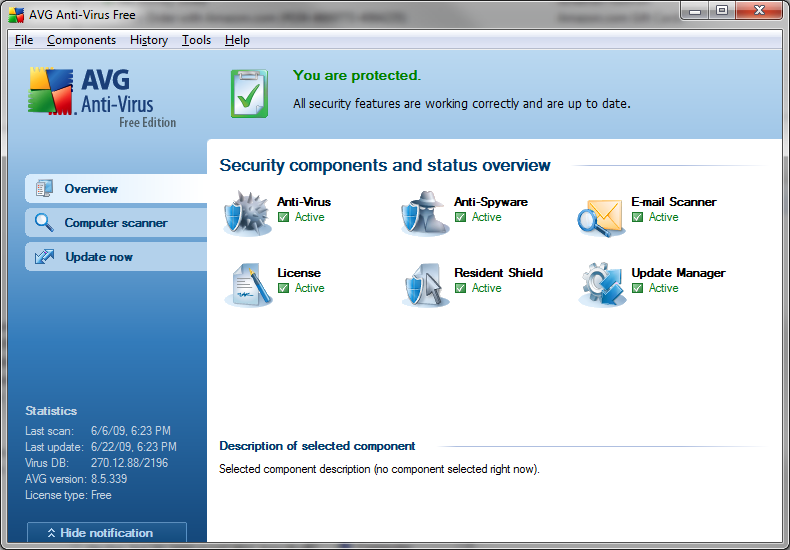
I was able to download the 3.9 RC2 version of the Comodo Firewall and that seems to be behaving just fine with Win7 so far. Another minor problem I ran into was that the new Security Center kept reporting that AVG Antivirus 8.5 (the free version) was “turned off” when it wasn’t, so I had to disable that particular check. Also, when trying to shut down, my beta version of Trillian Astra crashes and I have to force the shutdown.

The new taskbar takes a little getting used to. Running programs and quick launch icons are almost indistinguishable at first:

Windows 7 taskbar

It was driving me crazy because I would think Thunderbird was running and click on the icon to restore the window, when actually it was not running and my click just launched it. I can see now that running programs have the square highlight around them. In my screen capture above, Firefox, Thunderbird, and Explorer are running, but Microsoft Money and PaperPort are not. See the difference? I guess this is Microsoft’s answer to Apple’s dock. The other interface tweaks are nice, though, once you get used to them. I really like the Aero Peek and Aero Shake features, for example.

So now I’m using Windows 7 as my main OS at home … at least until next year when this release candidate expires.
Windows 7 peace offering?

Microsoft made publicly available the first (only?) release candidate of Windows 7 this week, so I downloaded the image and then installed it at work on the same laptop I had put the beta on a few months ago.

Windows 7 dove and olive branchOne interesting thing I noticed was the new login screen background, which has what appears to be an artistic dove and olive branch image.

Is this a subtle peace offering from Microsoft, apologizing for Vista? πŸ˜€

It turns out that it’s actually a hummingbird as Microsoft switched the “mascot” of Windows 7 away from the betta fish (although that default wallpaper still appears in build 7100).

If you’re going to check out the release candidate, just be aware that starting on March 1, 2010, the software will shut itself down after 2 hours. It expires altogether on August 1, 2010.

One final side note: while trying to figure out where this image was located (it’s C:\Windows\System32\oobe, if you’re interested) I found this article about how Windows 7 will support login screen customization. Cool.

Finally got into the Trillian Astra beta

Thanks to a tip from Lifehacker I finally snagged an invite to the Trillian Astra beta program. It’s puzzling that the Cerulean Studios guys are just handing out the software now. I “applied” for the beta a long time ago (seems like years) and was never selected or notified. I’ve been a Trillian Pro user since May 2004 (and used Trillian Basic for a few years before that) so I thought for sure eventually I would be picked. Now today I apply again and within minutes I had the e-mail with the download link and my registration key.

The install/upgrade went smoothly: I created my new Astra account and linked it to my existing Trillian Pro account. The software found my existing settings and migrated them all into Astra (aka Trillian 4.0). All of my plugins (like POP3 Mail and Weather) were still there, including my contacts and contact groups. The only thing I seem to have lost was my custom names for my contacts so I had to go through the list and rename them. The new Cordonata skin is slick looking and I like how you can easily change the colors (I prefer darker themes, with transparency).

There are a lot of new features (that I will probably never use) focused on social networking: plugins and widgets for Twitter, Facebook, LinkedIn, etc. My primary use of Trillian is multi-service chat and that’s what it still does the best.

When released, the Pro version of Astra will cost $25, or $10 for upgrading users.

A GUI timeline and OS retrospective

On one of the forums I frequent there’s been a recent thread about the evolution of the graphical user interface. In that discussion someone posted this link to a GUI timeline that shows screenshots of many of the UIs that evolved over the years. It’s a really cool walk through GUI history and made me recall (some fondly and some not so much) the operating systems behind those GUIs that I’ve used over my 25+ years of computing.

  • My Atari 800XL didn’t have a GUI at all, just a “friendly” text-based blue screen (not the bad kind that every Windows user is now familiar with).
  • I remember using an Apple Macintosh with System 6 at work and actually doing the upgrade to System 7 when it was released.
  • I also recall using a college friend’s IBM PC that could run Microsoft Windows/386.
  • The PCs in the computer lab at the university were all still DOS-based, but there was a “Windows” lab where you could use Windows 3.0 (and eventually 3.1).
  • I remember the “fun” my roommates and I had setting up a token-ring network in our apartment with Windows for Workgroups 3.11 (we had these thick cables running across and down the halls between our bedrooms and family room where all the computers were located … isn’t wireless networking fantastic?).
  • Really pushing my 386 to the limit, I would use Desqview (the text-based version) to run my Renegade-based BBS in the background and still be able to use the PC for other tasks even while someone was dialed into the system.
  • For a while I also ran OS/2 Warp on my 386 but then switched to Windows 95 when it was finally released.
  • For a time between Windows 95 and Windows 2000, I ran NT 4.0 as my main OS (not a good decision for gaming!) to avoid Windows 98 and ME.
  • I’ve run many of the various Linux distros like Red Hat, Mandrake/Mandriva, and Ubuntu (though never as my main OS, just on a “server” of some sort or in a dual-boot configuration).
  • And of course I’ve also gone through Windows 2000 to XP to Vista (and am now testing Windows 7 at work).

Whew.

The DTV switchover in hurricane country

So the original February 17th deadline for the digital TV switchover has come and gone but only a handful of stations have shut off their analog signals thanks to the DTV Delay Act. Is everyone confused yet?

One thing I don’t think a lot of people here in hurricane country have thought of (even myself, until recently) is those battery powered TVs in their hurricane kits. I have a little 5″ B&W television in our supply kit that runs on 6 D-cell batteries … and it won’t work after the digital switchover in June without a converter box. The problem is: how do you power a converter box when you don’t have power?

One solution is a battery-powered converter box like the Winegard RCDT09A (which is also coupon eligible). Another possibility (and I have to give my local Fox news team credit for this one … can’t believe I didn’t think of it myself) is a USB TV tuner for your laptop.

I just happened to have the Happauge WinTV-HVR-950Q sitting in my computer parts box, unused. Since I have a bunch of TiVos in the house, I didn’t really need a TV tuner for my PC so I threw it in there several months ago and forgot about it. It makes sense, though, to put this little device in our hurricane kit.

I first tried to get the device working with my Eee PC. Ubuntu recognized the hardware right away (and it showed up in Totem, the media player), but I could not get w_scan to find any channels with neither the included antenna nor with the tuner directly connected to cable. I tried all sorts of other packages (xawtv, mythtv, dvb-utils, etc.) and just could not get it to work at all.

So I moved on to Windows Media Center on our Vista laptop and it worked perfectly. While the signal strength is poor in my area (we’re about 33 miles away from all the main antennas according to antennaweb.org), I can at least pick up the local ABC and (barely) CBS affiliates which is all we really need during a storm.

Windows 7 Beta

win7-712425

Last Friday Microsoft released the public beta of their next operating system, Windows 7. I tried several times over the weekend but was unable to download it (and I wasn’t alone). Finally this morning I was able to grab the 2.1gb ISO, and the download was surprisingly fast.

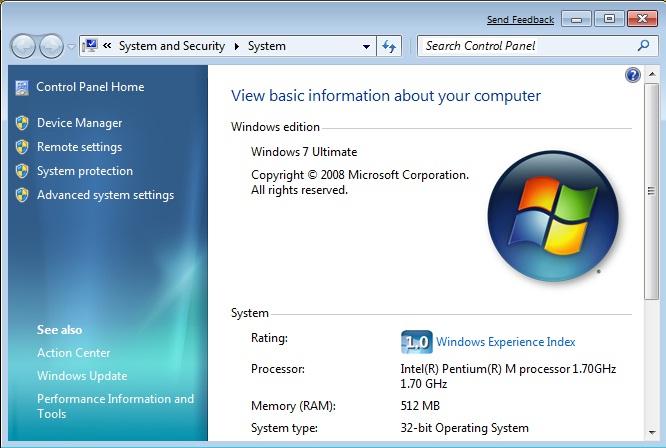
I did a clean install of Windows 7 on an old spare laptop here at work (which was below the minimum requirements as it only had 512mb of RAM). The install was just like Vista: answer a few initial questions and then the OS is installed from the DVD, relatively painless.

As expected, after the initial boot into the new OS, I found quite a few components not working properly. Windows Update installed a driver for the ATI Mobility Radeon 9200 video card so I could up the screen resolution. Windows Update also tried to install a new audio driver but it keeps failing, so I have no sound. Worse, I can’t get the wireless to work. Sony never produced Vista drivers for this old S Series unit and the drivers I downloaded directly from Intel didn’t work either. These kind of problems I expected, though, running beta software on older hardware (a colleague at work installed the beta on a newer Sony SZ series laptop and everything worked just fine, including his wireless).

Most of the corporate apps we use at work installed without any problems (Office 2007, Reflections, pcAnywhere, Citrix, etc.). One notable exception was McAfee Antivirus 8.0i which was blocked “due to compatibility issues.” This could be another beta thing, but I recall Vista had a lot of antivirus and firewall problems initially as well. AVG installed just fine.

Except the new, improved taskbar (and the neat new boot animation), Windows 7 looks a lot like Vista (and IE8 looks a lot like IE7). I need to play around some more and maybe check out the release notes to see what else is new and different.