Vizio VECO320L 32″ LCD HDTV

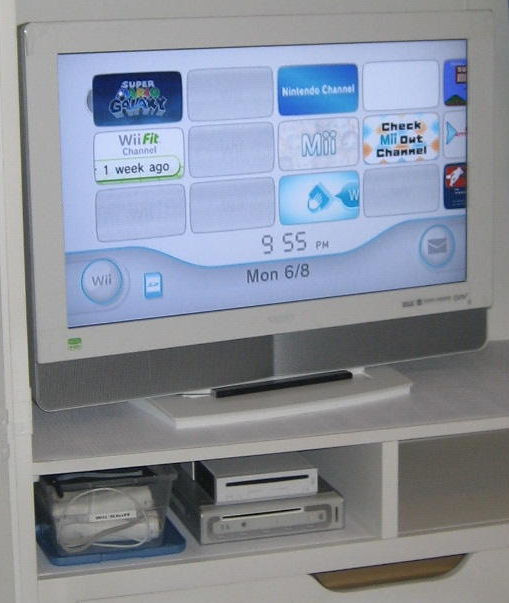
Vizio VECO32LWe’ve been transforming our guest bedroom into a combination guest bedroom/exercise/game room. The TV in that room was an old silver 13″ Magnavox tube that just wasn’t going to work for playing Rock Band 2 on the Wii, so I started shopping for a new flat screen television.

While I wasn’t specifically looking for a white display, once I found the Vizio VECO320L 32″ LCD HDTV it made perfect sense: it was a good size for the armoire and matched the white furniture in the room.

I couldn’t find the VECO320L locally in any store, so I ended up ordering it from target.com (with free shipping). It arrived earlier this week so I set it all up and then moved the Wii over from the family room. I don’t have a spare TiVo (yet?) to hook up to the new TV, but the built-in ATSC tuner is pulling in all the clear QAM HD channels over my Brighthouse cable service (and they look pretty good).

Vizio touts the VECO320L as an EnergyStar 3.0 compliant “green” display that uses 15% less energy. According to my Kill-a-Watt, the VECO320L uses about 65W while running (the manual states an 85W average). While I have no other 32″ LCD displays to compare that to, my Sony 23″ LCD uses 53 watts while powered on (110W max) and my Panasonic 42″ plasma gobbles a whopping 225W while running (with a listed max of 395W!). No surprise there, though, as plasmas are known to be power hogs. In standby mode the Panasonic uses 18W whereas the new Vizio uses 0.4W when “off” (which makes me wish the Panasonic had a true off mode).

It’s only been a few days, but so far I’m very happy with our new TV.

Mint-Eee fresh

How many more Eee puns can I come up with for my blog posts? πŸ˜€

The Windows 7 release candidate just wasn’t cutting it for me on my EeePC 900A. It looked nice, but Windows is just not meant to be crammed into 4gb of hard drive space. Even after vLite’ing the install I barely had 300mb free left on the SSD. Turning on drive compression (particularly for the WinSxS folder) just slowed everything down which really killed the whole netbook experience. So this weekend I decided to give Linux Mint a try.

Linux Mint 7 is based on Ubuntu 9.04 so it’s basically the same thing I am running on my other EeePC, just with a few differences. Like Ubuntu, Mint releases have version numbers and alphabetic code names. Whereas Ubuntu uses the adjective/noun alliterative combination (i.e., Jaunty Jackelope), Mint uses girls’ names that end in ‘a’ (hence the 7th version uses the 7th letter of the alphabet which gives us Gloria).

First, as always, I used the great eeebackup utility to make a backup image of the Windows 7 setup just in case I feel like going back at some point. I then used UNetbootin (the universal netboot installer) to “burn” the downloaded Mint ISO image onto a 2gb thumb drive and then booted my Eee from that to start the installation. The process was quick and painless and soon I was tweaking away (having gone through installs of Ubuntu Eee, Easy Peasy, Ubuntu NBR, and now Mint in the past six months, I am getting to be quite the expert at quickly configuring a Linux distro just the way I like it on my netbooks πŸ™‚ ).

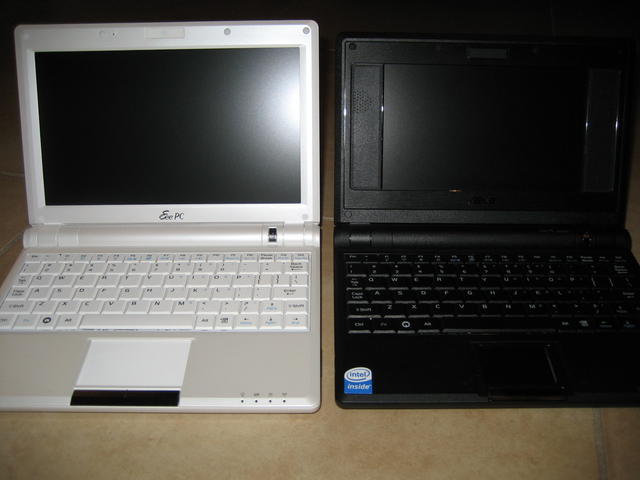
Just for fun, here’s a video I took of the 900A (white on left) booting Mint next to the 4G Surf (black on right) booting Ubuntu NBR. As expected, the 900A boots slightly faster due to its better Atom processor. Both are ready to go in just about 30 seconds though, which isn’t too bad.

My new Eee PC 900A and Windows 7

Last week I stumbled on a deal over at Woot!: a refurbished Asus EeePC 900A (1gb RAM, 4gb SSD) for $160. My addiction to shiny things had me clicking on the “Buy” button before I could stop myself. Considering my original 4G Surf cost twice that (albeit over a year ago) it was too good a deal to pass up.

The 900A has a 9″ screen (running at 1024 x 600 resolution) and is overall slightly larger than my 4g Surf (it still fits nicely into the neoprene sleeve case, though). Like my 4G Surf, it also lacks Bluetooth and the webcam.

EeePCs: 900A and 4G Surf
Out of the box it had the Xandros Linux distro installed but I wasn’t about to go back to using that. From the moment I ordered the unit I had plans to put the Windows 7 release candidate on it.

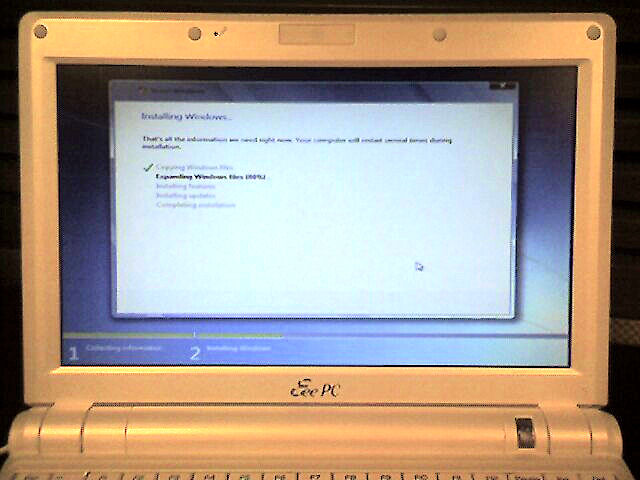
The first thing I did was a quick disk image using eeebackup just in case I should ever want to put the clean Xandros image back on it. Then it was time to research how to install Windows 7. Cramming a full Windows 7 install into 4gb of hard drive space requires some creativity. Luckily there are a lot of creative hackers out there. I ended up using a combination of various blog and forum postings (see the end of this post for the links) to create a bootable, vLite‘d version of the Win7 RC on a thumb drive and then used that to install it on the 900A:

Windows 7 installing on the Eee 900A
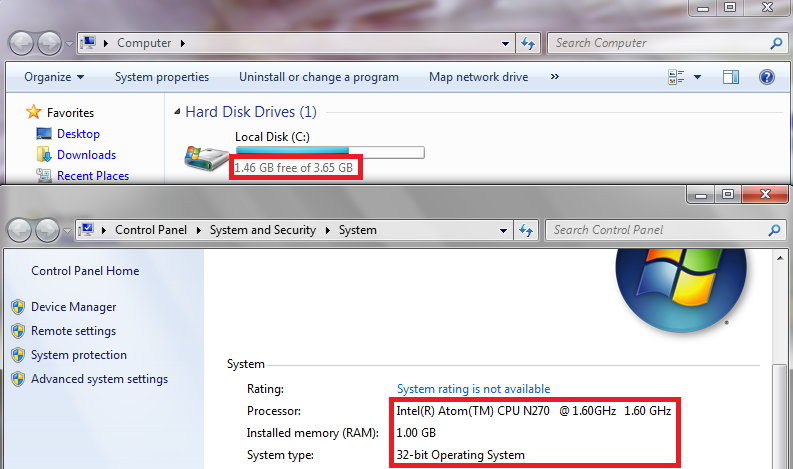
After some post-install configuration, cleanup, and compression, I had a trimmed down (but functional, even with Aero effects!) version of Windows 7 on my new Eee with about 1.4gb free on the SSD.

Windows 7 on the Eee 900A

I still need to put some more software on it (like AV software, Firefox, and maybe Office) so that final free space number will most likely be smaller. I’ll probably end up having to use an SD card for cheap, extra storage.

I think I’m taking a performance hit since I compressed the entire drive. Windows 7 isn’t super snappy, but it runs. I’ll give it a shot for a while and see how it goes before I consider switching to Ubuntu like I did on my 4G Surf.

Install Windows 7 on Asus Eee PC 900
Easy direct install from SD card to 4gb SSD
How to vLite Windows 7 Beta 1 and install it on a 901 using an SD card
The noobest noob guide to install Windows 7 directly on your Eee PC

Windows 7 RC upgrade

This past weekend I decided to jump in and start using the Windows 7 RC full-time on my home desktop. Rather than do a (recommended) clean install, I wanted to try the upgrade from Vista Home Premium. To prepare, I made a full image of my PC with DriveImage XML earlier in the week (which took over 27 hours to back up 164gb wirelessly to my NAS … in hindsight I probably should have used a wired connection or backed up directly to another hard drive).

My first mistake was that I tried to use the wrong release candidate, figuring I would try the 64-bit version of the software. Well, you can’t upgrade from 32-bit Vista to 64-bit Windows 7 since the upgrade starts from within your current version of Windows (and you can’t run a 64-bit app in a 32-bit environment). A clean install is the only way in that case. I didn’t want to start over so I downloaded the 32-bit RC and then started the upgrade process.

Everything was going smoothly (for about an hour) until the last stage: copying over user settings and applications. The process got up to about 62% complete when suddenly my PC blue-screened and rebooted! I was then stuck in a BSOD reboot loop! Watching closely during the BSOD, I was able to determine that the faulting driver was named inspect.sys. Some Google searching helped me narrow this down to my Comodo Firewall software. What kills me is that my PC passed all the pre-upgrade checks. It only warned me about a possible incompatibility with the ATI Catalyst driver. I couldn’t find anyone else having the same specific problem during a Win7 upgrade so my only recourse was to undo the upgrade.

Lucky for me, the rollback process was smooth, and fast! It only took about 20 minutes to restore my Vista configuration and my PC was back to normal. Well, except for this:
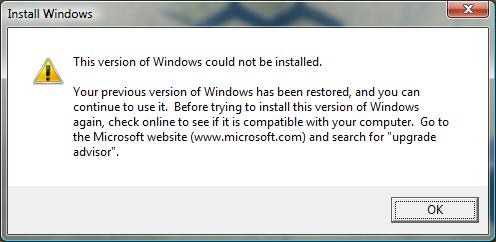
Windows 7 upgrade fail

Hoping the firewall was the only problem, I uninstalled Comodo and then ran the upgrade process again. This time it was successful and I was up and running on Windows 7 with my settings intact … whew!
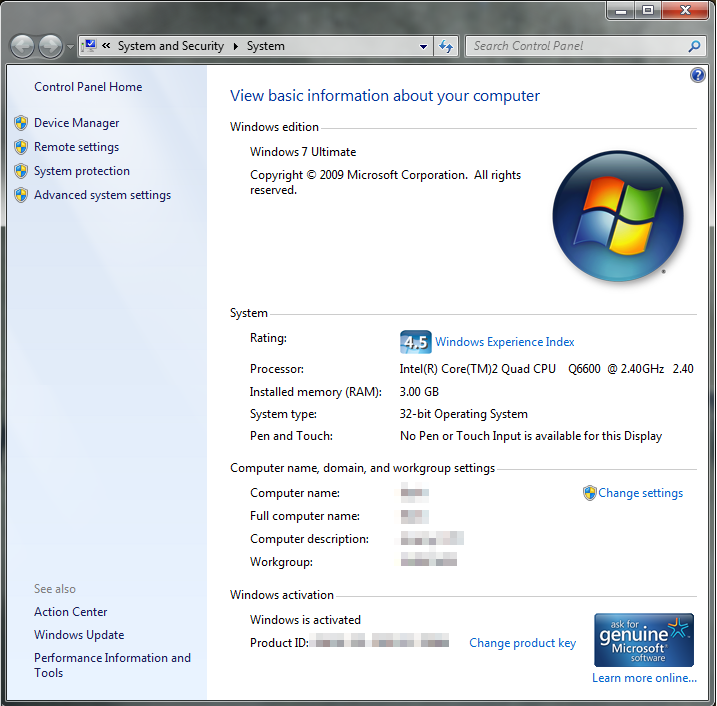
Windows 7 RC

I was able to download the 3.9 RC2 version of the Comodo Firewall and that seems to be behaving just fine with Win7 so far. Another minor problem I ran into was that the new Security Center kept reporting that AVG Antivirus 8.5 (the free version) was “turned off” when it wasn’t, so I had to disable that particular check. Also, when trying to shut down, my beta version of Trillian Astra crashes and I have to force the shutdown.

The new taskbar takes a little getting used to. Running programs and quick launch icons are almost indistinguishable at first:

Windows 7 taskbar

It was driving me crazy because I would think Thunderbird was running and click on the icon to restore the window, when actually it was not running and my click just launched it. I can see now that running programs have the square highlight around them. In my screen capture above, Firefox, Thunderbird, and Explorer are running, but Microsoft Money and PaperPort are not. See the difference? I guess this is Microsoft’s answer to Apple’s dock. The other interface tweaks are nice, though, once you get used to them. I really like the Aero Peek and Aero Shake features, for example.

So now I’m using Windows 7 as my main OS at home … at least until next year when this release candidate expires.
Windows 7 peace offering?

Microsoft made publicly available the first (only?) release candidate of Windows 7 this week, so I downloaded the image and then installed it at work on the same laptop I had put the beta on a few months ago.

Windows 7 dove and olive branchOne interesting thing I noticed was the new login screen background, which has what appears to be an artistic dove and olive branch image.

Is this a subtle peace offering from Microsoft, apologizing for Vista? πŸ˜€

It turns out that it’s actually a hummingbird as Microsoft switched the “mascot” of Windows 7 away from the betta fish (although that default wallpaper still appears in build 7100).

If you’re going to check out the release candidate, just be aware that starting on March 1, 2010, the software will shut itself down after 2 hours. It expires altogether on August 1, 2010.

One final side note: while trying to figure out where this image was located (it’s C:\Windows\System32\oobe, if you’re interested) I found this article about how Windows 7 will support login screen customization. Cool.

179 hours of HD goodness

Who needs to buy a brand new TiVo HD XL to get 1TB of recording capacity? After adding the Western Digital eSATA 1TB MyDVR Expander to my Series3 my recording capacity jumped from 32 HD hours (303 SD hours) to 179 HD hours (or 1,561 SD hours) … 1.3 terrabytes!

Just like the 500gb Expander attached my TiVo HD, installation was a snap: power down the TiVo, connect the external drive to the eSATA port, boot the TiVo back up, and then enable the Expander through the menu.

I’ve updated my Season Passes to keep more episodes of my shows now that I have the extra room. Except for Suggestions (and auto-record WishLists), everything recorded on the box should be in high definition. While I was messing with the wiring in the media cabinet, I also connected the S3 to my receiver via optical so I can get Dolby Digital 5.1 sound (I’m not sure why I hadn’t done that before).

What’s a Chumby?

I’ve been doing some (work-related) research lately about the Chumby. It’s basically a tiny Linux device with a touchscreen and wireless networking that runs Flash Lite stuffed inside a squishy beanbag (yeah, seriously!). Here are the current specs:

  • 3.5″ LCD color touchscreen
  • Two external USB 2.0 full-speed ports
  • 350 MHz ARM processor
  • 64 MB SDRAM
  • 64 MB NAND flash ROM
  • Stereo 2W speakers
  • Headphone output
  • Squeeze sensor
  • Accelerometer (motion sensor)
  • Leather casing
  • AC adapter included
  • WiFi connectivity
  • Access to the free Chumby Network
  • Over-the-air software updates

I remember reading about the Chumby several years ago before it was a physical product you could purchase (it was more of a hacker project). It sounded neat, but I didn’t really see the point of an expensive internet-enabled clock radio (and I have a gadget addiction problem, so that’s saying something). It reminded me of those Ambient Orbs sold at Brookstone that would change colors based on the movement of the stock market, or the Nabaztag rabbit. Why would I want that? I just didn’t “get” the purpose of ambient devices.

Well, they’ve come a long way since then. Even David Pogue was impressed with the cushy little gadget and the widgets it can display. Basically you buy the hardware, connect it to your wireless network, configure your account on chumby.com, pick and customize the widgets you want displayed (and there are a lot of them!) and for how long, and then sit back and watch the fun as it pulls everything down via the free Chumby network.

Anyone can develop widgets for the Chumby, given you know how to create Flash applications (which I do not). I’ve downloaded the FlashDevelop environment but haven’t really had the chance to seriously play with it (other than compiling a basic “Hello World” app). I found one person’s attempt at a TiVo widget but have no way of checking it out since I don’t actually have a physical Chumby (yet).

The Chumby can currently be purchased in a variety of colors for $199 (which is a little strange since the David Pogue video from early 2008 mentions the price as $179 … better hardware, maybe?). From what I’ve read the Chumby network is “free” (and should remain that way) because it will occasionally slip “ad” widgets in between the widgets you’ve chosen to display. Also, it’s not battery powered and thus needs to be plugged in (it’s not meant to be a mobile device). It does have a 9V battery connector, but that’s meant only as a battery backup for the alarm clock feature.

So far I am resisting the urge to buy one myself, but Father’s Day is coming up in a few months … πŸ˜€

To see what it’s like, I created a virtual Chumby. I configured the widgets it displays and then generated the embed code for this post. You can see a larger version of the Flash application here. Go ahead and click on it, you can actually interact with some of the widgets (like the refrigerator magnet one).

Update 10/10/2013: unfortunately, Chumby closed its doors in 2011 and shut down. There is a basic Chumby service still available, but all it shows is a non-interactive clock.

Update:Β even that non-interactive clock is gone now. No more virtual Chumby. πŸ™

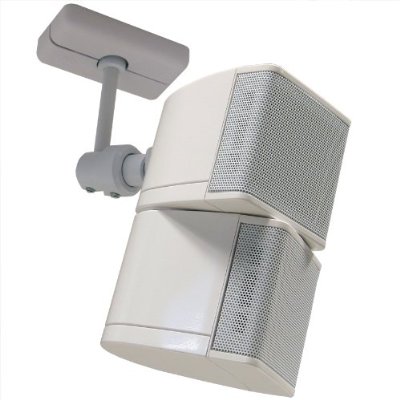
Pro Acoustics 2.5″ mini-cube speakers

Pure Resonance 2.5" mini-cube speakersThe week before Easter we painted all of the central rooms in our house (kitchen, dining room, and family room) which had not been painted since we moved in about 8 years ago.

In the family room, where the home theater setup is, we now have much lighter walls, so my old, blocky, and black KLH 9900 satellite speakers (purchased 9 years ago along with my receiver) really stood out and looked … well, old.

I wanted something smaller, and nicer looking to replace those speakers, so I purchased the Pro Acoustics 2.5″ mini-cubes (ceiling mounted version). Installation was quick and simple: I just took down the old speakers and brackets and put up the new ones. Luckily the bracket holes lined up so I didn’t have to do any new drilling. The only minor problem I had was the screw that connects the speaker assembly to the mount pole wouldn’t screw in tightly. This was frustrating since the brackets and speakers come together and should connect seamlessly together.

Once I got them mounted and wired up I did a quick sound test with “The Matrix” DVD and liked what I heard. Our family room has a strange vaulted ceiling: looking at the TV, the ceiling on the left-hand side is about 14 feet tall and then slopes down to about 9 feet on the right-hand side. As a result, the front and rear left speakers are a few feet higher than the right side. Since each speaker consists of two swiveling cubes, I was able to configure the speakers to get the maximum audio coverage of the room despite the strange architecture. I still need to get out my sound pressure meter and Avia DVD to fine-tune the new setup, but for now at least it looks a lot nicer (and sounds about the same).

Do schools still need computer labs?

I was sad to hear (on TWiT episode #188, via Ars Technica), that the University of Virginia has decided to dismantle their student computer labs. Apparently there’s not much of a need for them now that just about every incoming freshman has a laptop.

I have lots of fond memories of my college’s computer labs. As a Computer Information Systems major, I spent a lot of time the various departmental labs: the VAX lab, the word processing lab, the UNIX lab, the programming lab, the multimedia lab, etc. Even once I finally had my own IBM-compatible PC (my freshman year I still had my Atari 800XL), I still spent a lot of time in the lab. It was a community … a place where you could go to work on assignments, get help from other people, or give assistance to others. Some nights, when the “homework” was done I would spend time playing multi-user games like Galactic Trader on the local VAX, or any of the various MUDs on the internet (like AmberMUSH or the one hosted on the Cleveland Freenet … man, those were some serious time sinks for me back then). I even ran my own MUD on the university VAX for a while, a heavily customized version of Monster, written in Pascal.

Later on in my college years I actually worked in the various school computer labs as a lab monitor. I’d have to help the engineering majors with their FORTRAN programs, or the comp-sci majors with their Ada, or C, or COBOL homework, or the math students with their SAS assignments … I encountered a wide variety of people and problems in those labs. And I enjoyed every minute of it.

So it’s sad for me to see that social part of computing starting to disappear. I’m sure not all schools will follow UVa, but I’ll bet this is the start of a trend. Like the UVa post says:

Lab software usage statistics from 2008 reveal that out of a total of 651,900 hours spent using software in the ITC-provisioned public computing labs, 95% of the time (over 619,500 hours), students were running commodity or free programs such as Firefox, Internet Explorer, Adobe Acrobat Reader, or Microsoft Office. All of these software programs come pre-loaded on student laptops or are available at low or no cost to UVa students.

In contrast, just 5% of the time spent running software in ITC-provisioned public labs was devoted to specialized packages such as MatLab, Eclipse, Mathcad, or SPSS.

It’s hard to argue with statistics like that.