A GUI timeline and OS retrospective

On one of the forums I frequent there’s been a recent thread about the evolution of the graphical user interface. In that discussion someone posted this link to a GUI timeline that shows screenshots of many of the UIs that evolved over the years. It’s a really cool walk through GUI history and made me recall (some fondly and some not so much) the operating systems behind those GUIs that I’ve used over my 25+ years of computing.

  • My Atari 800XL didn’t have a GUI at all, just a “friendly” text-based blue screen (not the bad kind that every Windows user is now familiar with).
  • I remember using an Apple Macintosh with System 6 at work and actually doing the upgrade to System 7 when it was released.
  • I also recall using a college friend’s IBM PC that could run Microsoft Windows/386.
  • The PCs in the computer lab at the university were all still DOS-based, but there was a “Windows” lab where you could use Windows 3.0 (and eventually 3.1).
  • I remember the “fun” my roommates and I had setting up a token-ring network in our apartment with Windows for Workgroups 3.11 (we had these thick cables running across and down the halls between our bedrooms and family room where all the computers were located … isn’t wireless networking fantastic?).
  • Really pushing my 386 to the limit, I would use Desqview (the text-based version) to run my Renegade-based BBS in the background and still be able to use the PC for other tasks even while someone was dialed into the system.
  • For a while I also ran OS/2 Warp on my 386 but then switched to Windows 95 when it was finally released.
  • For a time between Windows 95 and Windows 2000, I ran NT 4.0 as my main OS (not a good decision for gaming!) to avoid Windows 98 and ME.
  • I’ve run many of the various Linux distros like Red Hat, Mandrake/Mandriva, and Ubuntu (though never as my main OS, just on a “server” of some sort or in a dual-boot configuration).
  • And of course I’ve also gone through Windows 2000 to XP to Vista (and am now testing Windows 7 at work).

Whew.
webOS on my Treo

It may be a while (if ever) before I get a Palm Pre, especially since Sprint has it exclusively for 2009. However, I don’t have to wait for the webOS experience.

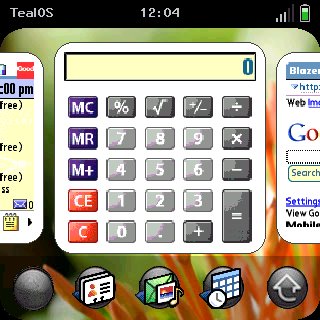
TealPoint software has released TealOS, an amazing piece of programming that duplicates the look-and-feel of webOS on the current Palm handhelds. Here’s a screenshot of it running on my Treo 680:

snap-c5c992da-738541

As you can see it gives you the card interface, where “running” applications appear as a scrolling list of cards on the home screen. You can use your finger to swipe the cards left and right and then tap on the one you want to “launch” (bring to the foreground). Now, PalmOS is not a true multi-tasking operating system so what TealOS is really doing is re-launching the application for you. Thus, I’ve found that the screenshots on the cards are not always accurate. If you’re not on the home screen, you can switch cards by swiping your finger along the bottom of the screen from either corner. To remove cards from the home screen list, just swipe them up and off. It’s pretty cool!

They’ve also included the “wave menu” where you swipe your finger up from the bottom of the screen to bring up a moving app menu for quick launching. My screen capture software (Snap) wasn’t able to capture the wave menu in action, but you can see shots of it on Engadget.

Underneath the pretty interface it’s still PalmOS, of course, so all of your existing apps look the same. Beware: after using TealOS for a while, those “old” apps start to look pretty tired and dated. Another side effect: more fingerprint smears on the screen. πŸ™‚

I’m a long-time user of some of TealPoint’s other applications, mainly TealAuto and TealBackup. After playing with TealOS for a little while, I’ll have to decide if it’s worth the $15 for the pre-Pre experience.

The DTV switchover in hurricane country

So the original February 17th deadline for the digital TV switchover has come and gone but only a handful of stations have shut off their analog signals thanks to the DTV Delay Act. Is everyone confused yet?

One thing I don’t think a lot of people here in hurricane country have thought of (even myself, until recently) is those battery powered TVs in their hurricane kits. I have a little 5″ B&W television in our supply kit that runs on 6 D-cell batteries … and it won’t work after the digital switchover in June without a converter box. The problem is: how do you power a converter box when you don’t have power?

One solution is a battery-powered converter box like the Winegard RCDT09A (which is also coupon eligible). Another possibility (and I have to give my local Fox news team credit for this one … can’t believe I didn’t think of it myself) is a USB TV tuner for your laptop.

I just happened to have the Happauge WinTV-HVR-950Q sitting in my computer parts box, unused. Since I have a bunch of TiVos in the house, I didn’t really need a TV tuner for my PC so I threw it in there several months ago and forgot about it. It makes sense, though, to put this little device in our hurricane kit.

I first tried to get the device working with my Eee PC. Ubuntu recognized the hardware right away (and it showed up in Totem, the media player), but I could not get w_scan to find any channels with neither the included antenna nor with the tuner directly connected to cable. I tried all sorts of other packages (xawtv, mythtv, dvb-utils, etc.) and just could not get it to work at all.

So I moved on to Windows Media Center on our Vista laptop and it worked perfectly. While the signal strength is poor in my area (we’re about 33 miles away from all the main antennas according to antennaweb.org), I can at least pick up the local ABC and (barely) CBS affiliates which is all we really need during a storm.

PalmOS is dead … long live PalmOS!

I bought my very first PalmOS device (the Pilot 1000 by USRobotics) back in 1996 from an Elek-Tek in Castleton, Indiana … a total impulse buy. It only took me a few weeks to master Graffiti (I remember I actually started using Graffiti characters in my normal handwriting). I took a few shots at writing small applications, but mostly ended up contributing random text files to the community (some of which are still up on memoware.com). PalmOS wasn’t a multi-tasking operating system, but it was simple, elegant, and fast … and there were a ton of third-party developers writing apps for it.

While Palm did make minor changes to the OS as the years passed (support for higher resolution screens, color, more storage, etc.) the basic software stayed the same. It was a winning solution, though: compared to Windows Mobile devices (like the iPAQs or Jornadas) the Palms were easier to use, almost always faster, and had a slew of cool (usually free) applications. And of course there was HotSync, which kept the device backed up and in-sync with the Palm Desktop software on your PC. (Side note: try asking a Windows Mobile user if they can factory reset their device, then connect it to their PC and have ActiveSync put it back exactly the way it was before they did the reset. HotSync has been able to do that since 1996 … ActiveSync still can’t). These points all held true as the clunky but loveable PDA turned into the original clunky phone known as the Handspring Treo 180 (that I believe started the smartphone revolution) and eventually led to the vast array of Treo models we’ve seen over the past few years. I still love my Treo 680 because, while it may not be 3G or have a motion sensor in it, or multi-touch, it’s fast and it works.

Unfortunately, in a move I guess we all knew was coming once the Pre was unveiled at CES, Palm today announced that the current Centro will be the last PalmOS device produced by the company. webOS is still an unknown quantity, but I hope it can take PalmOS’s place in the hearts and minds of Palm lovers everywhere as a worthy successor.

I guess my next Treo might have to be the Treo Pro, unless a GSM Pre that runs GoodLink is released in the near future.

GPS map “update”

So I broke down last night and purchased the latest map update for my Garmin StreetPilot c340. After downloading the 2gb file and running into a few setup issues, I finally got it installed on the GPS.

This morning, I fired the unit up on my way to work, as I am wont to do (mainly to see my estimated arrival time). Imagine my surprise when, as I was driving on I-275 North over the Howard Frankland Bridge (which goes over the bay), the GPS display looked like I was driving over land instead of water:


Yes, this is a minor thing since it’s just a display issue (the routing and navigation is working fine), but it’s really annoying since this was an “update” (that cost me $60) which clearly has some sort of corruption in it. If I zoom out far enough, eventually the correct map is displayed:

But I shouldn’t have to deal with that. And who knows what else is messed up?

I tried re-installing the map update from scratch, resetting the GPS, changing map views (3D vs. overhead) and detail levels, etc. without any luck. I’ve opened a support ticket with Garmin and am waiting to see what they have to say.

Server naming conventions

I found this interesting article via Slashdot this morning that explores the topic of naming computers.

I don’t really remember when I started naming my machines, but I’m sure it started once I had a home network with more than one PC. I do remember that my first naming scheme was using characters from Babylon 5 (kosh, londo, vir, etc.). At some point I switched to Farscape and have been using that ever since: rygel, sikozu, moya, talyn, stark, katratsi, zhaan, grayza, etc. (I’m about to run out, actually, unless I start re-using old names from retired machines).

When I was still a consultant many years ago I worked at a company that used the periodic table of the elements for their server names (they even had a Periodic Table of the Servers printed out and hung on a wall … it was huge). That was a bit confusing as I could never remember if argon was a database server, or maybe that was hydrogen, or carbon?

At my current job, the old naming convention was Star Wars characters and locations (I’m responsible for VADER and SIDIOUS, for example) but new servers are given more logical, coded names (like LOC02MAIL03) which are less fun but more functional.

1TB of storage at home, nice!

Shortly after the new year began, I started converting all of my DVDs (and even some old VHS tapes!) into MP4 format with the goal being immediate access to my entire video library on any TiVo in the house using tools like pyTivo or streambaby. About two weeks into the project it became readily apparent that my 250gb Buffalo Linkstation NAS wasn’t going to be enough to hold all of the encoded video so I started shopping around for a larger unit.

I’ve been very happy with my Linkstation … it’s been very reliable and there’s a large community of enthusiasts over at NAS Central writing custom firmware and hacks for these boxes. So naturally I started looking at Buffalo’s more current NAS offerings along with other devices like hp’s MediaVault. Eventually I decided I wasn’t quite ready to pay extra for the reduced capacity (but increased reliability) of a RAID-enabled NAS when I could get more raw storage space for my money instead.

After a lot of back-and-forth, I decided on the Buffalo Linkstation Live LS-CHL. This stylish little black box packs a mini Linux server with a 1TB (yeah, terabyte!) drive into a package smaller than my 500gb WD MyDVR Expander. Like my current Linkstation it requires no software on the client side so it works seamlessly with Windows, Macintosh, and Linux. Just plug it into your network (oh yeah, it supports gigabit transfer speeds), configure it through your browser, map it as a shared drive and you’re ready to go.

The box does have a lot of features I won’t use but other people might:

  • I don’t need the USB print server because my Epson AcuLaser CX11NF is a network-attached multi-function laser printer/scanner/copier (the built-in print server on the Linkstation only supports printing anyway, not network scanning).
  • I don’t need the Web Access feature because I have my own web server which can access the Linkstation via a normal SMB share.
  • I don’t have any Macs in the house, so I don’t need the Time Machine service.
  • I don’t have any DLNA-certified devices in my home theater setup (and I use the utilities mentioned earlier in this post to send video to my TiVos).
  • I backup to Amazon’s S3 service in the cloud via JungleDisk, so I won’t use the Memeo backup software that comes with it.

It does have some cool features I like though, like the built-in Bittorrent client and e-mail alerts. It has a USB 2.0 port on the back for attaching another external drive for backups or expanding capacity (you can also use it to download photos directly from a digital camera, but that’s another feature I’ll never use since the NAS is in a closet and not on my desk). Finally, if you only need it running when the PCs in your house are running, you can have it power down when it’s not being used (but that does require installing some proprietary software from Buffalo).

One feature I could not get to work is the one that says “iTunes automatically makes the LinkStation available as a content source in your iTunes software.” I copied my iTunes folder to the share and enabled the Linkstation’s media server. I could then see the Linkstation as a “shared library” in iTunes, but it was empty. I couldn’t find anything in the documentation or on Buffalo’s support site on how this is supposed to work. I just gave up … my library is on my PC for easy (local) syncing with my iPod and I back it up to the Linkstation manually.

Over the weekend I copied all of my encoded video, my entire music library, and all of my photos from my PC and the old NAS to the new one … 555gb total! So I’ve got just under 400gb left on the NAS plus about 220gb remaining on the old NAS now that all of the video and music has been moved over. That remaining 600gb should last me a while …

1TB in the home for under $250. Amazing.

Tiny Bluetooth dongle

The $3 tiny Bluetooth adapter for my Eee PC finally arrived! I guess I didn’t realize it was coming from Hong Kong directly to me, which is why it took 10 days. I love the typos on the packaging due to translation. Apparently this will make a PC “Bluelooth” enabled is “supporting vioce data” as well. πŸ˜€

It’s a lot smaller than my old Kensington Bluetooth adapter, as I’d hoped:


My only complaint is that it doesn’t connect flush with the side of my Eee PC. The metal plug part is a little too long, so it sticks out a little further than I like:

But it’s still better than what I had. Now I can put my Eee PC into its neoprene slipcover without having to remove the dongle.

I had a little trouble re-pairing the new device to my Treo. I spent about an hour fiddling with scripts and PINs and hcitool/hciconfig commands and then finally installed eee-control. After that, it was a snap and I’m able to tether my Eee to my Treo again.

I love slickdeals.net

I subscribe to the slickdeals.net RSS feed and have found quite a few great deals on it (for example, the 20% off coupon that helped me get a new Dell PC for under $500) and the occasional cool gift idea.

Today’s gem: a tiny USB Bluetooth adapter for $3. I’d been thinking about getting one of these to leave connected to my Eee PC. The one I have now is large and sticks out pretty far so I can’t leave it plugged in and slide it into its neoprene carrying case. I leave it in the sleeve and am always worried it’s going to fall out and get lost. The little Kensington model I had been considering was $27 but for $3 (with free shipping), I’ll give this one a try.