Windows 7 peace offering?

Microsoft made publicly available the first (only?) release candidate of Windows 7 this week, so I downloaded the image and then installed it at work on the same laptop I had put the beta on a few months ago.

Windows 7 dove and olive branchOne interesting thing I noticed was the new login screen background, which has what appears to be an artistic dove and olive branch image.
Is this a subtle peace offering from Microsoft, apologizing for Vista? πŸ˜€

It turns out that it’s actually a hummingbird as Microsoft switched the “mascot” of Windows 7 away from the betta fish (although that default wallpaper still appears in build 7100).

If you’re going to check out the release candidate, just be aware that starting on March 1, 2010, the software will shut itself down after 2 hours. It expires altogether on August 1, 2010.

One final side note: while trying to figure out where this image was located (it’s C:\Windows\System32\oobe, if you’re interested) I found this article about how Windows 7 will support login screen customization. Cool.

Jumping onto the Jaunty Jackalope

Ubuntu 9.04 (Jaunty Jackalope) was released this week and for the first time included a specific version for netbooks.

It took a long time to download (apparently everyone is trying to get it), but once I had the image I created a bootable USB stick and then used it to boot my EeePC into the new OS.

My first impression was that it’s really slick looking. My second impression was that the remix interface was slow. The mouse moved jerkily and the eye-candy like fades and animations were sluggish. It was only the remix interface that was affected though, as once I had Firefox or any other app running, performance was fine. I found a single post on the Ubuntu forums reporting the same thing, but it could’ve been related to running from the USB stick. I did find another article that blamed it on the combination of a new version of the X Server and a new Intel driver in the distribution and finally this one that contained instructions on how to revert to a slightly earlier kernel to fix the problem.

Despite these warning signs (I like being on the cutting edge!) I took the plunge and did a full fresh install on my Eee. Since the 701 has an SSD in it, I used some of tips in this article to not create a swap partition and selected the ext2 (non-journaling) file system during partitioning for less wear-and-tear (you can find some other tweaks for running Linux on SSD drives here).

I’m happy so far! I haven’t noticed the GUI performance problems I saw when running the “live USB” version. The installer also detected my little Bluetooth dongle and I had no problems re-pairing it to my Treo (though I still need to test using that as a data connection).

Now I’ve got to put everything back the way I like it, just like when I switched from Xandros to Ubuntu EEE and then to Easy Peasy (which just had their 1.1 release). In a month or so, I’ll also upgrade my server to this new release.

What’s a Chumby?

I’ve been doing some (work-related) research lately about the Chumby. It’s basically a tiny Linux device with a touchscreen and wireless networking that runs Flash Lite stuffed inside a squishy beanbag (yeah, seriously!). Here are the current specs:

  • 3.5″ LCD color touchscreen
  • Two external USB 2.0 full-speed ports
  • 350 MHz ARM processor
  • 64 MB SDRAM
  • 64 MB NAND flash ROM
  • Stereo 2W speakers
  • Headphone output
  • Squeeze sensor
  • Accelerometer (motion sensor)
  • Leather casing
  • AC adapter included
  • WiFi connectivity
  • Access to the free Chumby Network
  • Over-the-air software updates

I remember reading about the Chumby several years ago before it was a physical product you could purchase (it was more of a hacker project). It sounded neat, but I didn’t really see the point of an expensive internet-enabled clock radio (and I have a gadget addiction problem, so that’s saying something). It reminded me of those Ambient Orbs sold at Brookstone that would change colors based on the movement of the stock market, or the Nabaztag rabbit. Why would I want that? I just didn’t “get” the purpose of ambient devices.

Well, they’ve come a long way since then. Even David Pogue was impressed with the cushy little gadget and the widgets it can display. Basically you buy the hardware, connect it to your wireless network, configure your account on chumby.com, pick and customize the widgets you want displayed (and there are a lot of them!) and for how long, and then sit back and watch the fun as it pulls everything down via the free Chumby network.

Anyone can develop widgets for the Chumby, given you know how to create Flash applications (which I do not). I’ve downloaded the FlashDevelop environment but haven’t really had the chance to seriously play with it (other than compiling a basic “Hello World” app). I found one person’s attempt at a TiVo widget but have no way of checking it out since I don’t actually have a physical Chumby (yet).

The Chumby can currently be purchased in a variety of colors for $199 (which is a little strange since the David Pogue video from early 2008 mentions the price as $179 … better hardware, maybe?). From what I’ve read the Chumby network is “free” (and should remain that way) because it will occasionally slip “ad” widgets in between the widgets you’ve chosen to display. Also, it’s not battery powered and thus needs to be plugged in (it’s not meant to be a mobile device). It does have a 9V battery connector, but that’s meant only as a battery backup for the alarm clock feature.

So far I am resisting the urge to buy one myself, but Father’s Day is coming up in a few months … πŸ˜€

To see what it’s like, I created a virtual Chumby. I configured the widgets it displays and then generated the embed code for this post. You can see a larger version of the Flash application here. Go ahead and click on it, you can actually interact with some of the widgets (like the refrigerator magnet one).

Update 10/10/2013: unfortunately, Chumby closed its doors in 2011 and shut down. There is a basic Chumby service still available, but all it shows is a non-interactive clock.

Update:Β even that non-interactive clock is gone now. No more virtual Chumby. πŸ™

Finally got into the Trillian Astra beta

Thanks to a tip from Lifehacker I finally snagged an invite to the Trillian Astra beta program. It’s puzzling that the Cerulean Studios guys are just handing out the software now. I “applied” for the beta a long time ago (seems like years) and was never selected or notified. I’ve been a Trillian Pro user since May 2004 (and used Trillian Basic for a few years before that) so I thought for sure eventually I would be picked. Now today I apply again and within minutes I had the e-mail with the download link and my registration key.

The install/upgrade went smoothly: I created my new Astra account and linked it to my existing Trillian Pro account. The software found my existing settings and migrated them all into Astra (aka Trillian 4.0). All of my plugins (like POP3 Mail and Weather) were still there, including my contacts and contact groups. The only thing I seem to have lost was my custom names for my contacts so I had to go through the list and rename them. The new Cordonata skin is slick looking and I like how you can easily change the colors (I prefer darker themes, with transparency).

There are a lot of new features (that I will probably never use) focused on social networking: plugins and widgets for Twitter, Facebook, LinkedIn, etc. My primary use of Trillian is multi-service chat and that’s what it still does the best.

When released, the Pro version of Astra will cost $25, or $10 for upgrading users.

Galleon 2.5.5 is out

The new version of Galleon has been officially released. Here are the release notes (items in bold are my own personal contributions):

  • added java parameter to favor IPv4 (should eliminate the need for disabling IPv6 on linux installs)
  • added runlevel 2 to linux Makefile (for distros that use update-rc.d)
  • fixed Movies app so it works again (2570997, 2604157, 2604159)
  • Cleaned up some incorrect error messages in JmDNS code
  • Removed auto-subdirectory publish, the bug in TiVo-side software is fixed
  • various minor ToGo fixes and enhancements:
    • corrected space remaining calculation
    • added blue ball icon to identify Suggestions
    • properly display recording quality, added [HD], DIGITAL, and UNKNOWN types
    • fixed channel/station display issue
    • show copy-protected recordings (to be consistent with TiVo Desktop and other Now Playing List applications); identify with lock icon
    • fixed display of Length statistic on main Now Playing screen
  • Updated GoBack announcements to TiVos to use Bonjour, eliminating the repackaging and use of TiVo Beacon service on Windows

I’ve Switched to WordPress

I’d been using Blogger intermittently since 2002 but didn’t start using it for “real” blogging until about a year ago. The latest Blogger problem finally gave me the incentive I needed to look into other blogging solutions. Based on a recommendation from a co-worker, I’ve switched to WordPress (so that’s why the site looks different now).

I started the switch last Friday night. First I downloaded and installed WordPress on my server, which was extremely easy. I played around with it a bit and was impressed with what I saw so I decided I didn’t need to check out any other packages and starting migrating my stuff from Blogger.

That part turned out to be a little more difficult than I anticipated. For whatever reason, just exporting my blog from Blogger and then trying to import it into WordPress using a straight XML file wasn’t working. WordPress has a Blogger import tool, but it only works with Blogspot-hosted blogs (which mine was not). I eventually had to just switch my blog to being hosted on Blogspot temporarily, which then alllowed me to pull everything (posts, categories, comments, etc.) into WordPress.

Then I started the cleanup, which took me the rest of the weekend: fixing permalinks, cleaning out tags and code Blogger left behind, moving images, etc. Luckily most of this easy because WordPress stores all of its information in a MySQL database. Since I know SQL, I was able to write different scripts (through phpMyAdmin) to clean up my data (rather than editing individual posts, although I did still have to do a little of that). I also put some redirects in place so that people who subscribed to the feed (all two of you! πŸ˜‰ ) and other folks who have linked to my posts wouldn’t have broken links due to the changes in URLs. If you find anything still broken, please let me know!

After getting all of my data transfered and cleaned I was able to start tweaking: finding a nice theme, configuring widgets and plugins, getting everything to look just the way I want it to.Β  This is the part that will be an ongoing process.

I am really impressed with the flexibility and power of WordPress. I don’t know why I didn’t switch sooner! A lot of the things I had to code around manually in Blogger (like emoticons or categories in the sidebar) are standard features. The flexibility of using plugins, the look and variety of the themes, the PHP-driven interface, and the SQL back-end really come together in a nice, cohesive application.

So I’m happy … what do you think?

A GUI timeline and OS retrospective

On one of the forums I frequent there’s been a recent thread about the evolution of the graphical user interface. In that discussion someone posted this link to a GUI timeline that shows screenshots of many of the UIs that evolved over the years. It’s a really cool walk through GUI history and made me recall (some fondly and some not so much) the operating systems behind those GUIs that I’ve used over my 25+ years of computing.

  • My Atari 800XL didn’t have a GUI at all, just a “friendly” text-based blue screen (not the bad kind that every Windows user is now familiar with).
  • I remember using an Apple Macintosh with System 6 at work and actually doing the upgrade to System 7 when it was released.
  • I also recall using a college friend’s IBM PC that could run Microsoft Windows/386.
  • The PCs in the computer lab at the university were all still DOS-based, but there was a “Windows” lab where you could use Windows 3.0 (and eventually 3.1).
  • I remember the “fun” my roommates and I had setting up a token-ring network in our apartment with Windows for Workgroups 3.11 (we had these thick cables running across and down the halls between our bedrooms and family room where all the computers were located … isn’t wireless networking fantastic?).
  • Really pushing my 386 to the limit, I would use Desqview (the text-based version) to run my Renegade-based BBS in the background and still be able to use the PC for other tasks even while someone was dialed into the system.
  • For a while I also ran OS/2 Warp on my 386 but then switched to Windows 95 when it was finally released.
  • For a time between Windows 95 and Windows 2000, I ran NT 4.0 as my main OS (not a good decision for gaming!) to avoid Windows 98 and ME.
  • I’ve run many of the various Linux distros like Red Hat, Mandrake/Mandriva, and Ubuntu (though never as my main OS, just on a “server” of some sort or in a dual-boot configuration).
  • And of course I’ve also gone through Windows 2000 to XP to Vista (and am now testing Windows 7 at work).

Whew.

Minor fixes for Galleon’s ToGo app

It’s been a while since I last posted but I’ve been sick for the last week with a really bad chest cold. I actually stayed home from work on Wednesday (taking the rare, for me, sick day), slept pretty much the entire day and still really didn’t feel any better. I’ve still got the cough, but the worst is behind me. I need to be 100% for my upcoming Arizona trip!

In my free time over the past few days, to keep my mind off of the coughing, the sneezing, the nose-blowing, etc. I’ve been tinkering with Galleon’s ToGo code, the app that lets you download recordings from your TiVo from your PC (the TiVo Desktop-ish way) or directly from the TiVo interface itself. I don’t use the app much, but there were a few minor bugs in it that were, uh, bugging me so I decided to take a crack at them and did a little cleanup along the way.

On the client side (mainly the ToGo tab):

togo-client-fixes-715676

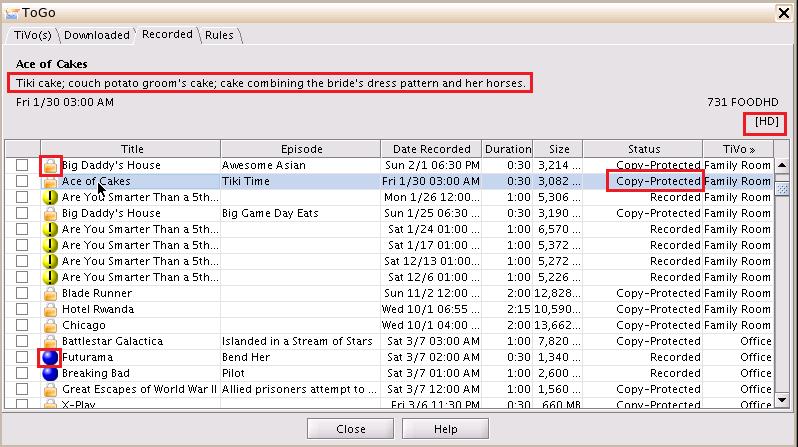
  • fixed the bug that was causing the show description to not display.
  • added indication of [HD], DIGITAL, or UNKNOWN recording qualities to the existing analog ones (MEDIUM, HIGH, etc.).
  • displayed copy-protected recordings, indicated with lock icon (previously the app was just hiding these shows, which I thought was confusing and inconsistent with other downloading apps, like TiVo Desktop. I thought it better to see that the show is actually there, just copy-protected. This was also causing problems with the space calculation, see below).
  • re-instated the blue ball icon to indicate a TiVo Suggestion.
  • on the TiVos tab (not pictured) I fixed the space remaining calculation. Before it was just subtracting the size of all recordings (across all TiVos) from the capacity of each individual TiVo, which was resulting in negative, obviously wrong, numbers.

On the TiVo side, I made similar changes:

togo-tivo-fixes2-713129

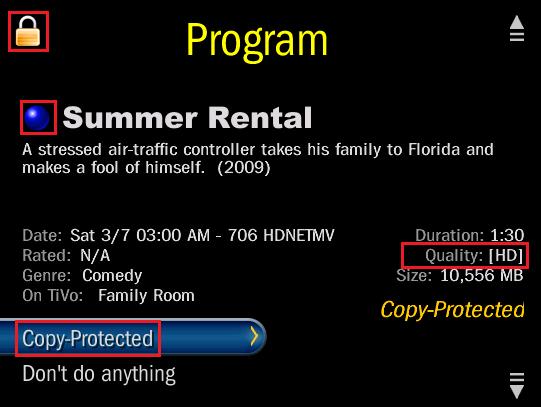
  • added indication of [HD], DIGITAL, or UNKNOWN recording qualities to the existing analog ones (MEDIUM, HIGH, etc.).
  • displayed copy-protected recordings, indicated with lock icon.
  • re-instated the blue ball icon to indicate a TiVo Suggestion.
  • fixed display of total Length (hours:minutes) for statistics on main Now Playing screen (not pictured).

I’ve checked my changes into the SourceForge project’s CVS repository so they should be part of version 2.5.5, whenever that is finally released.

webOS on my Treo

It may be a while (if ever) before I get a Palm Pre, especially since Sprint has it exclusively for 2009. However, I don’t have to wait for the webOS experience.

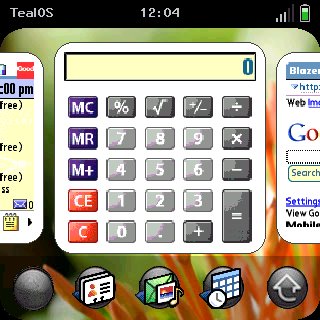
TealPoint software has released TealOS, an amazing piece of programming that duplicates the look-and-feel of webOS on the current Palm handhelds. Here’s a screenshot of it running on my Treo 680:

snap-c5c992da-738541

As you can see it gives you the card interface, where “running” applications appear as a scrolling list of cards on the home screen. You can use your finger to swipe the cards left and right and then tap on the one you want to “launch” (bring to the foreground). Now, PalmOS is not a true multi-tasking operating system so what TealOS is really doing is re-launching the application for you. Thus, I’ve found that the screenshots on the cards are not always accurate. If you’re not on the home screen, you can switch cards by swiping your finger along the bottom of the screen from either corner. To remove cards from the home screen list, just swipe them up and off. It’s pretty cool!

They’ve also included the “wave menu” where you swipe your finger up from the bottom of the screen to bring up a moving app menu for quick launching. My screen capture software (Snap) wasn’t able to capture the wave menu in action, but you can see shots of it on Engadget.

Underneath the pretty interface it’s still PalmOS, of course, so all of your existing apps look the same. Beware: after using TealOS for a while, those “old” apps start to look pretty tired and dated. Another side effect: more fingerprint smears on the screen. πŸ™‚

I’m a long-time user of some of TealPoint’s other applications, mainly TealAuto and TealBackup. After playing with TealOS for a little while, I’ll have to decide if it’s worth the $15 for the pre-Pre experience.

GPS map “update”

So I broke down last night and purchased the latest map update for my Garmin StreetPilot c340. After downloading the 2gb file and running into a few setup issues, I finally got it installed on the GPS.

This morning, I fired the unit up on my way to work, as I am wont to do (mainly to see my estimated arrival time). Imagine my surprise when, as I was driving on I-275 North over the Howard Frankland Bridge (which goes over the bay), the GPS display looked like I was driving over land instead of water:


Yes, this is a minor thing since it’s just a display issue (the routing and navigation is working fine), but it’s really annoying since this was an “update” (that cost me $60) which clearly has some sort of corruption in it. If I zoom out far enough, eventually the correct map is displayed:

But I shouldn’t have to deal with that. And who knows what else is messed up?

I tried re-installing the map update from scratch, resetting the GPS, changing map views (3D vs. overhead) and detail levels, etc. without any luck. I’ve opened a support ticket with Garmin and am waiting to see what they have to say.