A TiVo is much more than just a souped up digital VCR. What separates TiVo from your cable company’s generic DVR (other than the awesome features of TiVo service itself) is the wide range of (mostly free) applications you can use to enhance your TiVo experience. I’ve written about some of these applications here before (like Galleon, streambaby, and pyTivo) but I figured one comprehensive write-up might be in order.
software
At least this proves Clippy is finally dead
Microsoft is really reaching with some of its latest advertising campaigns. Perhaps you heard about the vomiting woman with IMGIGP (oh my god, I’m gonna puke) syndrome commercial that they recently pulled? And yes, that was Dean Cain as the spokesman.
Well, check out the latest “ad” for Microsoft Office 2010:
I have to admit that’s pretty creative and humorous, but does it really tell us anything about Office? On the other hand, does it need to?
“Spell check this!” 😀
Microsoft Security Essentials
Microsoft is getting into the anti-malware market.
Microsoft Security Essentials (MSE) is a replacement for Windows Live OneCare and, I think, Defender. Did I mention it’s free? Paul Thurrott has a good write-up on MSE on his SuperSite for Windows.
Since I’m already running the Windows 7 release candidate, I figured why not give this a try as well? I downloaded the free beta, uninstalled AVG Free, and installed the new software:
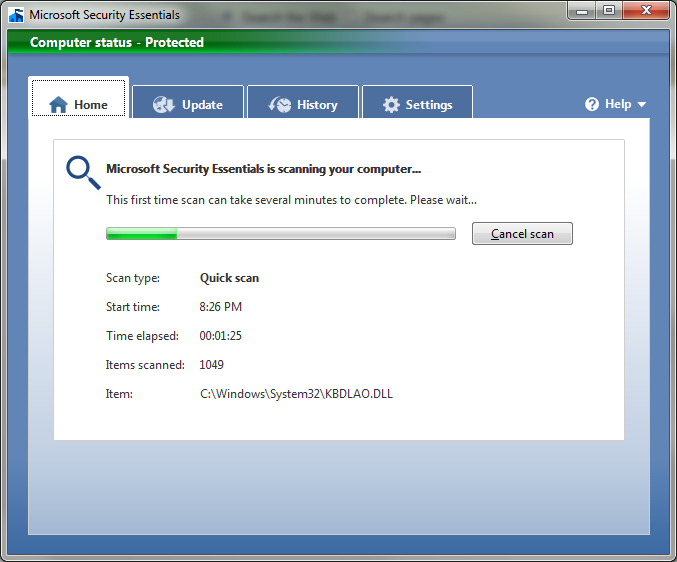
I’ll keep an eye on it for the next few weeks and see how it goes …
I hate those fake AV trojans!
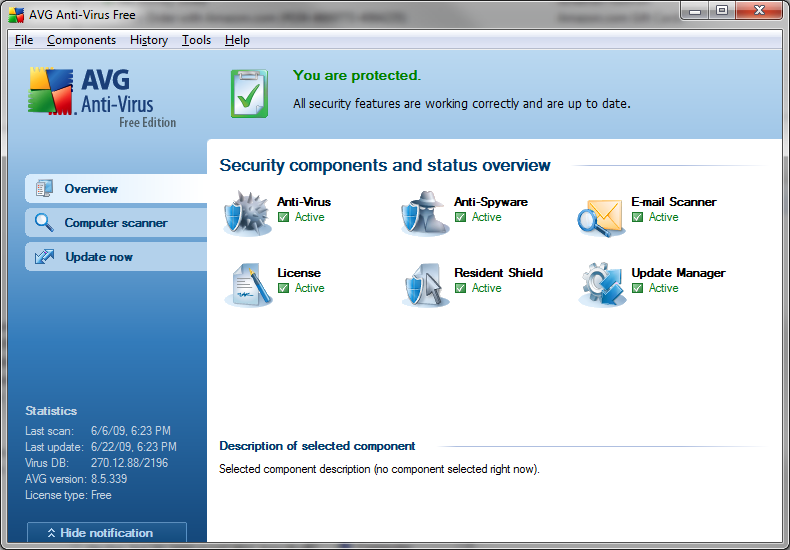
Today I had to clean another one of those fake anti-virus programs off of a machine at work. This one was called Personal Antivirus and bore a striking resemblance to AVG Free (which I use myself and usually recommend to others).
Here’s the AVG console:
And here’s Personal Antivirus:
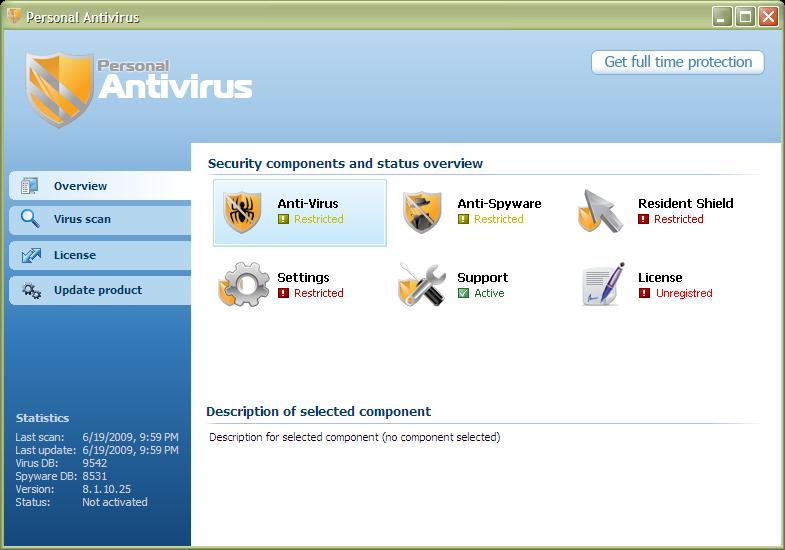
Look familiar? In this particular case, neither our corporate Symantec anti-virus nor Malwarebytes (both with current definitions) detected the fake program. I eventually had to clean it off manually myself.
These things are really sneaky. How can we educate the average user to tell these two apart? I mean, other than the fact that they had to click on something in a web browser to get the fake one installed in the first place, once “installed” they look and act like the real thing (well, except for all the fake alerts they throw up). Arrrrgh!
Windows 7 Problem Steps Recorder
I stumbled across another neat feature in Windows 7: the Problem Steps Recorder (PSR).
Run psr.exe from the command-line and you’ll see a utility window you can use to record your session:

Click “Start Record” and then replicate the problem. Click “Stop Record” when you’re done and the tool will prompt you to save a zip file that has an HTML document in it containing screen shots and descriptions of the steps taken. Also cool is that the tool automatically highlights important areas of the screen:
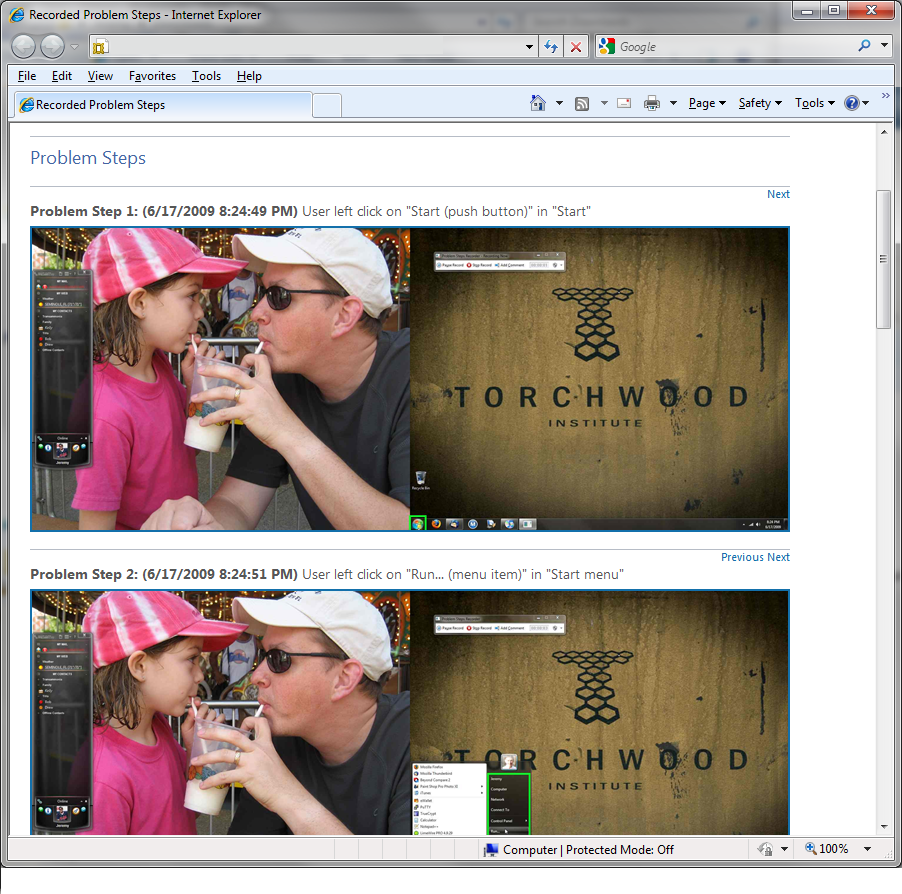
This is obviously targeted toward help desks and IT support professionals (without remote access to the machine) who need to solve problems like “I just clicked the thingy and shows it some error message and disappears!”, but I could see myself using this as a quick and easy way to generate user documentation (like how-tos) as well.
Tech Republic has a good, detailed article on the PSR. Check it out.
The science of Folding at Home
I found this interesting article via slashdot that explains the science behind the Folding at Home project.
I folded my first workunit almost two years ago on June 19, 2007. Since then I’ve contributed about 580 additional WUs by running the F@H client on my various PCs and servers at home (you can see some of my stats at the bottom of my sidebar over to the right).
Back in the day I used to contribute my spare CPU cycles to the SETI@Home project, but I switched. Don’t get me wrong I still think finding alien life would be cool, but folding proteins seems like a nobler, more pressing cause for the time being.
Microsoft isn’t making Money anymore
Don’t worry, they’re making plenty of cash, but Microsoft announced this week that they will no longer be producing their personal finance software, Microsoft Money.
This makes me sad as I’ve been an MS Money user for about 13 years! I switched from CA Kiplinger’s Simply Money to Microsoft Money 97 back in 1996 and have faithfully purchased upgrades every other year around tax time. I use it to download all of my bank, credit card, and brokerage statements, pay bills, balance the checkbook, generating spending reports, etc.
Microsoft says that more people are using their banks’ own websites and services nowadays so maintaining a standalone software package just isn’t worth it. That’s fine, and I do use my own bank’s or credit card provider’s web sites, but I like having everything consolidated in one place. When my current version of Money Plus expires in Feburary next year, I’m going to lose that convenience. Sure, the software will still work and I can manually enter transactions, but I won’t be able to use any of the online features. Instead, I’ll have to jump around to different web sites. On the bright side, if I move my finances into the cloud (scary though that is, from a security standpoint), I won’t have to deal with installing and activating Money on multiple PCs and then not having access to it when I’m on one of my Linux machines.
I’ve got 8 months to figure out my next step: maybe an online service line mint.com or switch to Quicken? Time to start researching alternatives. 🙁
My new Eee PC 900A and Windows 7
Last week I stumbled on a deal over at Woot!: a refurbished Asus EeePC 900A (1gb RAM, 4gb SSD) for $160. My addiction to shiny things had me clicking on the “Buy” button before I could stop myself. Considering my original 4G Surf cost twice that (albeit over a year ago) it was too good a deal to pass up.
The 900A has a 9″ screen (running at 1024 x 600 resolution) and is overall slightly larger than my 4g Surf (it still fits nicely into the neoprene sleeve case, though). Like my 4G Surf, it also lacks Bluetooth and the webcam.
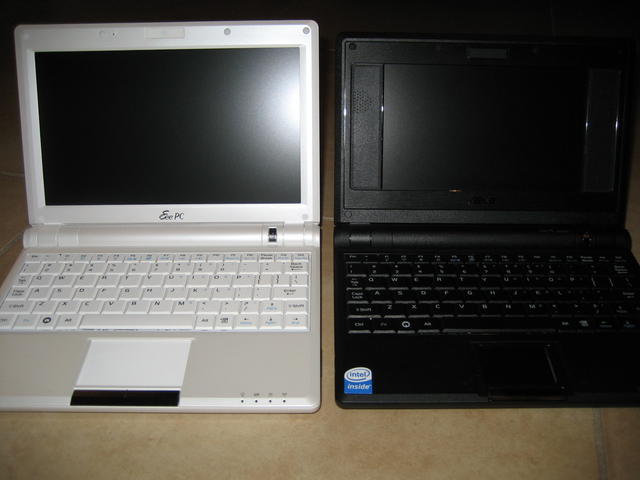
Out of the box it had the Xandros Linux distro installed but I wasn’t about to go back to using that. From the moment I ordered the unit I had plans to put the Windows 7 release candidate on it.
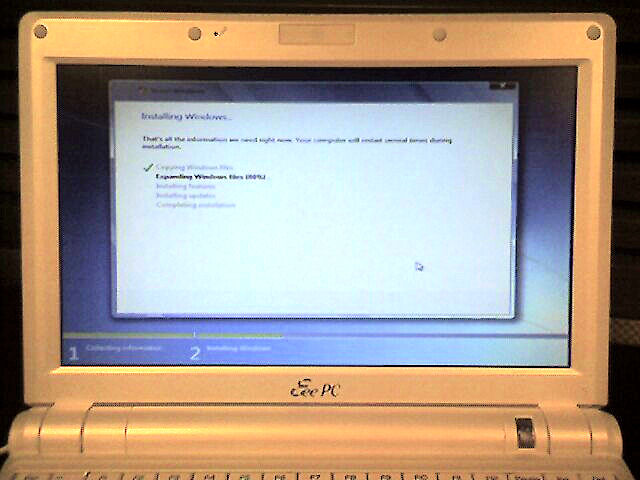
The first thing I did was a quick disk image using eeebackup just in case I should ever want to put the clean Xandros image back on it. Then it was time to research how to install Windows 7. Cramming a full Windows 7 install into 4gb of hard drive space requires some creativity. Luckily there are a lot of creative hackers out there. I ended up using a combination of various blog and forum postings (see the end of this post for the links) to create a bootable, vLite‘d version of the Win7 RC on a thumb drive and then used that to install it on the 900A:
After some post-install configuration, cleanup, and compression, I had a trimmed down (but functional, even with Aero effects!) version of Windows 7 on my new Eee with about 1.4gb free on the SSD.
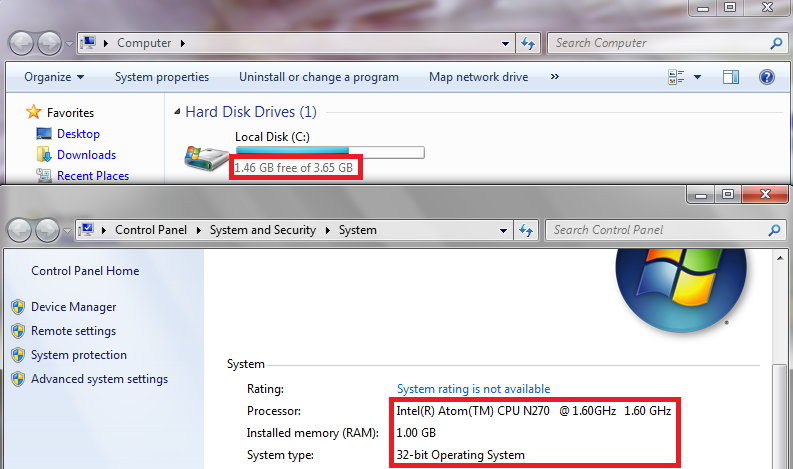
I still need to put some more software on it (like AV software, Firefox, and maybe Office) so that final free space number will most likely be smaller. I’ll probably end up having to use an SD card for cheap, extra storage.
I think I’m taking a performance hit since I compressed the entire drive. Windows 7 isn’t super snappy, but it runs. I’ll give it a shot for a while and see how it goes before I consider switching to Ubuntu like I did on my 4G Surf.
Install Windows 7 on Asus Eee PC 900
Easy direct install from SD card to 4gb SSD
How to vLite Windows 7 Beta 1 and install it on a 901 using an SD card
The noobest noob guide to install Windows 7 directly on your Eee PC
Windows 7 RC upgrade
This past weekend I decided to jump in and start using the Windows 7 RC full-time on my home desktop. Rather than do a (recommended) clean install, I wanted to try the upgrade from Vista Home Premium. To prepare, I made a full image of my PC with DriveImage XML earlier in the week (which took over 27 hours to back up 164gb wirelessly to my NAS … in hindsight I probably should have used a wired connection or backed up directly to another hard drive).
My first mistake was that I tried to use the wrong release candidate, figuring I would try the 64-bit version of the software. Well, you can’t upgrade from 32-bit Vista to 64-bit Windows 7 since the upgrade starts from within your current version of Windows (and you can’t run a 64-bit app in a 32-bit environment). A clean install is the only way in that case. I didn’t want to start over so I downloaded the 32-bit RC and then started the upgrade process.
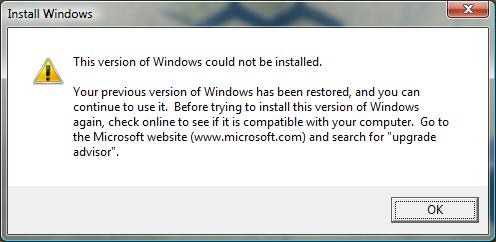
Everything was going smoothly (for about an hour) until the last stage: copying over user settings and applications. The process got up to about 62% complete when suddenly my PC blue-screened and rebooted! I was then stuck in a BSOD reboot loop! Watching closely during the BSOD, I was able to determine that the faulting driver was named inspect.sys. Some Google searching helped me narrow this down to my Comodo Firewall software. What kills me is that my PC passed all the pre-upgrade checks. It only warned me about a possible incompatibility with the ATI Catalyst driver. I couldn’t find anyone else having the same specific problem during a Win7 upgrade so my only recourse was to undo the upgrade.
Lucky for me, the rollback process was smooth, and fast! It only took about 20 minutes to restore my Vista configuration and my PC was back to normal. Well, except for this:
Hoping the firewall was the only problem, I uninstalled Comodo and then ran the upgrade process again. This time it was successful and I was up and running on Windows 7 with my settings intact … whew!
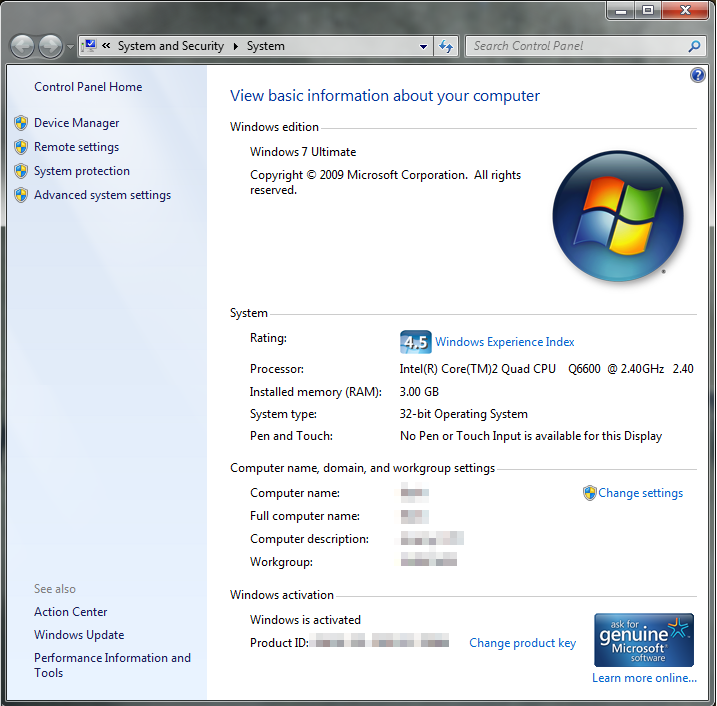
I was able to download the 3.9 RC2 version of the Comodo Firewall and that seems to be behaving just fine with Win7 so far. Another minor problem I ran into was that the new Security Center kept reporting that AVG Antivirus 8.5 (the free version) was “turned off” when it wasn’t, so I had to disable that particular check. Also, when trying to shut down, my beta version of Trillian Astra crashes and I have to force the shutdown.
The new taskbar takes a little getting used to. Running programs and quick launch icons are almost indistinguishable at first:

It was driving me crazy because I would think Thunderbird was running and click on the icon to restore the window, when actually it was not running and my click just launched it. I can see now that running programs have the square highlight around them. In my screen capture above, Firefox, Thunderbird, and Explorer are running, but Microsoft Money and PaperPort are not. See the difference? I guess this is Microsoft’s answer to Apple’s dock. The other interface tweaks are nice, though, once you get used to them. I really like the Aero Peek and Aero Shake features, for example.
So now I’m using Windows 7 as my main OS at home … at least until next year when this release candidate expires.
You hear maniacal laughter in the distance …
I found, via slashdot, this great article on the history of Rogue, a character-based dungeons-and-dragons computer game from the early 80s, originally developed for UNIX.
While I had been playing paper-based RPGs with my friends and computer-based D&D games (like the Alternate Reality or Ultima series on my Atari 800XL) all through high school, I didn’t encounter Rogue until college. This makes sense since that would have been the first time I encountered a UNIX system (actually, though, I was playing it on the university’s VAX).
Despite the fact that its graphics were limited (your character was @ and monsters were letters like ‘Z’ for zombie or ‘V’ for vampire) and the controls were a little hard to get used to (H and L for left/right, J and K for up/down), it was a fun game to play because it was different every time: you never knew what monsters you were going to encounter (watch out for those monster party rooms!) or what cool weapons, potions, or scrolls you would find.
My daughter loves playing iRogue on my Treo (although should I be disturbed that she likes playing as undead? 😀 ). There’s even an iPhone version. Portable retro gaming at its best.