I’ve been pleased so far with my in-house internet cameras and decided I’d like to be able to keep tabs on the outside of the house as well. TRENDnet sells weatherproof enclosures for their cameras but they won’t work with the night-vision models because the IR just reflects off of the glass. I started looking at other models of outdoor cameras and chose the Foscam FI8904W.
mobile
Jailbreaking my iPhone
I couldn’t resist any longer: the recent exceptions added to the DMCA for jailbreaking allowed for the return of jailbreakme.com, the easiest way yet to jailbreak your iPhone. Just about every podcast I listen to/watch had talked about this and demoed it live so I figured what the heck? I made a full backup of my iPhone 3GS with iTunes and then fired up Safari …
TRENDnet internet cameras
Another piece of tech I implemented before we went on our vacation roadtrip was a series of TRENDnet wireless internet cameras so we could keep an eye on the house while we were away.
Polaroid PoGo
Back in March, in preparation for our recent family roadtrip vacation, I purchased the Polaroid PoGo Instant Mobile Printer. The tiny PoGo prints 2 x 3-inch borderless color images in under a minute onto ZINK (zero ink) paper.
Jungle Disk on the iPhone
Today Rackspace announced the availability of Jungle Disk for the iPhone. I can now finally access all of my files backed up on Amazon S3 while on the go, pretty cool!
Unlike the desktop version, however, the iPhone app is only for accessing files already on your S3 account. You can delete files from your Jungle Disk, but the only adding you can do is photos taken with the camera. I was hoping for a desktop-like feature that would let me backup my iPhone over-the-air to S3, but I guess I’ll have to continue to rely on iTunes for that.
Now I need to re-evaluate my use of some overlapping apps on my iPhone, namely Dropbox and Air Sharing. I like using Dropbox to easily sync files across multiple devices, so I’ll probably keep that around. Air Sharing, though, I might not need anymore. Since I stopped carrying my 2gb USB thumb drive loaded with portable apps and my documents, I’ve found I haven’t been using them via Air Sharing that much (if at all!). So rather than waste that storage space on my iPhone carrying around stuff I’ll never use, I’ll probably clear out Air Sharing and just use Jungle Disk exclusively.
Two months with the iPhone
Steve Job’s recent announcement of the new iPad (really?) coincided closely with the two month anniversary of my getting an iPhone. So how have the past 8 weeks or so been?

I’m definitely better at typing on the virtual keyboard. I’m nowhere near as fast (or accurate) as I was on the Treo’s physical keyboard, but I can see a definite improvement over three months ago. Hopefully I’ll continue to get better as I learn more tricks. I’ve also adjusted to life without the clickwheel for basic iPod functions, which still accounts for the majority of my iPhone usage. The audio scrubber is frustratingly inaccurate, however, and I find it diffiicult to use. The voice commands come in handy while driving in the car so I’m finding myself using those more often. At home, we’ve got the Griffin PowerDock dual-charging station so we can keep my and my wife’s iPhones charged without having to pull out the little white charger blocks.
I originally complained about it not being easy to sync the iPhone with multiple PCs, mainly because that made it harder to download content while travelling with my laptop (my primary iTunes machine is my desktop at home). I found that you can download new podcasts directly from the device, which is cool … unless you happen to be using AT&T’s 3G data service instead of WiFi (see the screenshot to the left). No downloading new podcasts while driving in the car. 🙁 To make it easier to sync files (or photos), I’m using DropBox on my PCs and the iPhone. I just move the photos from my camera roll into the DropBox folder using the app and it’s automatically synchronized to all of my other devices running the DropBox client.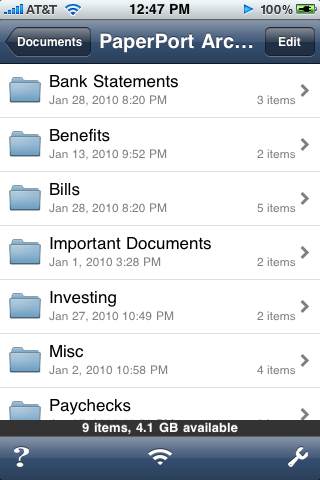
I used to carry a 2gb USB thumb drive around that contained my portable apps and personal documents, but why continue to do that when I’ve got extra room on my 32gb iPhone? I purchased Avatron’s Air Sharing application (screenshot to the right) which for $3 turns your iPhone into a wireless storage device. I can map my iPhone as a drive on my Windows PC (or connect via the browser) and then use my regular synchronization software to copy files back and forth. Yes, DropBox can do the same basic thing, for free, but I’m not comfortable storing some of my personal documents on DropBox’s servers so Air Sharing lets me eliminate that middleman (besides, I’ve got this stuff backed up to my encrypted Amazon S3 account through Jungledisk, no need to duplicate them out in the cloud again). Air Sharing also supports viewing most document types like Word and Excel, PDF, etc.
If you live in a multi-iPhone household and need to keep a synchronized shopping list, you must purchase GroceryIQ. For just $1 you get a full-featured list app that supports multiple stores, aisle and category customization, barcode scanning, and list sharing. If I purchase something on the list and mark it off, it will disappear from the app on my wife’s iPhone so we don’t end up both buying the item. By customizing the aisle order for each store, our grocery shopping is more efficient: no more back-and-forth in the store because we forgot an item that was two aisles back. Everything is listed in the order you go through the store. I was a little disappointed that the recent version includes little ads in your shopping list, but they’re not that intrusive and heck, it was only $1 and that’s well worth the features you get.
i.tv is neat little app (free) that turns your iPhone into a connected TV guide. You can search TV listings for your lineup, see what’s currently on and what other people are watching. What I like, though, are the TiVo features (of course!). After linking your tivo.com account you can schedule upcoming recordings directly from your iPhone. There’s also a feature that turns your iPhone into a WiFi-enabled remove control for your TiVo (Series3 models only). Yes, I can change the channel on my TiVo in the family room from across the house (except you can’t control TV functions like volume, so I still need the remote extender for that). Fun to play with.
Other than those additions (plus a few free games), I seem to be past the initial “must-download-and-try-everything!” stage of installing apps. My list seems to have stabilized around 5 pages of icons, which I try to have organized by type: most-used, utilities, games, work-related, misc., etc. Unfortunately the lack of real customization features on the springboard makes it hard to really categorize the icons so I’m trying to learn to live with that. 🙂 It’ll also be interesting to see which (if any) new features introduced in iPhone OS 3.2 (running on the iPad) make it into the iPhone itself in the next few months.
Apple iPhone 3GS
After over 13 years of using (mostly) PalmOS and (some) Windows Mobile devices as my PDA and/or cell phone, I now own my first device that runs … OS X. Yep, I got an iPhone.
We’re in the early stages of testing the iPhone with our corporate e-mail infrastructure: Microsoft Exchange and GoodLink. Since my AT&T account has been upgrade-eligible for some time (the last time I “officially” upgraded was when my Treo 650 was the hot new device), my boss told me to go ahead and get an iPhone (16gb model, but I paid a little out-of-pocket to get the 32gb one since my current iPod is 30gb). I need to start learning how to use it so I can eventually support it as we roll the device out to other users in the office. It’s been two weeks now since I abandoned my trusty Treo 680 and I had some free time while on vacation last week to really spend some time with the iPhone. Here’re some of my thoughts …
What I Like
- the design and form factor: the iPhone is truly a beautiful thing to look at given it’s mostly screen and a single home button. Even with my Otterbox impact case on, it still fits comfortably in my pants pocket. I miss having a physical keyboard (see “What I Don’t Like” below) but the buttons that are present make sense.
- it’s a widescreen iPod: when music is playing and a call comes in, the music fades away and then the phone rings. When you’re done with the call, the music fades back in, picking up where you left off. One minor nit here, though, is that if you have the e-mail notification sound enabled, your music will fade briefly to play the mail sound, which isn’t necessary (the notification should just be suppressed). I replaced my old Belkin Tunebase FM with the new version for the iPhone so I can charge the device in my car and still listen to podcasts while driving. It includes a speakerphone for handsfree and a single button that works like the home button on the phone: click once to pause/play, twice to go forward a track, twice and hold for fast forward, three times to back a track, thrice and hold for rewind. I like being able to turn the phone sideways and watch video podcasts in widescreen too (although scrolling through podcasts is uncharacteristically choppy).
- the GPS: using the built-in GPS and compass for location-based/direction-based services is really slick. Pulling up Google Maps and watching the blue dot move along a highway as I drive is like a scene out of a spy movie. Check out Yelp’s monocle feature for a perfect example of augmented reality using these features.
- the camera: I’ve been stuck with the VGA (640×480) camera in my PalmOS devices for so long! It’s great to finally have a mega-pixel camera (with video even!) that takes pretty good pictures. I love the geo-tagging feature too.
- the speaker: being able to play music without headphones or external speakers is a definite plus.
- oh yeah, it’s a phone: when held up to your ear, the screen turns itself off. Take it away from your ear, and the screen fades back into view. You don’t have to navigate through a voice response system to record your voicemail message or retrieve your messages, just tap the buttons on-screen. It’s those little things that continue to impress me. Of course, I haven’t actually used it a lot as a phone since it does so much other cool stuff.
What I Don’t Like
- the keyboard: no one can argue that the iPhone’s virtual keyboard is better than then Treo’s. Typing on glass just isn’t the same. I’m getting better at two-thumbing it, but I still find typing (quickly) a frustrating exercise.
- iTunes: I haven’t looked into this much yet, but having to use iTunes to sync and customize the phone is a pain, especially if you’re using more than one computer. For example I sync my iPhone with my main desktop machine at home. While travelling over Thanksgiving, I had my laptop with me, but could not use iTunes on it to manage my phone. This is really going to be a pain at work when I’m trying to configure multiple iPhones for people in the office. I found the iPhone Configuration Utility but still need to read up on enterprise deployments.
- syncing (or lack thereof): requiring iTunes also makes it difficult for applications to sync their data for backup. Palm had HotSync and conduits which allowed third-party developers to create custom “tunnels” in HotSync that were basically transparent to the user. To sync my eWallet desktop with my iPhone data, I have to open each application (on my PC and the phone), and then start the sync over WiFi (totally outside of iTunes). A kludgy workaround due to Apple’s control freak design. Even the photos and videos you take on the iPhone don’t sync down to your PC through iTunes, instead you have to use the built-in features of your PC since the device appears as a plain storage device (although you can sync certain folders of photos back to the iPhone from your PC if you want to carry a certain collection around).
- I miss the clickwheel: using my iPod in the car without looking was pretty easy with the clickwheel. I was even pretty good at skipping most commercials (half a turn on the wheel was about 30 seconds). The iPhone isn’t as easy since it doesn’t have a lot of buttons. Yes, you can use the home button to skip tracks, or FF/RW, but for more accurate positioning you have to use the on-screen scrubber with your finger, which is pretty dangerous to do while driving.
- lack of customization options: sure I can drag the app icons around to different pages, but I can’t rename them, can’t leave empty spaces on the grid, can only assign a few different options to the home button, etc. Sure, I could mess around with jailbreaking and probably address some of those concerns, but I need to be able to support this device at work so I can’t deviate too much from the delivered experience.
- battery life: forgive me … I’ve been using a Treo on the Edge network for almost 4 years and battery life was pretty darn good. I’d only have to charge it overnight and it was good for all day. 3G and all the other cool stuff I can do on my iPhone really sucks the battery dry quickly. When I had my separate iPod and Treo, it didn’t matter if my iPod died while listening to music during the day since my phone still worked. Now that I have this single device I need to be more careful about making sure I keep it charged. The lack of a user-replaceable battery is a downer too. It’d be nice if I could just buy a new battery and put it in myself instead of having to send the whole phone back to Apple for a “repair.”
- fingerprints: it really sucks that 5 seconds after taking this beautiful shiny piece of technology out of the box it’s covered in my greasy fingerprints. The matte finish screen protectors I got at the AT&T store do a decent job of hiding them, though, and make the screen a lot less reflective and not so glassy to the touch.
- it’s delicate: this will take some time to play out, but the Treos were solid. Not that I drop my phone a lot, but when I do, it’s usually in a bad way. The Treo might have gotten scratched or scuffed, but it kept on working. Little plastic tanks. I’m not so sure about the iPhone. I already dropped it once onto concrete but luckily I have that impact rubber case and it landed screen up. The folks in the office are pretty hard on their devices (based on the drawer full of broken phones in my desk) so it’ll be interesting to see if the iPhone is up to their abuse.
What Apps Do I Use?
There’s an app for everything, right? Another of the big draws of the iPhone is the thousands of applications available in the iTunes App Store. One of the first things I had to do was find iPhone equivalents of the applications I used on a daily basis on my Treo. Here’s what I’ve got so far.
- What I used on the Treo: eWallet
- What I switched to for the iPhone: eWallet ($10 for iPhone, or $20 usable on multiple devices including PC)
Like anyone, I have a lot of passwords, logins, and various personal private information I need to carry around with me. To keep all of this sensitive information secure and portable, I’ve used Ilium Software’s eWallet application for many years. Luckily this switch was easily since Ilium has PalmOS, Windows Mobile, PC, and iPhone versions of eWallet, and now I’ve used them all. Migrating my data was simple, although synchronization between the desktop and iPhone versions is a little cumbersome since you have to initialize the sync on both devices at the same time over WiFi. Still, being able to access all of my passwords, accounts, and other stuff I store in my wallet on the iPhone is great.
I also keep a lot of random information on my handheld: gift ideas, vacation days, clothes sizes, various house information/measurements, lists of all sorts! So Ilium Software’s ListPro was another application I relied heavily on, using it both on my Treo and desktop PC. Unfortunately, Ilium hasn’t produced an iPhone version of ListPro yet so I had to search for alternatives. I ended up trying Evernote, which has iPhone and PC versions (in addition to many more, including via a web browser). Evernote requires you to create an account on their website, so technically your notes are being stored on their servers and then synced with your different devices. You can store text, images, documents, etc. but keep in mind the only notes you can actually edit on the iPhone have to be plain, unformatted text (so no checkboxes, bullets, etc.). Creating notes on the iPhone has the benefit of automatic location tagging, using the phone’s GPS. The basic free service has a limit on how much you can upload a month, so there’s a premium service you can pay for without those limits and also includes things like extra security. I had to manually copy/paste all of my lists out of ListPro into Evernote, which was a bit of a pain, but it did give me the opportunity to clean up and re-organize some of my lists.
- What I used on the Treo: Tasks (GoodLink)
- What I switched to for the iPhone: iMTasks (no longer available, replaced by iMExchange 2)
With GoodLink on my Treo, my e-mail, contacts, calendar, tasks, and notes from Outlook were all synchronized in near real-time. The iPhone handles the e-mail, contacts, and calendar, but not the to do list or notes. I am a heavy user of Outlook tasks so I really wanted those synced to my iPhone. For whatever reason, Apple decided not to bake that in. Instead, I had to purchase RERLSoft’s IMTasks app. Once I entered my Exchange information, the app downloaded my to do list and keeps it synchronized (although only while the app is open). Hopefully the forthcoming GoodLink client for the iPhone will include this (update, 07/2012: almost three years later and it’s still not part of the Good app), but for now this was a must-purchase function for me. RERLSoft has a version that includes Outlook notes synchronization (and also allows you to manage your out-of-office setting), but since I’m using Evernote now I decided to stop using Outlook notes altogether.
- What I used on the Treo: TealAuto
- What I switched to for the iPhone: Gas Cubby ($5, free lite version available)
Some other data I keep on my phone is car information: gas mileage, repair history, etc. On my Treo I used TealPoint’s TealAuto application to store and track fill-ups, repairs, maintenance, etc. Without an iPhone version, I tried out a few of the vehicle apps in the App Store, including the free “lite” version of Gas Cubby and eventually ended up purchasing the full version. Using the Windows version of TealAuto, I was able to export all of my data from my Treo into a CSV file. Then, using App Cubby’s unsupported import feature, I was able to load it all into Gas Cubby. The import only supports gas events, though, not maintenance, so I manually entered our 2009 maintenance events into the app later (not a big deal since there were a lot less of those compared to fill-ups). If you’re a multiple iPhone home and purchase multiple copies of Gas Cubby, you can even keep the data synchronized across devices, which is a cool feature.
- What I used on the Treo: iSilo
- What I switched to for the iPhone: Stanza (free)
If you read this blog you know I do a lot of reading on my PDA. There’s not a version of iSilo for the iPhone so I had to try out a few free e-readers. I settled on Stanza. Using the desktop version, I was able to convert the book I’m reading from the Baen free library from HTML into a format for the Stanza reader and transfer it to my iPhone. Having the larger, higher resolution screen on the device is great for reading. Plus you can change font sizes, colors, and themes (black on white, white on black, textured, etc.). I’ve also installed Amazon’s Kindle Reader (free), in case I decide to purchase some new e-books. No need for a Kindle now! Interesting, though, that Stanza is actually owned by Amazon. I wonder if eventually they’ll combine these apps?
Why do I like remoting into my Linux server from my phone? Because I can, of course! iSSH let’s me login to my Ubuntu box at home via command-line or tunnelled VNC. The free iRdesktop utility lets me connect to my Windows servers at work when I have my iPhone connected to the VPN. Amazing. There’s even a free Citrix client (but I haven’t gotten it to work properly yet).
My daughter loves playing iRogue on my Treo and I like it too, so of course I needed the iPhone version! 😀
Some other apps I’ve purchased/installed include:
- iEmergency+ ($1) allows you to store your emergency contact information (phone numbers, medical info, etc.) in a single place and also has a helpful utility for adding ICE information to your iPhone’s lock screen.
- Using VIP Access (free) means I don’t need to carry around my PayPal football or VeriSign Secure Card since my iPhone can now act as my security token.
- The iPhone doesn’t allow for multiple e-mail signatures when you use multiple e-mail accounts. JohnHancock ($2) lets you create and switch between as many as you need. There doesn’t seem to be an elegant solution, but this app at least provides one.
- RedLaser ($2) is an amazing barcode scanning application. Point your iPhone’s camera at any barcode and the app will pull up a list of prices from other stores. The latest update even uses the GPS to find local prices. If nothing else, it’s fun to play with.
- Chess with Friends (free) and Words with Friends (free) from New Toy, Inc. are basically chess and Scrabble games you can play “online” with other iPhone users. Really cool for playing with friends or relatives who live far away. We used both of these games in the car on our recent Thanksgiving holiday trip to play games without having to pass a single iPhone back and forth. 😉
What Do I Think?
The iPhone is a really slick device. The first few days were rough for me, since I was really set in my ways with my Treo and doing things in a certain way. Over the past two weeks, though, as I’ve had time to get better acquainted with my new shiny toy business tool, I have to admit it is a well engineered piece of hardware and software. Now I have a single device that really covers all the bases. Pretty incredible.
Got any other must-have/must-try apps for me, or other iPhone advice, tips, or tricks? Leave me a comment!
webOS on my Treo
It may be a while (if ever) before I get a Palm Pre, especially since Sprint has it exclusively for 2009. However, I don’t have to wait for the webOS experience.
TealPoint software has released TealOS, an amazing piece of programming that duplicates the look-and-feel of webOS on the current Palm handhelds. Here’s a screenshot of it running on my Treo 680:
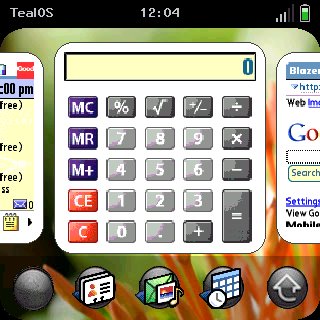
As you can see it gives you the card interface, where “running” applications appear as a scrolling list of cards on the home screen. You can use your finger to swipe the cards left and right and then tap on the one you want to “launch” (bring to the foreground). Now, PalmOS is not a true multi-tasking operating system so what TealOS is really doing is re-launching the application for you. Thus, I’ve found that the screenshots on the cards are not always accurate. If you’re not on the home screen, you can switch cards by swiping your finger along the bottom of the screen from either corner. To remove cards from the home screen list, just swipe them up and off. It’s pretty cool!
They’ve also included the “wave menu” where you swipe your finger up from the bottom of the screen to bring up a moving app menu for quick launching. My screen capture software (Snap) wasn’t able to capture the wave menu in action, but you can see shots of it on Engadget.
Underneath the pretty interface it’s still PalmOS, of course, so all of your existing apps look the same. Beware: after using TealOS for a while, those “old” apps start to look pretty tired and dated. Another side effect: more fingerprint smears on the screen. 🙂
I’m a long-time user of some of TealPoint’s other applications, mainly TealAuto and TealBackup. After playing with TealOS for a little while, I’ll have to decide if it’s worth the $15 for the pre-Pre experience.
PalmOS is dead … long live PalmOS!
I bought my very first PalmOS device (the Pilot 1000 by USRobotics) back in 1996 from an Elek-Tek in Castleton, Indiana … a total impulse buy. It only took me a few weeks to master Graffiti (I remember I actually started using Graffiti characters in my normal handwriting). I took a few shots at writing small applications, but mostly ended up contributing random text files to the community (some of which are still up on memoware.com). PalmOS wasn’t a multi-tasking operating system, but it was simple, elegant, and fast … and there were a ton of third-party developers writing apps for it.
While Palm did make minor changes to the OS as the years passed (support for higher resolution screens, color, more storage, etc.) the basic software stayed the same. It was a winning solution, though: compared to Windows Mobile devices (like the iPAQs or Jornadas) the Palms were easier to use, almost always faster, and had a slew of cool (usually free) applications. And of course there was HotSync, which kept the device backed up and in-sync with the Palm Desktop software on your PC. (Side note: try asking a Windows Mobile user if they can factory reset their device, then connect it to their PC and have ActiveSync put it back exactly the way it was before they did the reset. HotSync has been able to do that since 1996 … ActiveSync still can’t). These points all held true as the clunky but loveable PDA turned into the original clunky phone known as the Handspring Treo 180 (that I believe started the smartphone revolution) and eventually led to the vast array of Treo models we’ve seen over the past few years. I still love my Treo 680 because, while it may not be 3G or have a motion sensor in it, or multi-touch, it’s fast and it works.
Unfortunately, in a move I guess we all knew was coming once the Pre was unveiled at CES, Palm today announced that the current Centro will be the last PalmOS device produced by the company. webOS is still an unknown quantity, but I hope it can take PalmOS’s place in the hearts and minds of Palm lovers everywhere as a worthy successor.
I guess my next Treo might have to be the Treo Pro, unless a GSM Pre that runs GoodLink is released in the near future.
GPS map “update”
So I broke down last night and purchased the latest map update for my Garmin StreetPilot c340. After downloading the 2gb file and running into a few setup issues, I finally got it installed on the GPS.
This morning, I fired the unit up on my way to work, as I am wont to do (mainly to see my estimated arrival time). Imagine my surprise when, as I was driving on I-275 North over the Howard Frankland Bridge (which goes over the bay), the GPS display looked like I was driving over land instead of water:

Yes, this is a minor thing since it’s just a display issue (the routing and navigation is working fine), but it’s really annoying since this was an “update” (that cost me $60) which clearly has some sort of corruption in it. If I zoom out far enough, eventually the correct map is displayed:
 But I shouldn’t have to deal with that. And who knows what else is messed up?
I tried re-installing the map update from scratch, resetting the GPS, changing map views (3D vs. overhead) and detail levels, etc. without any luck. I’ve opened a support ticket with Garmin and am waiting to see what they have to say.