A week without remote access … (the blog is back!)

In case you hadn’t noticed (and if not, why not? 😉 ), windracer.net was down for the past week. This was because my cable modem decided to lock up just hours after I left town for Christmas in north Florida with family. I called Spectrum (formerly Brighthouse Networks) from my in-laws’ house hoping they could reset the modem remotely, but the tech informed me the modem was fine, it must be my router. Grrr.

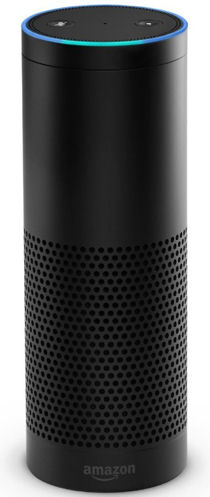
So this past week away from home was a real eye-opener to me on how reliant I am on internet access for the house. I couldn’t check on my cameras, my home automation schedules didn’t run (so no randomized indoor lights, no Christmas lights or landscape lighting, etc.), I wasn’t getting e-mails from my servers, couldn’t remote in to anything, my domains were down … the list goes on! So over the Christmas break I did some research on out-of-band access options that would allow me to get into the home network in case something like this happens again. I originally was looking at cellular devices like this, but they all seem to be GSM (2G) and most carriers are shutting down those older networks. So I decided to go with a “smart” power strip, the Web Power Switch 7, which can power cycle devices plugged into it based on network connectivity criteria. For example, if it can’t ping the internet, it can power cycle my cable modem (which would have fixed the problem I had this past week). I will, of course, write up a review once I receive it and have a chance to configure and set it up.

When I finally got home today, I checked my router and it was fine! But it was reporting a problem on eth0 (which is the cable modem). I rebooted the cable modem, and everything came back online! So it was the modem after all, despite what Spectrum had told me. Hopefully the Web Power 7 helps me to avoid these long-term internet outages in the future!

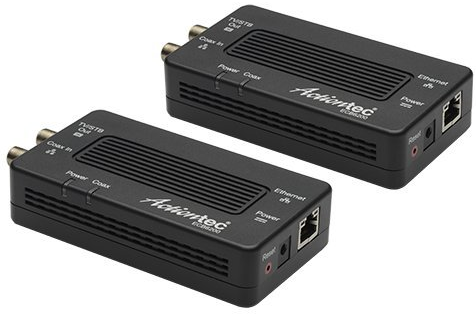
ActionTec ECB6200 MoCA adapters

ActionTec ECB6200

I was doing a bit of a network re-org and realized that the old MoCA adapter that connects my home office to the network was only a 100mbps ethernet connection. Since everything else on my network is now gigabit (except for the occasional exception like my PiDP-8), I decided to upgrade to ActionTec’s ECB6200 MoCA adapters.

These units support the MoCA 2.0 specification which allows for theoretical throughput of 800mpbs via two 400mpbs bonded channels (while still being backward compatible with MoCA 1.1 devices) and gigabit ethernet. I figured swapping out the two ECB2200s (one in my office, the other in the computer closet before the cable modem) with the ECB6200s would be plug-and-play easy.

Read more

Ubiquiti EdgeRouter-X

“Infrastructures are essential to everyday life, but they are always the supporting player, never the goal. It is only when there is trouble that the infrastructure is noticed …” -Donald Norman, The Invisible Computer
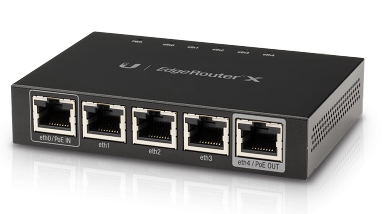
Ubiquiti ER-X

There was nothing wrong with my almost 5-year old Buffalo router, but after hearing Steve Gibson talk about the $50 Ubiquiti EdgeRouter-X on episode #569 of the Security Now! podcast, I knew it was time to replace the Buffalo.

Unlike most consumer/home routers, the ER-X has no built-in wireless. It’s a router, not an access point. This wasn’t a problem for me since I hadn’t been using the Buffalo for wireless since I had put in the Ubiquity UniFi AP two years ago (and now my AP and new router are from the same manufacturer). Also unlike your average consumer router, the ER-X has five logical interfaces behind its five physical ports (eth0 – eth4). This means you can configure the individual ports however you want. Each port can be its own separate subnet, you can group ports into a switch, bridge ports, etc. (I’m using the traditional 1 WAN port (eth0) plus 4 switched ports (eth1 – eth4) setup). The ER-X can be powered with the included AC brick, or via (non-standard, not 802.3af) 24V passive PoE input on eth0 (which can then do PoE passthru to eth4 to power, say, a UniFi AP). For now I’m using the AC adapter and not PoE.

For the past 9 years I’ve run DD-WRT on my home routers but now, with the ER-X, I’m learning Ubiquiti’s EdgeOS. It’s got a pretty slick interface, although not all of the router’s features are available to configure through the GUI (like setting up a PPTP VPN connection), so some command line interface (CLI) interaction is required. SSH’ing into the router and using the shell to set the more advanced options should be familiar to anyone with Linux experience (once you learn a few Ubiquiti-specific configuration commands).

The driving factor behind switching routers was attempting to re-organize my home network with three separate, isolated segments:

I’m still finalizing the configuration, but so far I’ve set up the three wireless SSIDs on the UniFi AP and tagged two of them (guest and IoT) with VLANs. On the ER-X, I created the two VLANs (on the switch), tagged them on eth4 (the port connected to the AP), set up DHCP servers for the three segments on 192.168.1.0, 192.168.5.0, and 192.168.10.0 and confirmed that the wireless devices on a VLAN get an IP address on the corresponding subnet.

I’ve been having some problems with the firewall setup, so I still have some items to get working:

  • allow pings from VLAN1 to VLAN10 (for Nagios monitoring)
    • update: I wasn’t able to get this working so I put the (previously unused) wireless adapter in my server on the VLAN10 network so it had access to ping devices on that network
  • guest devices on VLAN5 can’t find the UniFi controller on VLAN1 so they don’t load the captive guest portal
    • update: I gave up trying to get this to work. I tried all sorts of firewall rules and other suggestions from people on the EdgeMAX forums but just could not get unauthorized guest devices on VLAN5 to see the UniFi controller
  • learn how to write firewall rules for true subnet separation (except for the Nagios requirement above)
    • update: I got these working using this information as a baseline (along with help from EdgeMAX forum members). Basically I wrote two pairs of rules (one IN and one LOCAL for the guest and IoT VLANs) that prevent them from talking to the primary LAN and each other.
  • separate a wired device on eth2 to be part of VLAN10
    • update: after re-doing some setup from scratch, I got this working on eth1 by setting the PVID to 10 for that port in switch0
  • NAT hairpin/loopback for the VLANs
    • update: despite having switch0.5 added as a LAN interface on the Port Forwarding tab, enabling the “Hairpin NAT” checkbox, and suggestions from the EdgeMAX forums members (like DNAT rules) I cannot get devices on the guest VLAN5 to access local services (like access to this blog).

The ER-X is a pretty advanced device for $50 and I’m looking forward to learning more about advanced networking topics as I tweak it. Just so long as my family can deal with the home network going down a lot as I make mistakes. 🙂

Amazon Music

Now that I have an Amazon Echo in the house, I wanted to be able to play my music collection by just asking Alexa to do it. Since the Echo relies on the cloud, it can only play local music when it’s paired to a device as a speaker. So I could pair my iPhone or PC to it and play music from iTunes, but that’s so … manual! In order to say “Alexa, play some Oingo Boingo” and have her look at my own tracks instead of what’s available for free on Prime Music, those music files needed to be in Amazon’s cloud so I decided to try Amazon Music.

Prime subscribers can upload up to 250 tracks to their Amazon Music library for free, but I have about 20x that many songs so I paid the $24.99 for a year of the service, which increases the limit to 250,000 songs (a lot more than I have). This is in line with what Apple charges for iTunes Match but Google Music (which I’ve been using as just another cloud backup for my music library) is free up to 50,000 tracks. The Echo doesn’t work with Google Music though, obviously, as Amazon wants to keep you in their ecosystem, so I paid for the subscription, downloaded the app, and started uploading my library.

Read more

TiVo Bolt

TiVo BoltIt’s been three years since I bought my last TiVo and now that I have a 4K TV I wanted to be able to watch some 4K content. Despite Rovi’s purchase of TiVo and the uncertainty of the future of the hardware business, I purchased TiVo’s latest Series6 model, the TiVo Bolt UES (Unified Entertainment System).

I went with the smaller (500gb for 75 HD hours) hard drive model because in retrospect, my six tuner, 3TB Roamio Pro seemed to be overkill for my needs: even with two Minis in the house I didn’t see a lot of tuner contention and that DVR’s hard drive hardly went above 20% utilization. Hard drive upgrades are pretty simple, though, should I need to expand the Bolt’s recording capacity. This is also the first TiVo I’ve owned since my original Series2 boxes that I haven’t purchased the lifetime service plan for. Instead, I went with the annual fee, figuring this would make it financially easier to replace the box in the next few years if something goes wrong with it (lifetimed units aren’t eligible for the Continual Care Warranty), or a newer, better model comes out (despite the Rovi’s ownership) and I want to upgrade.

Read more

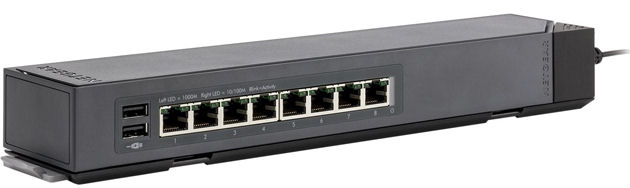
Netgear GSS108E managed click switch

Netgear GSS108ELast week at work we received a pair of Netgear ProSafe gigabit managed click switches (the 8-port GSS108E and 16-port GSS116E) to outfit a conference room. I was impressed with the mounting options and after seeing the 8-port one was less than $50 on Amazon, I decided to get one for my home office.

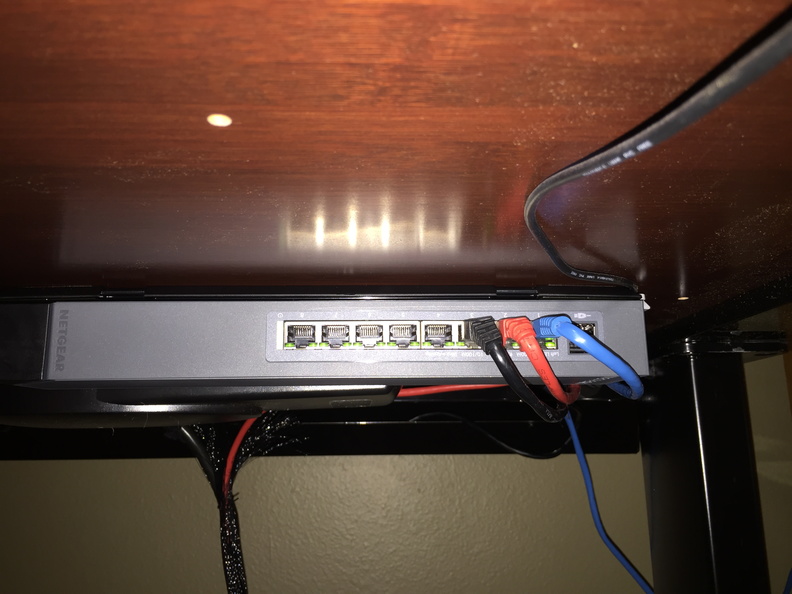
The GSS108E replaced a TRENDnet TEG-S80g (a sturdy metal, 8-port gigabit switch), which I had sitting on top of my standing desk. The click switch can be mounted in four different ways, and the power cable attaches in two different ways to accommodate most installations. I attached the plastic mounting plate to the underside of my desk (with the included screws but opted not to use the additional adhesive pads), clicked the switch onto the plate, and then re-ran my cabling. The result is a cleaner desktop and some extra USB charging ports easily accessible under the desk. Unfortunately in this position the labels on the ports are upside down, which seems like a slight design oversight.

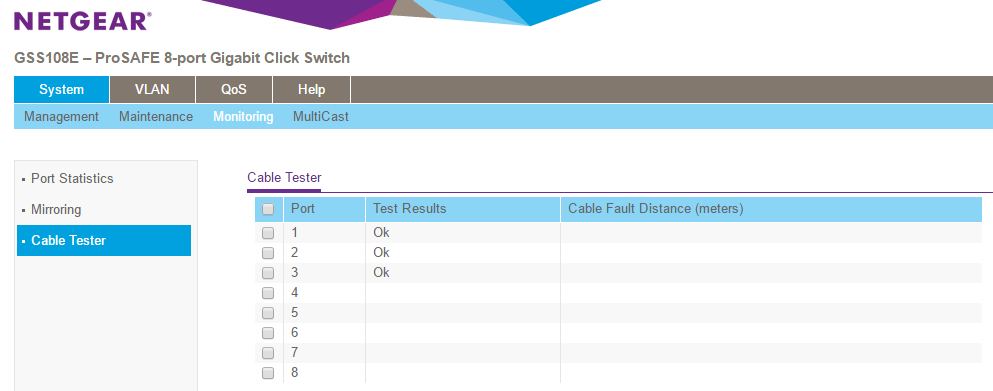
The plastic GSS108E and metal GSS116E are managed switches, so you can log into their web interfaces and do some basic configuration like setting up VLANs, enabling QoS, configuring mirror ports, performing cable tests, or turning off the LEDs. Not features I need in my home office but not bad for a sub-$50 piece of hardware.

Let’s Encrypt! Switching to HTTPS …

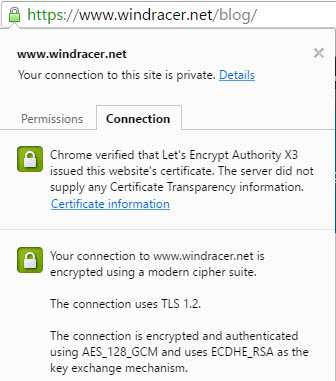
Let's Encrypt SSLYou may notice something different about ‘chmod 644’ today … a green HTTPS padlock in your browser’s address bar. That’s because my domain is now using an SSL certificate from Let’s Encrypt.

The Let’s Encrypt project is a certificate authority (CA) that aims to bring free and open encryption to the web. I first heard about it back in 2014 on episode #483 of Steve Gibson’s Security Now! podcast. The project went into public beta in December 2015 and at the time I played around with generating a certificate but then got busy and never ended up actually using it. Certificates issued by Let’s Encrypt need to be renewed every 90 days so in early March (shortly after the 1 millionth certificate was issued) I received a notification that it was going to expire and, since I still didn’t have the time to properly implement SSL, I just let it.

Finally, the other week, I had some time and decided to give it another go, starting from scratch.

Read more

Linux on Windows 10

The latest Fast Ring Insider Preview build of Windows 10 (14316) includes the new Windows Subsystem for Linux (WSL) that Microsoft announced at their Build conference last week. I have to admit, I kind of enjoy being able to open a bash prompt on my PC and using Linux commands to interact with the file system, use vi to edit files (yes, I use vi!), and running shell scripts. I haven’t had a lot of time to use it in-depth but it will be interesting to see what kind of cool stuff can be done with this.

bash shell under Windows 10


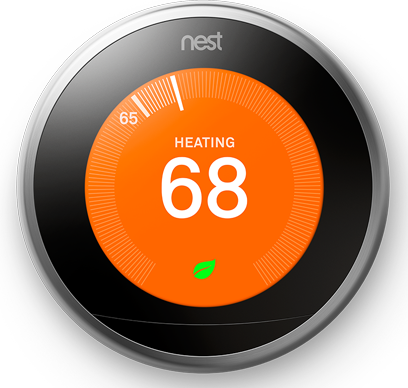
Nest 3rd gen learning thermostat

Nest thermostat

I’ve been wanting to try the Nest learning thermostat since the first one was released back in 2012. At the time, though, I had just installed my ADT Pulse and Z-Wave home automation system. Putting in the Nest would mean using a separate app to control my home’s temperature outside of Pulse with no integration between the two systems.

Fast forward to 2015: in July, ADT announced that Pulse now supported the Nest and in September, the 3rd generation of the learning thermostat was released. The Honeywell Z-Wave thermostat that I had added to my Pulse system in 2013 was functional, but not “cool” so I finally decided to give the Nest a try.

Read more