Zoning in on the Zesty Zapus

It’s mid-April, which means it’s time for my annual post about spring sports and Linux upgrades! šŸ˜‰ First, sports …

For the first time in four years my Tampa Bay Lightning are not in the Stanley Cup Playoffs. They were in last place back in February and just missed squeaking into the last wild card spot but fell short. The Cleveland Cavaliers are back in the NBA playoffs, though, and start the first round against the Pacers tomorrowĀ looking to defend their 2016 Championship title. The Tampa Bay Rays and defending 2016 American League Champions Cleveland Indians are off to slow starts, but it’s only April and there’s a long road ahead. On the NFL front, everyone is wondering what the Cleveland Browns will do with their #1 draft pick in two weeks and will actually play the Bucs here for a preseason match-up.

Now on to the new Ubuntu release, 17.04 Zesty Zapus.

Despite being released, I had to use do-release-upgrade -dĀ to kick off the upgrade to Zesty (without theĀ “development” flag it thought there was no new release available yet). Unlike last time, I had no issues with screen and the whole process (downloading the new packages and applying them) went smoothly. I re-applied my customizations to the affected configuration files, rebooted the server, and was back in business.

$ lsb_release -a
Distributor ID: Ubuntu
Description: Ubuntu 17.04
Release: 17.10
Codename: zesty

$ uname -r
4.10.0-19-generic

As expected, I had a few post-upgrade issues that needed to be addressed (nothing major):

  • calibre wouldn’t start in my vnc session: I had to resize the library.png splash screen image from 1024×1024 to 256×256
  • home-assistant wouldn’t start: I had to re-create the python virtualenvĀ setup (I haven’t posted about using home-assistant yet, I’ll try and get to that)
  • the upgrade to vim 8.0 caused a few annoying problems: I had to tweak some settings in /etc/vim/vimrc
  • rather than using my old static /etc/motd, I customized and started using the /etc/update-motd.d scripts for a dynamic login banner

Canonical has now reached the end of the alphabet for their release code names. What name will 17.10 bring us in October? Check back with me then (when hopefully my Cleveland Indians are back in the World Series)!
Web Power Switch 7

Web Power 7

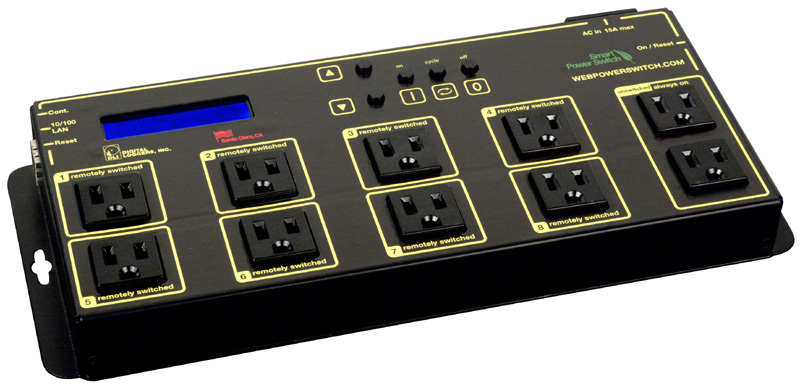
Over Christmas vacation I had a network outage that left me without remote access to my home network for a week. While I was at my in-laws, unable to connect to my server or cameras, I started researching options for out-of-band management of my home network.Ā I started with cellular devices like this, but they all seemed to be GSM (2G) and most carriers are shutting down those older networks. I decided instead to go with a ā€œsmartā€ power strip, the Web Power Switch 7, which can power cycle devices plugged into it based on network connectivity criteria.

Read more

Trackr Bravo

Trackr Bravo

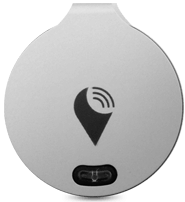
There’s no shortage of Bluetooth trackers out on the market. These are small devices you can attach to your car keys, wallet, pets, etc. and then pair to an app on your smartphone so you can presumably find them when they’re lost or misplaced.Ā I recently picked up three TrackR BravosĀ (one for my keys, one for my wife’s keys, and one for my daughter’s wallet) to see how they would work.

The Bravo is one of the smallest of the trackers out there, barely larger than then user-replaceable CR1620 battery that powers it. It’s metal, and comes with a ring for your keyring, and a small adhesive sticker if you’re going to mount it on something instead. A small blue LED also doubles as a button for pairing or finding your phone (more on that later). Set up is fairly straightforward: install the Trackr app on your phone, create an account, and step through the wizard for pairing the Trackr Bravo with your phone over Bluetooth.

Read more

Yelling at the Yakkety Yak (but it won’t talk back)

Ubuntu 16.10 (Yakkety Yak) was released almost two months ago, but I only just realized I hadn’t upgraded yet (this happened to me during the last .10 release as well). This upgrade was a little smoother thanĀ last time, but not without its hiccups.

The upgrade processĀ uses screen to keep everything running separately in a separate shell in case you’re disconnected (I run a headless server, remember). The download of all the upgrade packages went just fine, but at the first configuration file difference (where you’re prompted to keep the maintainer’s version or your customized one), after I viewed the details of the change screen terminated and I wasn’t able to reconnect to the session! I triedĀ sudo screen -list followed by sudo screen -d -r root/30719.ubuntu-release-upgrade-screen-window but that just reconnected me to the terminated screen session and dpkg wouldn’t resume because another process was already running. I had to manually kill all the upgrade processes and the use sudo dpkg --configure -a to resume the reconfiguration step. The rest of the upgrade went fine, luckily.

Post-upgrade, I re-applied my changes to the affected configuration files. Additionally, I had to update the Blowfish secret for phpMyAdmin to fix an error there. I also had an issue with wpa_supplicant (my server has wired and wireless NICs) that I had to fix to be able to re-connect to the WiFi network (hence the reference to “it won’t talk back” in my post title šŸ˜‰ ).

Next year we’ll get 17.04 Zesty Zapus. Will Ubuntu then wrap around back to “A” names?

Leaving Evernote for OneNote

I seem to be saying goodbye to a lot of long-used software this week … first Trillian, and now Evernote.

I’ve been an Evernote user since 2009, and a Premium annual subscriber since 2014. Their recent price increase announcement, however, would cause my $45/year subscription to jump to $70 next February when my renewal comes up. That steep of an increase started me wondering if I really needed a Premium subscription, or if I needed to continue to use Evernote at all. I keep a lot of stuff in Evernote, and have spent a significant amount of time maintaining and tweaking the data in it (like my recipes, home inventory, etc.) so I wasn’t necessarily looking forward to making a switch, but decided I should at least check out the alternatives.

The obvious replacement was Microsoft OneNote. I’m already paying about $80/year for my household Office 365 subscription, and started using OneNote heavily at work once I got my Surface Pro 3 in 2015 (and continue to do so with my Surface Pro 4). OneNote does all the same cloud syncing that Evernote does, supports multiple devices (like my iPhone), and has decent search and share capabilities, so I decided to give it a shot as my Evernote replacement.

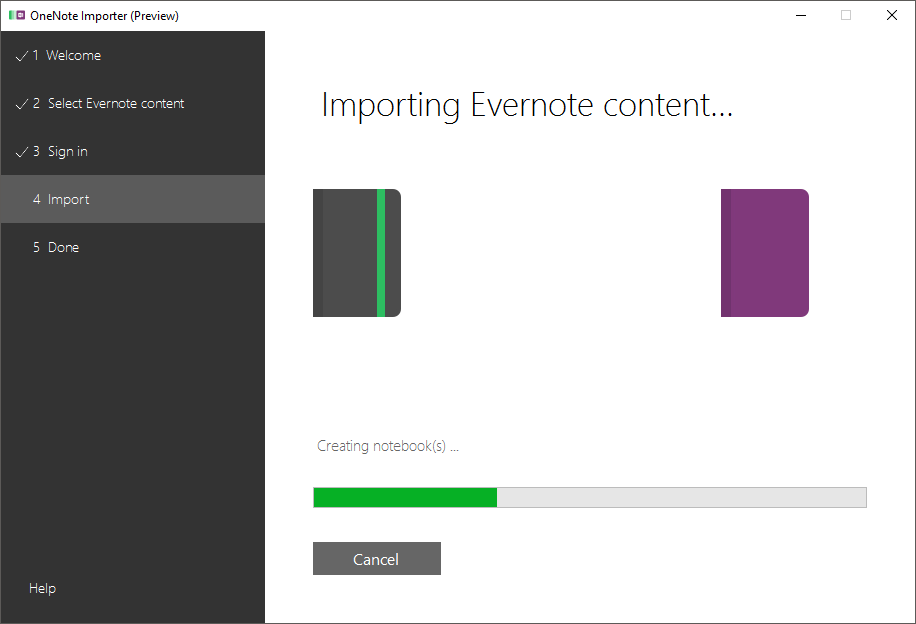
Migrating was actually amazingly simple. Using Microsoft’s importer, I just had to select the Evernote notebooks I wanted to import, login to OneNote, and let the process run:

OneNote Importer

A short time later, I had all 1200+ notes in OneNote notebooks and sections (you can find more detailed migration instructions here and here). It’s not perfect, to be sure: my PDF attachments appear as attachmentsĀ andĀ printouts in the converted notes, tags are just #text in the notes so you can’t easily view a list of tagged documents) but it’s pretty close. I still have some cleanup to do and it’s only been a few days since my migration, but hopefully I don’t run into any major problem that makes me regret my decision.

Also, if you’re going to use OneNote heavily, I recommend checking out Onetastic.

A Farewell to Trillian

I’ve been a Trillian Pro user since 2004 but the time has come to drop my favorite cross-platform instant messaging client. Apparently Yahoo is shutting down the legacy servers that run the old Windows/Mac client versions of Yahoo Messenger (in favor of the webĀ andĀ mobile versions) on August 5 so Trillian will no longer work with that service. Couple that with a security breach on July 4 that resulted in the permanent shutdown of the Trillian user support forums and blog and I found it hard rationalize keeping the software installed. Now I’m glad I hadn’t yet paid to renew my Pro subscription for the new 6.0 version of the client.

Amazon Music

Now that I have an Amazon Echo in the house, I wanted to be able to play my music collection by just asking Alexa to do it. Since the Echo relies on the cloud, it can only play local music when it’s paired to a device as a speaker. So I could pair my iPhone or PC to it and play music from iTunes, but that’s so … manual! In order to say “Alexa, play some Oingo Boingo” and have her look at my own tracks instead of what’s available for free on Prime Music, those music files needed to be in Amazon’s cloud so IĀ decided to tryĀ Amazon Music.

Prime subscribers can upload up to 250 tracks to their Amazon Music library for free, but I have about 20x that many songs so I paid the $24.99 for a year of the service, which increases the limit to 250,000 songs (aĀ lotĀ more than I have). This is in line with what Apple charges for iTunes Match butĀ Google MusicĀ (which I’ve been using as just another cloud backup for my music library) is free up to 50,000 tracks. The Echo doesn’t work with Google Music though, obviously, as Amazon wants to keep you in their ecosystem, so I paid for the subscription, downloaded the app, and started uploading my library.

Read more

eXamining the Xenial Xerus

Ah, April. The Stanley Cup Finals have started and my Tampa Bay Lightning have already advanced to round 2. The NBA Finals have also started and my Cleveland Cavaliers are looking to sweep the Pistons on Sunday and move on to the conference semi-finals. We’re about a month into the new baseball season and both my Rays and Indians are off to slow starts. The NFL draft starts in a few days, which mean new hopes for the Browns (including RG3) and Bucs.

Besides the confluence of sporting events, though, April means a new Ubuntu release! 16.04 LTS, Xenial Xerus arrived this past week and per my usual, I proceeded to immediately upgrade my server.

Read more