If you work in IT, especially tech support, you’ve got to watch this. Hilarious and well done! (Warning: portions potentially NSFW)
tech
Tethering the Treo 680 and Eee PC
Next week I’ll be taking a road trip vacation up the east coast which means a lot of time in the car. I thought it would be cool to be able to use my Eee PC in conjunction with my Treo 680’s data connection to get on the ‘net while (literally) on the road (instead of having to stop and find an open wireless access point). And no, I wouldn’t be doing this while driving. 🙂
Normally mobile broadband would involve some sort of cellular modem for your laptop in conjunction with an expensive data plan (like AT&T’s solution). Most of those products don’t take Linux into account, however, and I already have an unlimited data plan on my Treo.
I came across a thread on the eeeuser forums that got me started: using Mobile Stream’s USBModem utility on the Palm allows the Eee to see it as a normal modem when connected via its USB sync cable. Then I created a new dial-up networking connection on the Eee, fired it up, and wallah! Internet access through my cell phone.
Granted, the Treo is not a 3G device, which means Edge speeds (see the screenshot below) but I’m not expecting to stream video off of YouTube, just check my mail and browse the internet.
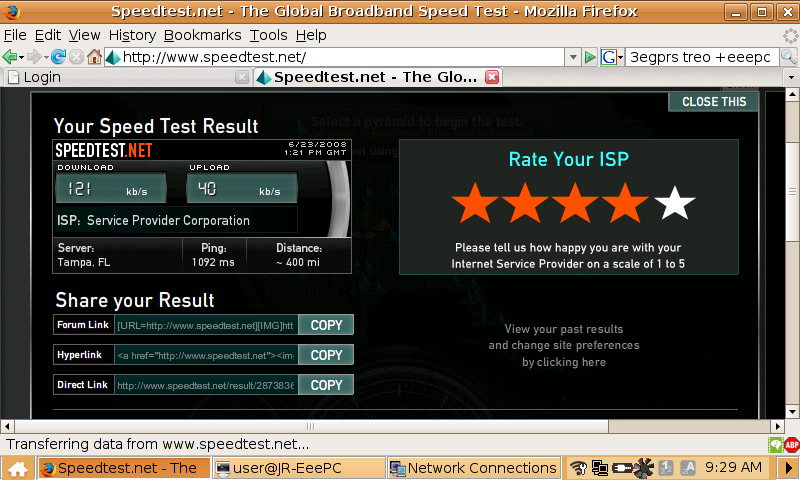
It didn’t work right away, though. I had to do some tinkering to get the settings just right. You can find the details in my reply to that thread on the eeeuser forums.
Vista search broken after SP1
I ran into another Vista SP1 problem this evening.
Whenever I used Start-Search, or the Win+F shortcut, I got the following error:
search: This file does not have a program associated with it for performing this action. Create an association in the Set Associations control panel.
Google to the rescue again! Apparently something in SP1 can cause registry permission errors on certain keys, which breaks Vista’s search feature. Wonderful.
Using the instructions in this post from the Winhelponline blog, though, I was able to fix the problem!
Firefox Download Day
Help set a new Guinness world record for most downloads in a 24-hour period by downloading Firefox 3.0 today! The event starts at 10am PDT.

Put a little style in Apache’s directory index
While researching a problem I was having with Apache I came across indices, a “neat set of hacks” that adds some style to Apache’s default generated indexes. Using Scott Evan’s scripts, I was able to change my directory index from this:
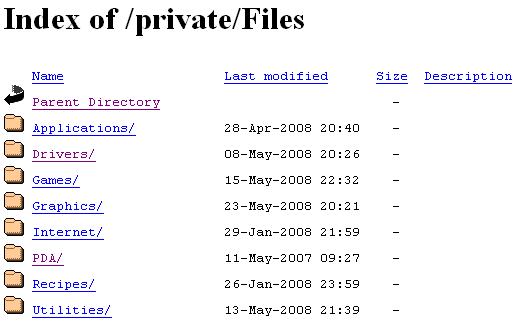 to this:
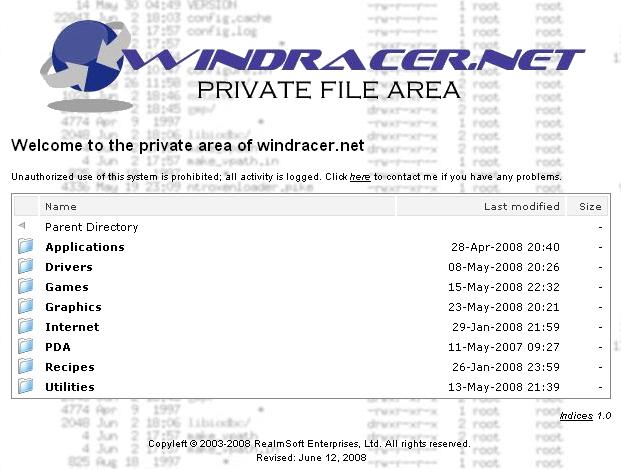
Much nicer!
I was “on” Buzz Out Loud!
Tom and Molly read my e-mail about AT&T’s Enterprise Data Plan (and the lack of text messaging) on yesterday’s episode of Buzz Out Loud (#743). The text of my e-mail is in the show notes and their discussion of it starts at the 30:28 mark in the podcast.
This is the second time I’ve had an e-mail read “on-air” by the Buzz crew. My first was back on episode #521 (Veronica’s last episode) when I pointed out that Molly mistook X-Wings for TIE fighters. The fun in that one starts at right at the very beginning and then continues 32:00 in. I felt kinda like the comic book guy on “The Simpsons” after pointing that out. Sorry, Molly! 😳
If you don’t listen to BOL (“CNET’s podcast of indeterminate length”), give it a listen!
The Heron takes flight
Today I did an in-place upgrade on my server from Ubuntu 7.10 (Gutsy Gibbon) to 8.04 (Hardy Heron) and it went pretty smoothly (considering I did it remotely over an SSH connection). I had to re-apply a few customizations to various config files but for the most part all of the hard work I’ve done tweaking server since initially setting it up last October was preserved. Nice work, guys!
It’s a bad Monday morning when …
… the office coffee machine is displaying a message that suspiciously resembles a Windows system error:

Luckily, just like Windows, rebooting it resolved the issue. 😀
Vista SP1 + ZoneAlarm = no VPN
When I wrote about my Vista woes I mentioned how ZoneAlarm would keep causing Vista’s tcpip.sys driver to BSOD, which forced me to go back to the Windows Firewall. Well, a month had gone by so I figured that I would give ZoneAlarm on Vista SP1 another try. I installed the free version (7.1.254.000) and went a whole week without a single crash! I was happy in thinking the problem had been resolved.
Then on Wednesday I needed to VPN into work to fix a problem … and couldn’t connect. At first I thought that I had just forgotten to configure ZoneAlarm’s trusted zones properly, but the settings all checked out. There was nothing in the firewall logs about any connections being blocked either.
A few Google searches later, I learned that apparently SP1 and some third-party firewalls (like ZA) have broken the VPN client in Vista. There are a lot of posts on Checkpoint’s forums and even MS TechNet about the issue, but there’s no resolution yet.
Well, no resolution except uninstalling ZoneAlarm. 🙁
So that was it … I’ve removed ZA and my VPN connection is working again. It’s back to the Windows Firewall for me until I can find a suitable replacement.
Take your apps with you
I bought a Corsair 2gb Flash Padlock last August after hearing Steve Gibson and Leo Laporte talk about it on the Security Now! podcast (episode #106). I use it primarily for shuttling files back and forth between my home and work computers (in a TrueCrypt container), but have also configured it as a bootable device so I can run the Ultimate Boot CD from it (which is handy when I’m asked by friends or family to work on their broken computers).
Some other neat things I keep on it are the portable applications from PortableApps.com. You simply download the PortableApps Suite (or the individual applications you want) and then install them onto your USB flash drive. No information is written to your local PC’s hard disk … everything is encapsulated on the flash drive. You can now plug your flash drive into any PC and run your applications without worrying about having to install them locally, or leaving any personal information (say, browsing history) behind when you’re done.
I keep the usual portable suspects on my Corsair: Firefox for web browsing, Thunderbird for e-mail, Pidgin for instant messaging, PuTTY for SSH connections, etc. Those are all available for download and install from the PortableApps site. However, you can also add your own portable applications and have then run from the PortableApps custom start menu.
For example, I’ve added TrueCrypt, JungleDisk, Bucket Explorer, and mRemote to my personal portable utility arsenal.
Keep in mind that not every application is automagically portable: it needs to be specifically coded to not use any local PC resources (like .ini files, the registry, etc.). So you can’t just dump a program into the PortableApps directory on your flash drive and expect it to work. Do your homework (i.e., search Google) though, and you’ll find plenty of portable applications out there.
Start building your own utility belt today!