1TB of storage at home, nice!

Shortly after the new year began, I started converting all of my DVDs (and even some old VHS tapes!) into MP4 format with the goal being immediate access to my entire video library on any TiVo in the house using tools like pyTivo or streambaby. About two weeks into the project it became readily apparent that my 250gb Buffalo Linkstation NAS wasn’t going to be enough to hold all of the encoded video so I started shopping around for a larger unit.

I’ve been very happy with my Linkstation … it’s been very reliable and there’s a large community of enthusiasts over at NAS Central writing custom firmware and hacks for these boxes. So naturally I started looking at Buffalo’s more current NAS offerings along with other devices like hp’s MediaVault. Eventually I decided I wasn’t quite ready to pay extra for the reduced capacity (but increased reliability) of a RAID-enabled NAS when I could get more raw storage space for my money instead.

After a lot of back-and-forth, I decided on the Buffalo Linkstation Live LS-CHL. This stylish little black box packs a mini Linux server with a 1TB (yeah, terabyte!) drive into a package smaller than my 500gb WD MyDVR Expander. Like my current Linkstation it requires no software on the client side so it works seamlessly with Windows, Macintosh, and Linux. Just plug it into your network (oh yeah, it supports gigabit transfer speeds), configure it through your browser, map it as a shared drive and you’re ready to go.

The box does have a lot of features I won’t use but other people might:

  • I don’t need the USB print server because my Epson AcuLaser CX11NF is a network-attached multi-function laser printer/scanner/copier (the built-in print server on the Linkstation only supports printing anyway, not network scanning).
  • I don’t need the Web Access feature because I have my own web server which can access the Linkstation via a normal SMB share.
  • I don’t have any Macs in the house, so I don’t need the Time Machine service.
  • I don’t have any DLNA-certified devices in my home theater setup (and I use the utilities mentioned earlier in this post to send video to my TiVos).
  • I backup to Amazon’s S3 service in the cloud via JungleDisk, so I won’t use the Memeo backup software that comes with it.

It does have some cool features I like though, like the built-in Bittorrent client and e-mail alerts. It has a USB 2.0 port on the back for attaching another external drive for backups or expanding capacity (you can also use it to download photos directly from a digital camera, but that’s another feature I’ll never use since the NAS is in a closet and not on my desk). Finally, if you only need it running when the PCs in your house are running, you can have it power down when it’s not being used (but that does require installing some proprietary software from Buffalo).

One feature I could not get to work is the one that says “iTunes automatically makes the LinkStation available as a content source in your iTunes software.” I copied my iTunes folder to the share and enabled the Linkstation’s media server. I could then see the Linkstation as a “shared library” in iTunes, but it was empty. I couldn’t find anything in the documentation or on Buffalo’s support site on how this is supposed to work. I just gave up … my library is on my PC for easy (local) syncing with my iPod and I back it up to the Linkstation manually.

Over the weekend I copied all of my encoded video, my entire music library, and all of my photos from my PC and the old NAS to the new one … 555gb total! So I’ve got just under 400gb left on the NAS plus about 220gb remaining on the old NAS now that all of the video and music has been moved over. That remaining 600gb should last me a while …

1TB in the home for under $250. Amazing.

Easy Peasy upgrade on the Eee

I’ve been running Ubuntu Eee on my Eee PC for just over a month and am really happy with it. Earlier this week though, the new version of Ubuntu Eee, now re-branded Easy Peasy (as in “easy PC”) was released. I can’t say I love the new name (the new logo even has a lemon slice in it!) but it’s still Ubuntu underneath, customized for netbooks.

Since I’d spent a lot of time tweaking Ubuntu Eee and had it just the way I liked it, I decided to try an in-place upgrade (after making a full backup first, of course). It took a while but went smoothly and I’ve now got Easy Peasy 1.0 (or Ubuntu 8.10 Intrepid Ibex) running on the Eee.

Everything seems to be working just like before, with two exceptions:

  • I can connect (authenticate) to the VPN at work, but the routes don’t seem to work so I can’t actually connect to (or ping) any of my servers. Apparently a lot of people have issues with the new Network Manager in Intrepid so this is not something specific to Easy Peasy.
  • I can’t print to my Epson AL-CX11NF laser printer at home. The error says the pstoalcx11.sh “driver” is missing, but it’s there under /usr/local/bin where it was before.

So I’ve still got a little cleanup/tweaking to do.

Oh, one other “benefit” of doing the dist-upgrade instead of a fresh install: I’ve still got all the old Ubuntu logos, boot screens, etc. instead of the new Easy Peasy graphics. 🙂

ThrEee weeks later

So it’s been three weeks since I got my Eee PC. Is the honeymoon over? Nope!

I’ve spent the past three weeks carrying (and using) the Eee almost everywhere: taking it to work, having it in the car (in case I’m somewhere with free WiFi), etc. Even now I’m kicking back on the couch watching “CSI” and using it to write this. I’ve pored over the wiki at eeeuser.com, read and posted in the forums (the community there is awesome), and spent time customizing and tweaking the Asus-installed Xandros Linux to my liking. Thus far I’ve:

  • upgraded to 1gb of RAM: it took me longer to order the 1gb DDR chip than it did to actually install it (see here for a video of just how easy it is).
  • customized the interface: using tools like Theeemer, Tweakeee, and EMEditor, I’ve changed the default look-and-feel to something a little slicker looking (see the screen capture at the top of this post).
  • installed more applications: I’ve got TrueCrypt so I can access the encrypted volume on my thumb drive, JungleDisk to get to my files backed up with Amazon’s S3 service, and Maelstrom for a little entertainment.
  • configured it for work purposes: using the PPTP Client I can VPN into the corporate network and then login to my servers with rdesktop or run applications through Citrix.
  • gotten pretty good at accurately typing on the keyboard
  • played around with eeecontrol: this utility lets you increase the front-side bus speed (and thus get the CPU back to its normal 900MHz speed instead of the Asus-underclocked 630MhZ). I really haven’t had a problem with the Eee’s performance so I’ve left it alone for now. I still run eeecontrol in the tray, though, so I can watch the fan speed and temp.

It wasn’t all smooth, though. I had a real problem initially getting onto my wireless home network. It turned out that the default wireless driver/script doesn’t like spaces in the WPA key. Once I removed the spaces, the Eee connected just fine (and then I had to fix the WPA key on every other wireless device on the network). After that, I still had problems connecting to the wireless at work (which also uses WPA). Switching to the madwifi driver seemed to finally help in that regard (though I still get the dreading “Pending” status now and then).

The other difficulty was getting wireless printing to my Epson AcuLaser CX11NF working. The test page would “print” according to the Eee, but nothing would happen on the printer. It took some research, but I finally got it working (see my thread on the eeeuser forum for details).

My other minor nit is with the screen size. The 800×480 resolution means sometimes having to drag windows around with the Alt-left click trick in order to see portions that won’t fit on the screen. This also means that web sites that are designed for larger resolutions (like my daughter’s WebKinz site which is all Flash) involve a lot of dragging back and forth.

Overall, I’m pretty happy with my Eee. Asus has come pretty close to a hitting a home run with the cost, form factor and out-of-the-box usability. The new 900 model adds the 9″ screen with a slightly larger footprint but at the cost of a slightly larger price tag, so the original 701 series still seems like the better deal that hits the sweet spot.

(more photos of my Eee are posted here)

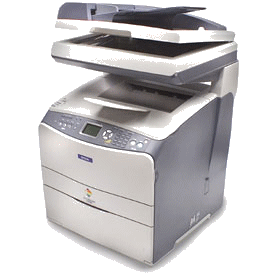
Epson AcuLaser CX11NF

Epson CX11NFMy Brother 3820CN multi-function printer fell prey to the dreaded Error 41 that seems to plague Brother machines. Now, in Brother’s defense, they did extend the warranty on my printer from 90 days to 24 months, but that 2 years just ran out in May so I was out of luck.

So I needed to get a new printer/scanner/copier/fax and decided to go laser … and not just regular old laser: color laser! (Ok, technically it was my wife’s idea, but I wasn’t going to argue!)

There’re only a few machines in market that would do everything I wanted to do: color laserjet printing, network built-in (including support for network scanning!), flatbed and ADF, etc. I read bad reviews about Brother’s entry in this segment and personally decided I was done with Brother anyway. My choice: the Epson AcuLaser CX11NF.

This MFC is identical to its cheaper sibling, the CX11N, but adds the fax capability and the ADF. Since it’s a laser printer, its much larger than my old Brother (those 4 toner cartridges have to go somewhere, after all!) but still fits nicely in my home office.

So far I am very impressed the ease-of-setup, printing/scanning speed, and print output of this device. I hope it lasts a little longer than my previous Brother did however (just over two years).

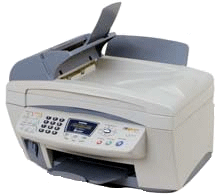
Brother MFC-3820CN multi-function printer

Brother MFC-3820CNMy old Brother MFC-7150 multi-function (color printer, fax, scanner, copier) was starting to get old. I hadn’t used it as a printer in months, maybe even years (it was at least before I got my Epson C80). It was still doing duty as my scanner, but that was about it, and it was time for a change.

Ever since I put in the home network, I’ve wanted to be able to scan over the network, rather than having to have the scanner directly connected to only one PC, so I decided my next multi-function would have to have network support. After surveying the field, I chose the Brother MFC-3820CN. For under $200, you get a flatbed/sheetfed color scanner, copier, printer, and fax machine. It also has media card slots to allow for printing photos right off Compact Flash, Smart Media, etc. The built-in networking capability allows me to print, fax, or scan from any PC on the network, and you can even scan to e-mail! Very cool.